Viewers see your SketchUp modelling updates in real time by default. Everyone viewing the model sees each change and, if cursors are visible, the tool you use.
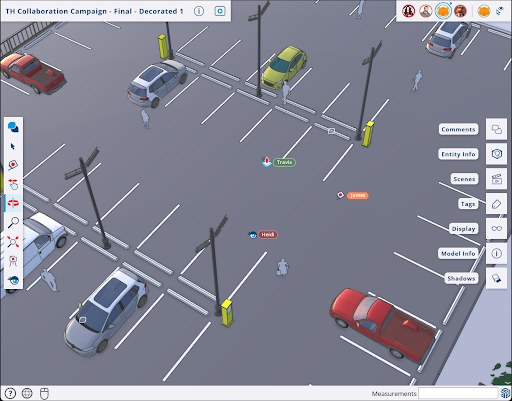
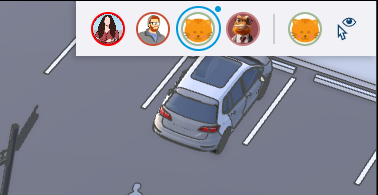
Collaborators view your model through a simplified interface in a web browser. The model name appears near the top left. The top right shows each viewer's highlighted avatar alongside the avatars of other collaborators viewing the model. Anonymous users receive an assigned avatar. Show/Hide Cursors is also in the top right.
Viewers with the required access can use these features to navigate and interact with your model:
- Camera Follow - Click another user's avatar in the top right to follow their camera view. Click your own avatar to have everyone in the model follow you.
- Comment (
 ). Viewers who join through a private invite with Comment access can leave comments with the Comment tool. With the tool active, hover over an object and click the exact spot for your comment. See Commenting on a Model for more information.
- Navigation Tools. Viewers who join through a private invite with Comment access or a General Access link with View Model access can use all available navigation tools, including Pan, Rotate, and Zoom. They can also use Tape Measure and the Measurements box to take measurements in your model.
- Panels are available to viewers. Viewers can change options in these panels when no editor is present.
- Comments opens the Comments panel. Viewers can read each comment and navigate to its location in the model.
- Entity Info shows information about an entity selected in the model, as in other versions of SketchUp.
- Scenes lets viewers navigate between scenes, select a specific camera angle or choose one of SketchUp's standard views.
- Tags lets viewers see your Tags and toggle their visibility.
- Display lets viewers turn display options on or off.
- Model Info shows the standard Model Info panel with basic details, including the model's unit of measure.
- Shadows lets viewers change shadow settings.