In SketchUp, you can edit a whole component or individual entities inside it.
Editing or modifying a component instance as a whole affects only the component instance, not the component definition or other instances. You can make these edits to a whole component:
- Scale: Scaling a whole component changes only that instance, so you can have instances of the same component at different scales. Scaling in multiple directions can skew the component. To reset its scale or skew, context-click the component and select Reset Scale or Reset Skew. Use the Scale tool (
 ) as explained in Scaling Your Model or Parts of Your Model.
- Flip: To flip (mirror) a component along an axis, context-click it, select Flip Along, then select Component's Red, Component's Green, or Component's Blue.
- Rotate: Rotate a component with the Rotate tool (
 ) or the Move tool (
 ). The Rotate tool gives you more control over the rotation plane and centre of rotation.
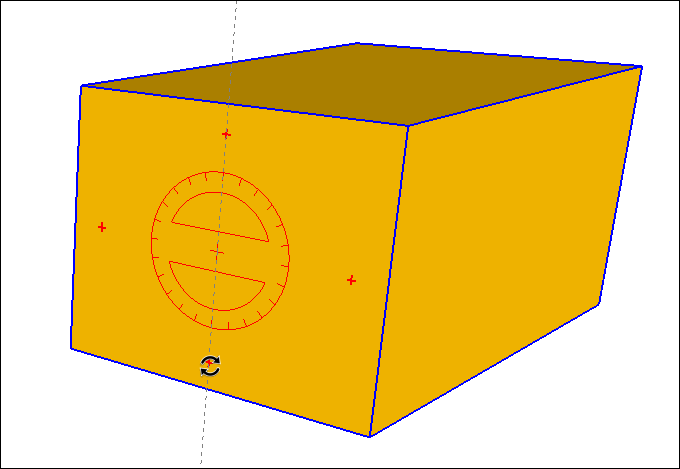
See Flipping and Rotating for instructions on flipping and rotating geometry. To rotate a component with the Move tool, hover the tool over a face perpendicular to the axis you want to rotate around. Wait until four rotation handles and a protractor appear on the face. Click a rotation handle and rotate the component.
Editing entities inside a component changes its definition and all other instances of that component in your model.
You can also save an edited component, reload its original file, or break it into its entities:
- To save an edited component as a separate file with a new name, select the component, context-click it, and select Save As. Choose where to save the
.skpfile, enter a new name, and click Save. - Reloading replaces any edits. To reload a component from its original file, context-click the component and select Reload.
- To break a component back into its entities, select the component, then select Edit > Component Instance > Explode from the menu bar. Alternatively, context-click the component and select Explode.