In SketchUp, components turn grouped geometry into separate entities you can reuse. Add attributes to a basic component to create a configurable Dynamic Component. Use a SketchUp Live Component for more configuration options.
Getting started with components
Before you create or insert components, learn how their definitions and instances work.
Every component has a definition and an instance. The definition sets how components of that type look and behave in the drawing area. When you insert a component into your model, you create an instance based on that definition.
For example, you want to add a premade component called Framed Half Door with Double Panel to your model.
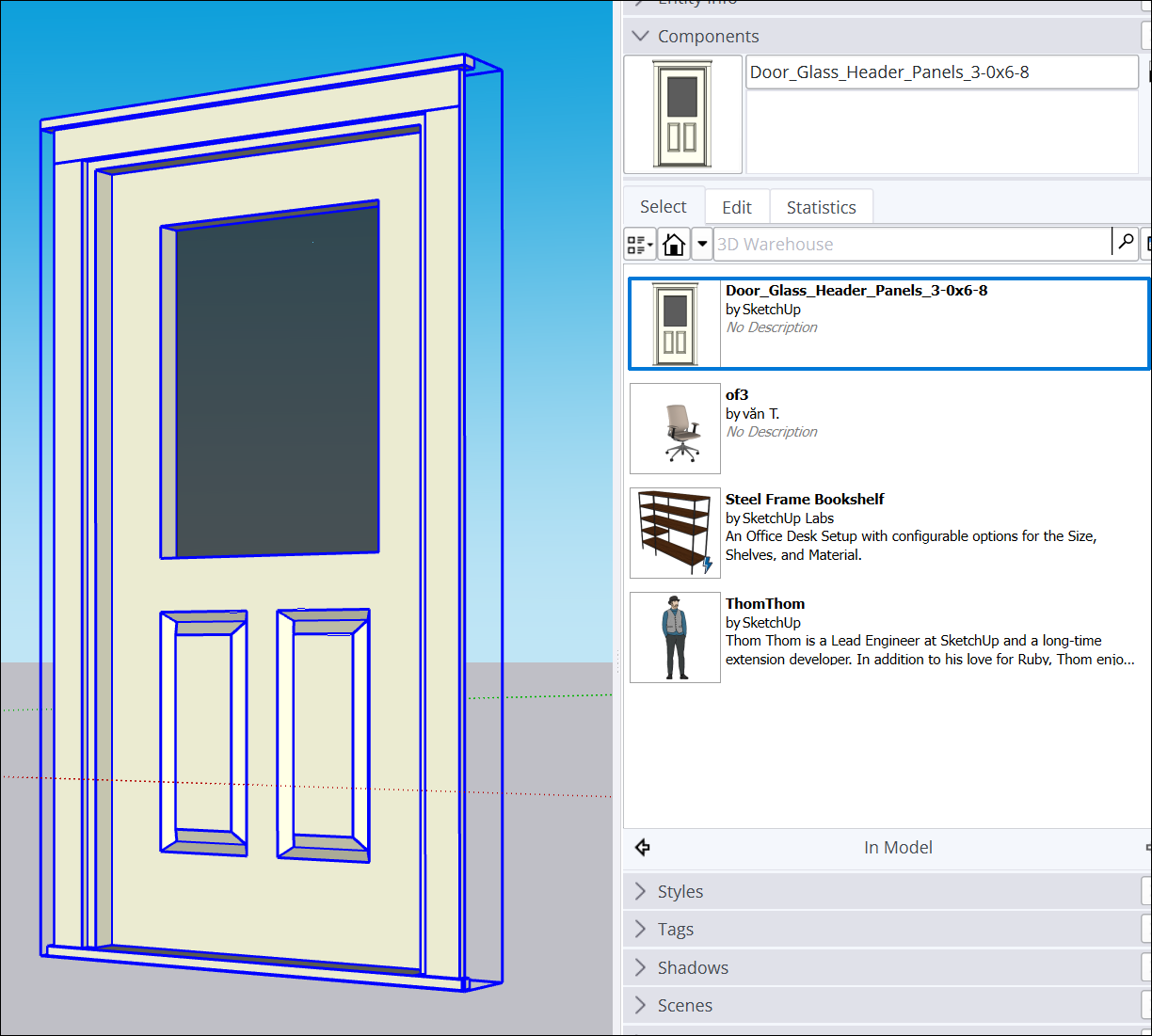
The component definition sets how the door looks. You can insert as many instances of that component into your model as you need.
When you edit an entity inside a component, you also change its definition. If you change the door's glass, the glass changes in every instance. If you change the double panel to a single panel, every instance of that door has a single panel.
Scaling, rotating or flipping a component instance leaves its definition and other instances unchanged.
You can replace all instances of a component with another component. For example, you can swap every instance of Framed Half Door with Double Panel for a different door.
Follow these three basic rules when you work with components:
- Rule #1. Make anything you use more than once in your model a component. Before you copy an entity or group, make it a component, then copy it.
- Rule #2. Use tags to organise your groups and components. See Controlling Visibility with Tags.
- Rule #3. Make a component unique when you want it to differ from others with the same definition.
Use these articles to learn how to work with components:
- Components in 3d Warehouse explains how to search for components in 3D Warehouse.
- Adding Premade Components and Dynamic Components explains how to insert, replace and organise basic and dynamic components.
- Snaps explains how to position and orient objects at the same time.
- Editing Components explains how to change a component's definition and behaviour.
- Creating a Basic Component explains how to create a component, choose alignment options and set advanced attributes.
- Creating Common Types of Dynamic Components explains how to create specific types of dynamic components.
- SketchUp Live Components explains how to find Live Components and adjust their configuration to suit your designs.
- Sharing Components explains how to share your components with 3D Warehouse.
- Referencing Dynamic Component Attributes, Functions, HTML Tags, and Operators provides guidance, references and examples for dynamic component attributes, HTML tags and operators.
- Adding intelligence using Dynamic Components explains how to add background information to your dynamic component.