SketchUp's Follow Me tool ( ) moves a face along a path to create a 3D shape. Use it to model details that follow a perimeter or edge, such as crown moulding or gutters. You can also model lathed objects, such as spindles, bowls and vases.
Follow Me has two versions: the basic Follow Me tool (icon) and the Procedural Follow Me tool (icon).
The basic Follow Me tool creates edges and faces like other geometry you draw in SketchUp. You must edit these edges and faces individually. If you need to make a change, you often need to repeat the entire operation.
Procedural Follow Me turns the path and extruded shape into a non-destructive procedural component. You can edit it like other components in SketchUp.
Using Follow Me
Both basic Follow Me and Procedural Follow Me have two workflows: automatic and manual extrusion. For automatic extrusion, select a path before activating Follow Me. For manual extrusion, activate the tool first.
Automatic extrusion
To extrude a face automatically, follow these steps:
- Choose the geometry in your model to use as a path.
- Draw the face profile perpendicular to the path. The profile does not need to connect to the path.
- Use the Select tool (
 ) to select a continuous set of edges for the path. Hold Shift to add more edges if needed.
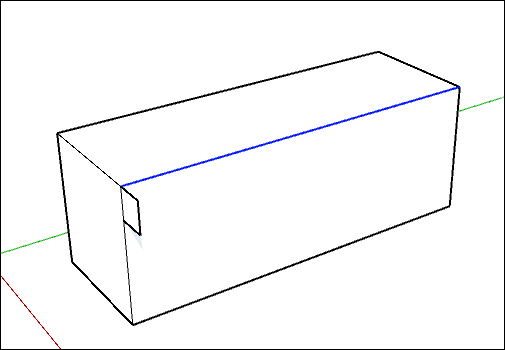
- Activate the Follow Me tool (). The edges from the previous step stay selected, but their highlighting disappears.
- Click the profile you created. Follow Me extrudes it along the selected path.
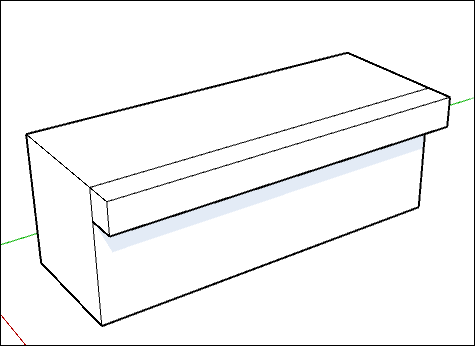
Manual extrusion
To extrude a face without selecting edges first, follow these steps:
- Choose the geometry in your model to use as a path.
- Draw a face or profile perpendicular to the path.
- Activate the Follow Me tool ().
- Click and drag the face along the path. Keep the mouse pointer touching the edge you are following. SketchUp highlights the path in red as you drag.
- Press ESC at any time to start again.
- Click again at the end of the path to finish the extrusion.
Modelling a cylindrical shape
Use Follow Me to create a symmetrical cylindrical shape, like one made on a lathe. Follow these steps:
- Activate the Circle tool (
 ) and draw a circle.
- Draw a cutaway of half the final shape. Make sure all segments connect to form a face. If needed, draw a larger cutaway and use the Scale tool to resize it.
- Align the cutaway with the centre of the circle.
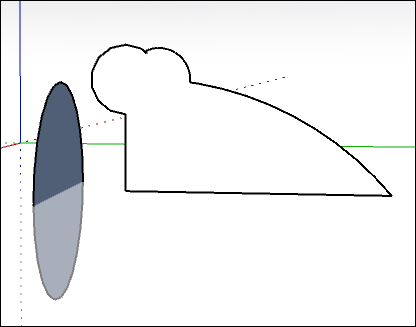
- Select the circle.
- Activate the Follow Me tool () and click the cutaway face. SketchUp creates the finished shape.
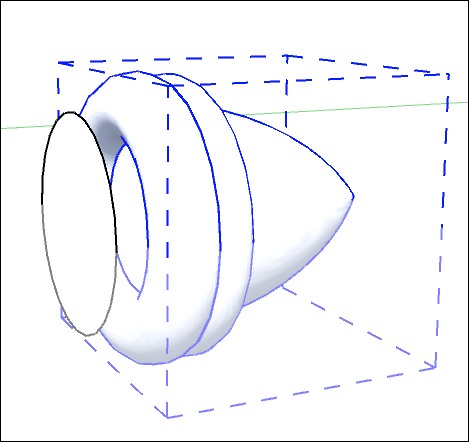
Procedural Follow Me components
Procedural Follow Me ( ) creates a Procedural Component. The component is selected when you successfully complete the operation.
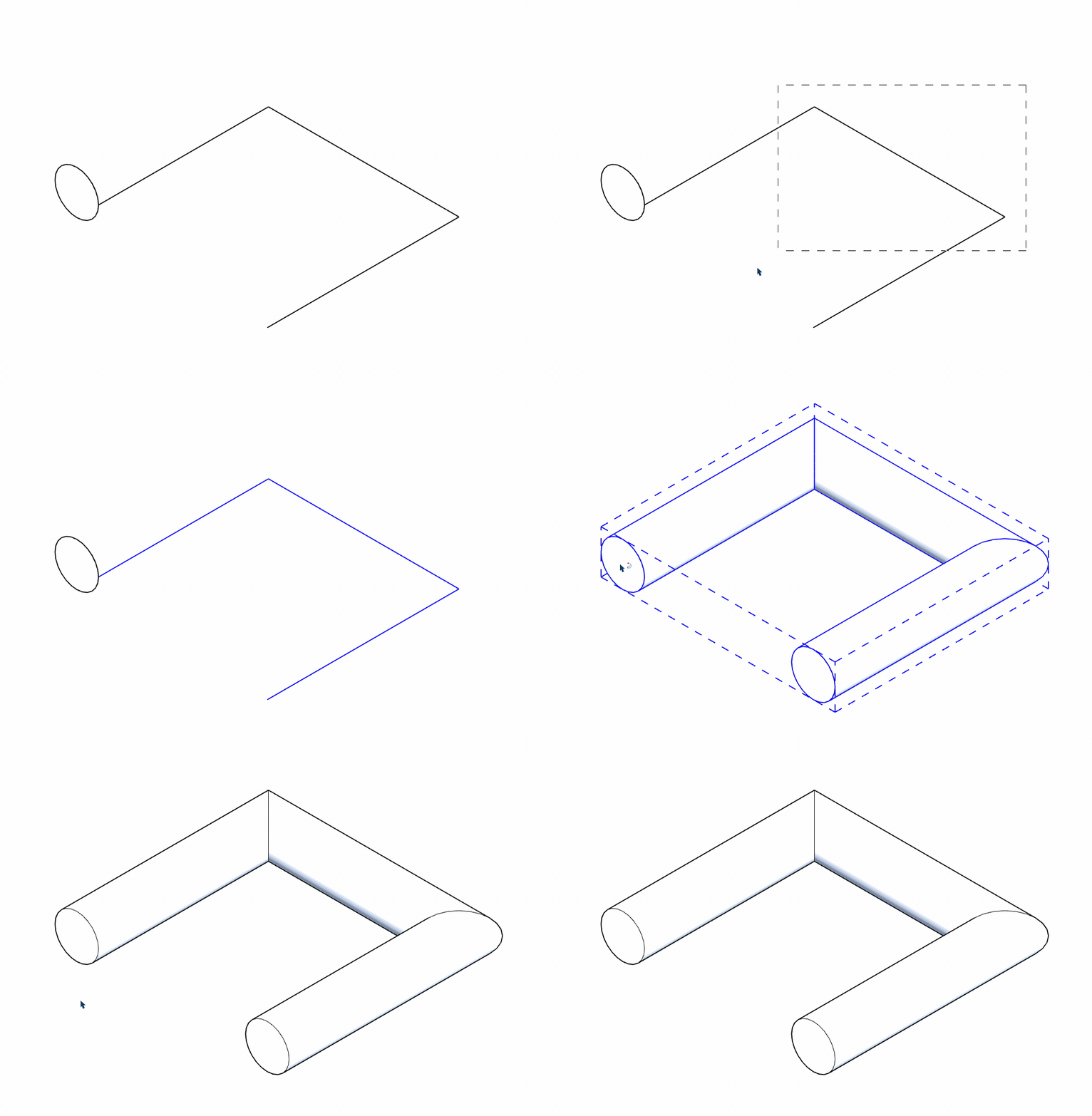
You can edit the component's original shape and path without changing other geometry in your model.
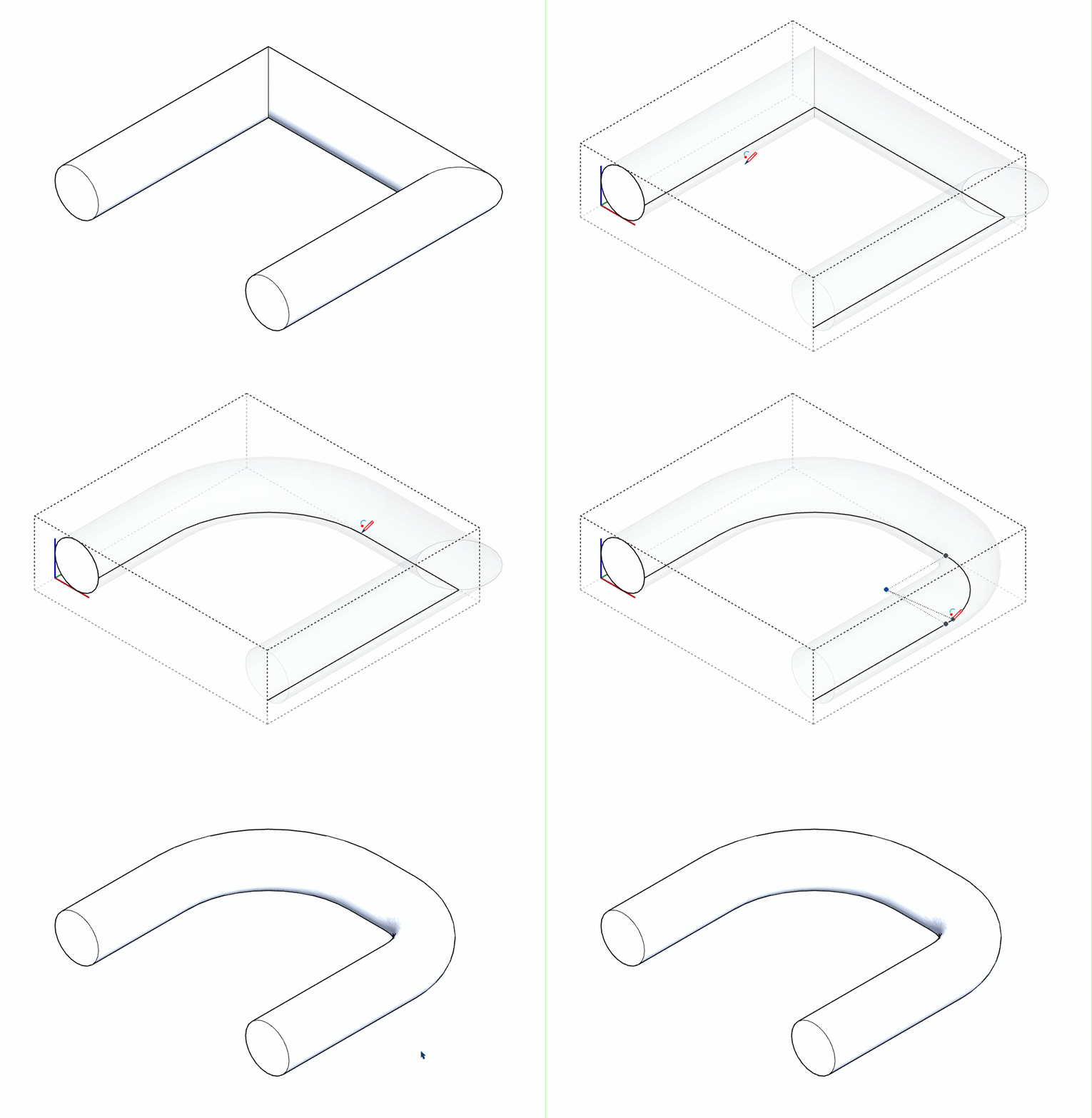
Follow Me has no special controls in Entity Info.