Use Generate Report in SketchUp to list component attributes and download them as a CSV file. Reports can show quantities, materials and other data about items in your model.
Use templates to customise report data
Generate Report uses templates to control which data appears in your report and how it is organised. You can create templates for different types of reports.
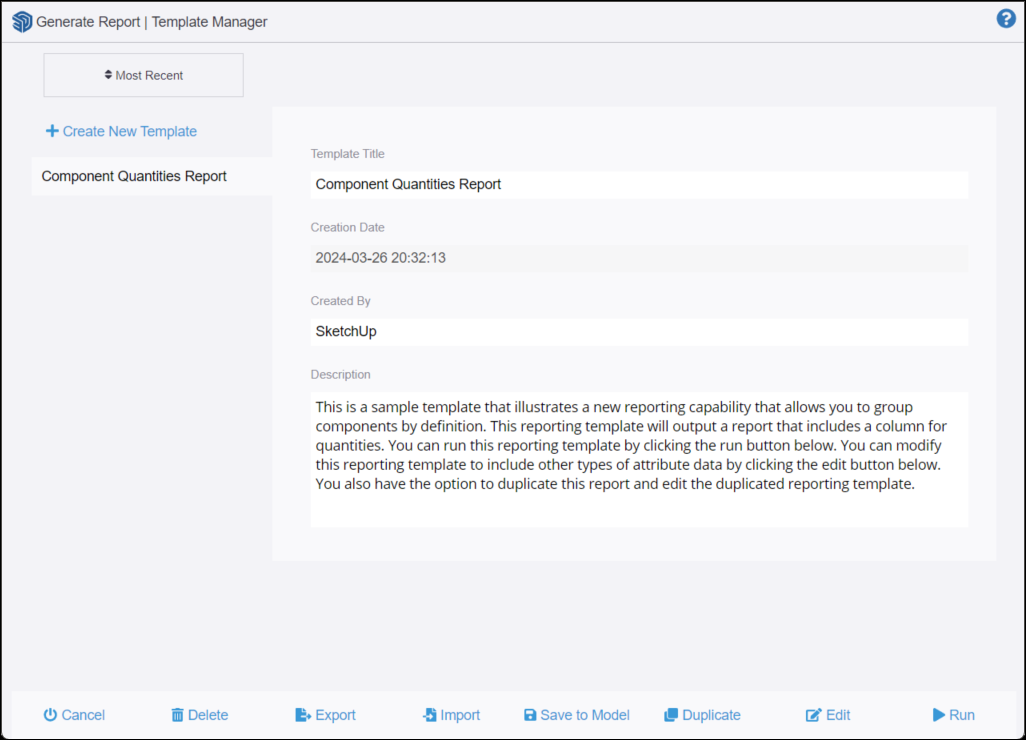
To create a template, follow these steps:
- Select File > Generate Report to open the Template Manager.
- Click Create New Template or select an existing template to edit.
- Choose the options to include in your template. If you are editing an existing template, adjust its options as needed.
- Select the filters, columns and units for your template.
- Click Save Changes to save the template to your model so you can use it again.
- Enter a title and description, then click Save to Model as shown in the following figure. This saves your template.
- If you do not want to save the template, click Run to generate a report without saving it.
SketchUp provides options to control the data in your report.
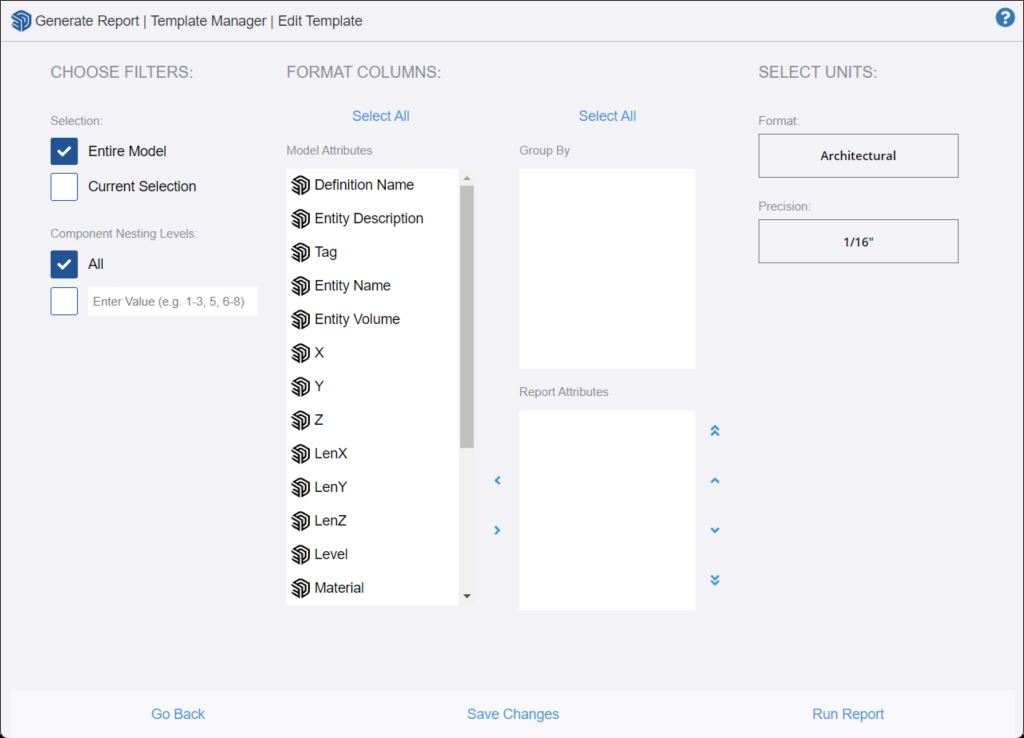
Customise your template with these options:
- Selection controls which entities appear in the report. Entire Model includes your whole model. Current Selection includes only selected entities.
- Component Nesting Levels defaults to All. Select the lower box to choose which components appear based on their nesting level in your model. Check a component's level in the Outliner panel.
- Format Columns controls which data your report includes and how it is organised. The Model Attributes column lists all attributes you can add. The icon beside each attribute shows its type. The Group By section controls how your chosen data types are grouped in a single row. The Report Attributes section lists the attributes included in the report and their column order. Use the arrows or click and drag to move an attribute between sections.
- Select Units lets you choose the Format and Precision for your report. Choose Architectural, Decimal (in inches, feet, centimetres, meters and other units), Engineering or Fractional Inches.
Import and export a report template
Report templates are saved with your model. To share a template across models, click Export in the Generate Report box and save the .grt file to your hard drive. Open the model where you want to use the template, then click Import in the Generate Report box and select the .grt file.
You can also include a report template in a SketchUp model template. Save the report template to your model, then save the model as a SketchUp template. You can use that template each time you start SketchUp.
Generate a report from a template
- Select File > Generate Report, then select the template you want to use.
- Click Run to generate the report. It appears on screen as shown in the following figure.
- To save the report (optional), click Download to open the Save Report dialog box. Name the file, choose where to save it on your hard drive, then click Save. You can open the CSV file in a spreadsheet program or insert it as a table in LayOut.