Use the Graphics section of Preferences to adjust SketchUp's performance settings to suit your device's graphics capabilities.
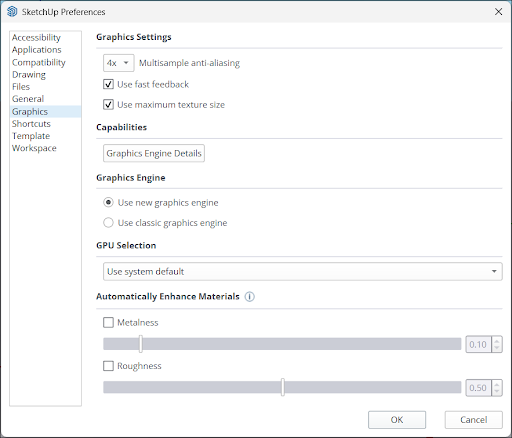
Graphics settings
Graphics Settings has 3 options:
- For Multisample Anti-Aliasing, choose 0x, 2x, 4x, or 8x. Higher values may improve quality but slow performance.
- Use Fast Feedback
- Use Maximum Texture Size
Capabilities
In the Capabilities section, click Graphics Engine Details to open a dialog showing your device's graphics capabilities. It lists the graphics engine name, graphics API, device type and driver version.
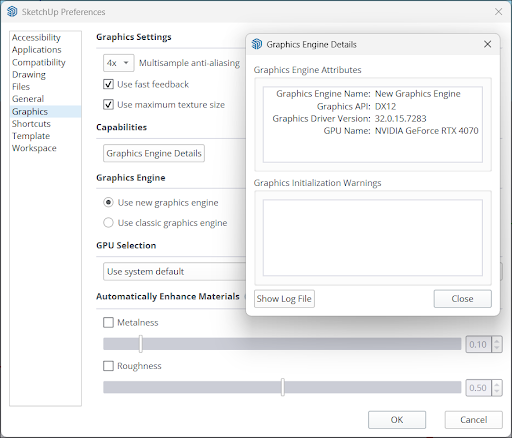
Click Show Log File to open a log file in a new window. The log shows how SketchUp has used your graphics engine.
Graphics engine
In Graphics Engine, choose SketchUp's new graphics engine or the classic engine. If your device does not support the new graphics engine, Use Classic Graphics Engine is selected by default.
GPU selection
If your device has multiple GPUs, choose which GPU SketchUp uses under GPU Selection.
Automatically enhance materials
Choose whether SketchUp automatically enhances materials without photoreal texture maps whenever you open a model. SketchUp assigns photo-based rendering (PBR) texture maps for Metalness and/or Roughness based on these settings. Select Metalness, Roughness or both, then use the slider to set the values.