Managing Dialog Boxes in Mac OS
Managing Dialog Boxes in MacOSThe SketchUp dialog boxes available in MacOS appear in the Window menu. Clicking an option opens the corresponding dialog box. These dialog boxes are independent windows and can be moved anywhere on your desktop, even outside the modeling window.
Last updated 17 July 2026
Managing Dialog Boxes in MacOS
The SketchUp dialog boxes available in MacOS appear in the Window menu. Clicking an option opens the corresponding dialog box.
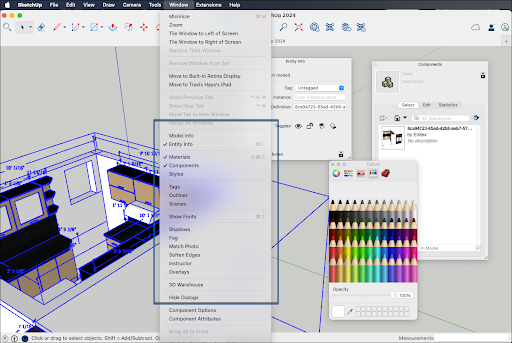
These dialog boxes are independent windows and can be moved anywhere on your desktop, even outside the modeling window.
Clicking Hide Dialogs closes any open boxes. Clicking Show Dialogs opens all dialog boxes that were open the last time Hide Dialogs was used.
While modeling, try the following techniques to better manage the dialog boxes:
- Stacking dialogs – The top and bottom edges of dialog boxes stick together and can create a stack.
- Shrinking dialogs – Click the title bar to collapse a dialog box. Clicking the title bar again restores it to its original size.
- Snap to the edge – Dragging a stack of dialog boxes to the edge of the modeling window will snap it to that edge.
- Rearrange a stack – Click and drag the title bar of a box to the left to break it away from the stack, Then, drag the box to its new position and it will snap right in.
Still need help?
Technical support from our New Zealand team is available to customers with a current Procadsys SketchUp Plus subscription: Pro Plus, Pro Scan Plus, Pro Civil Contractor Plus, Advanced Workflows Plus or Studio Plus. Self-help articles are public.
Contact SketchUp support