Opening a Saved Model
SketchUp provides a few different ways to open a saved model. Welcome WindowThe most recently opened files appear in SketchUp’s Welcome Window under Recent Files. Clicking the tile or listing for a model will open it in SketchUp.
Last updated 17 July 2026
SketchUp provides a few different ways to open a saved model.
Welcome Window
The most recently opened files appear in SketchUp’s Welcome Window under Recent Files.
Clicking the tile or listing for a model will open it in SketchUp.
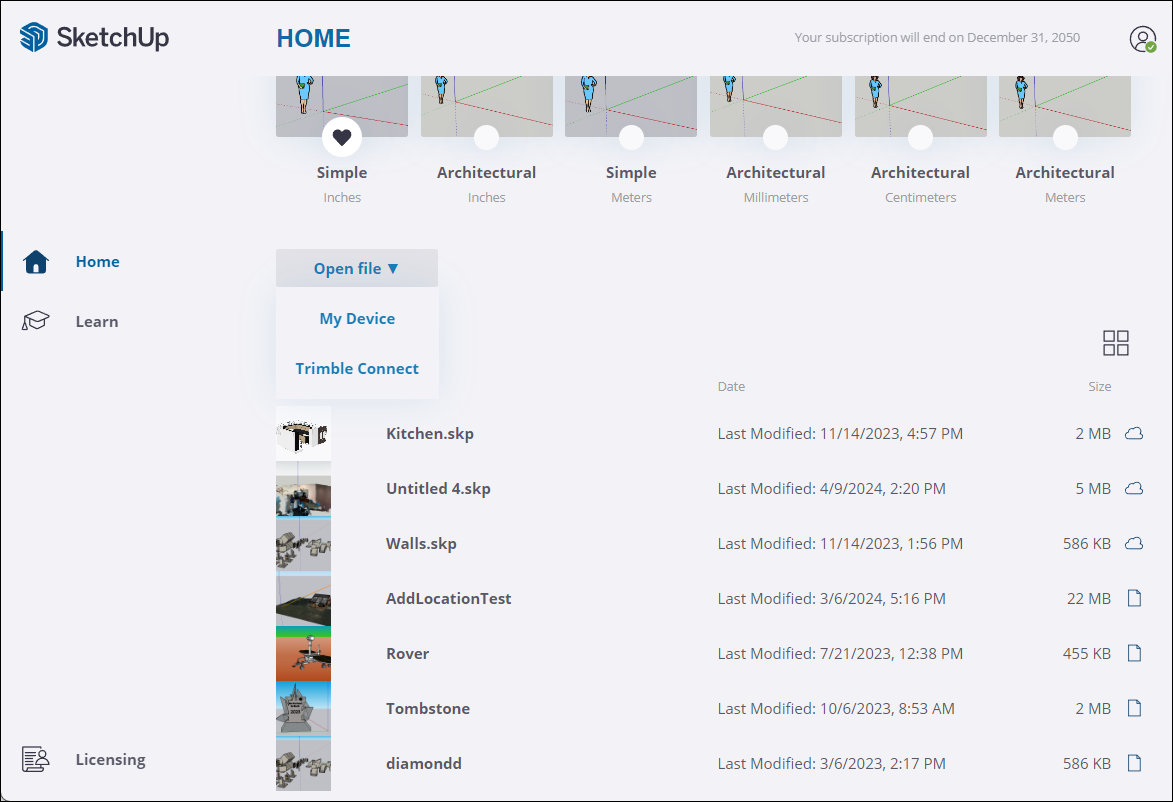
Click Open File to find and open any file not listed under Recent files . Choosing My Device opens the File Manager when using Windows or Finder on MacOS to help locate the file. Choosing Trimble Connect opens a Trimble Connect window. For more information about opening a model in Trimble Connect see Using Trimble Connect with SketchUp .
Opening a File in SketchUp
If SketchUp is already running, there are two ways to open another file in the File menu.
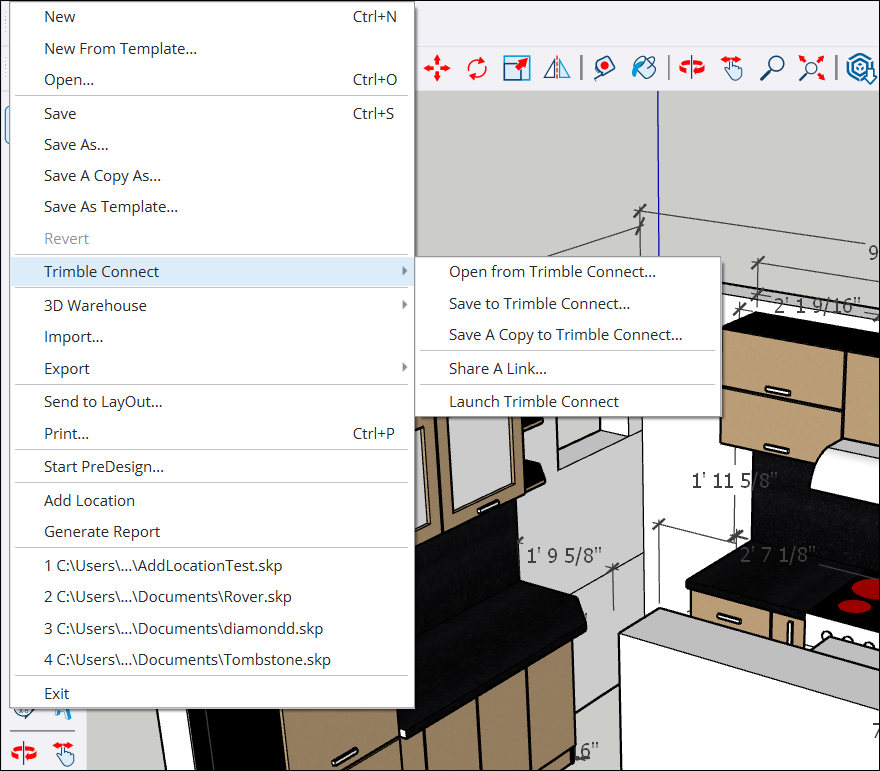
Clicking File > Open opens the File Manager when using Windows or Finder on MacOS to help locate the file. Clicking File >Trimble Connect > Open from Trimble Connect opens a Trimble Connect Window. For more information on how to find a file in Trimble Connect see Using Trimble Connect with SketchUp
Still need help?
Technical support from our New Zealand team is available to customers with a current Procadsys SketchUp Plus subscription: Pro Plus, Pro Scan Plus, Pro Civil Contractor Plus, Advanced Workflows Plus or Studio Plus. Self-help articles are public.
Contact SketchUp support