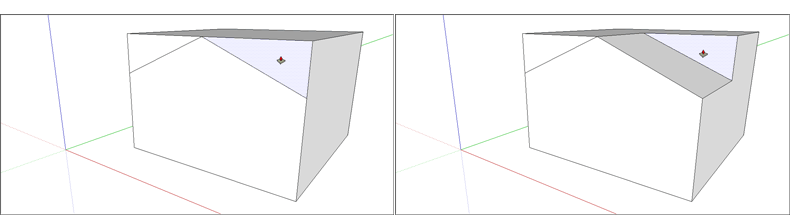
Use the Push/Pull tool (  ) to turn a face into a 3D shape or cut a 3D shape out of your SketchUp model. You can push/pull any face, including circular, rectangular and abstract faces.
The video shows how to use the Push/Pull tool.
Pull a 3D shape from a face
Follow these steps to pull out a face and add volume to your model:
- Select the Push/Pull tool ( ) or press the P key.
- Click the face you want to expand with the Push/Pull cursor. The selected face becomes shaded.
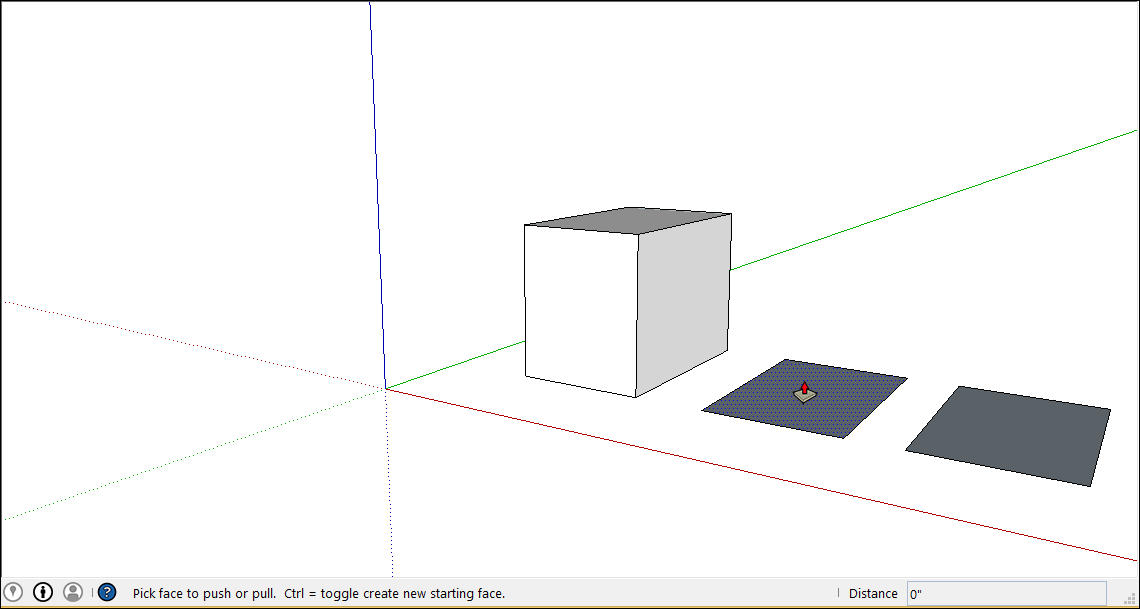
- Move the cursor to expand the selected face. The Measurements box shows the depth of the expanded face, called an extrusion.
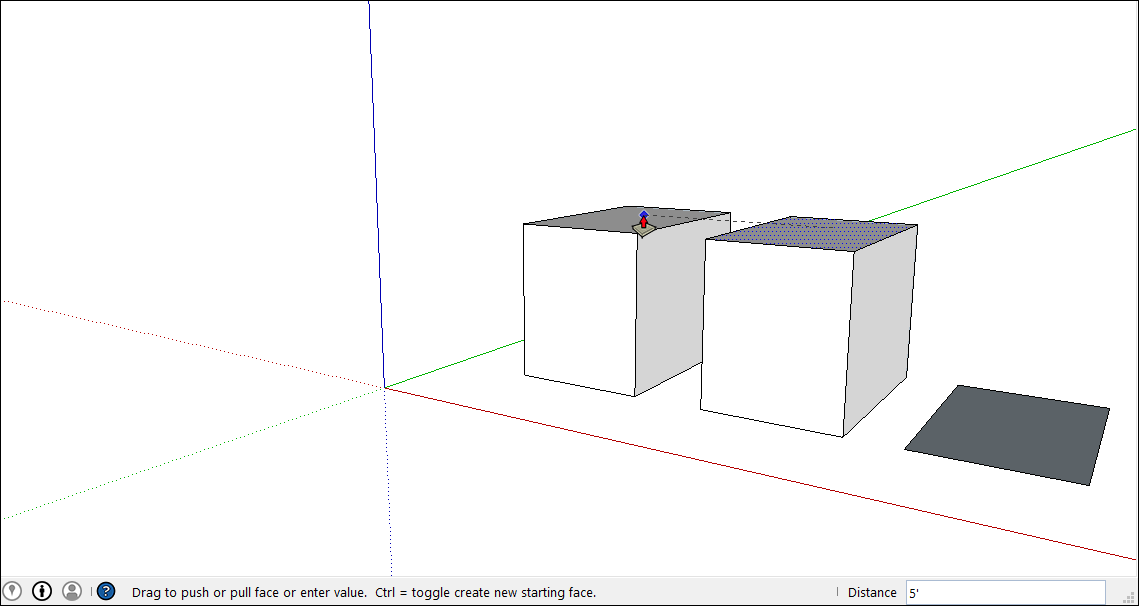
- Click again to set the extrusion size. Until you select something else, you can enter a precise distance in the Measurements box. Type a number and a value, then press Enter.
Rendering limitations can make edges visible through an entity when you pull it up less than about an inch or 2.54 cm. The entity must be an inch or more thick for this effect to disappear. To hide an edge that shows through, select it, context-click it and choose Hide.
After you push/pull to add volume, you can double the extrusion size or create a separate, identical extrusion:
- To duplicate the extrusion on a different face, double-click another face.
- To stack an identical extrusion on top of the existing one, tap Ctrl (Microsoft Windows) or Option (macOS), then double-click the face.
Cut a 3D shape out of your model
Use the Push/Pull tool to cut pieces out of your model. For example, you can make a doorway, create an angled roof or cut a notch for a fastener.
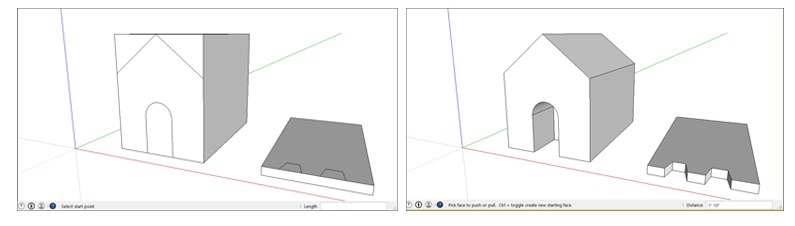
Follow these steps to remove volume with the Push/Pull tool:
- Select the Push/Pull tool ( ) or press the P key.
- Click the face you want to push.
- Move the cursor in the direction you want to push. Push partway into your model to remove only some of the volume. To remove it completely, drag until a message says the offset is limited.
- Click again to finish. To set a precise distance, type a number and value in the Measurements box, then press Enter.