Skip to content
07-848 2005

SketchUp, getting started

Searching in SketchUp

Use Search in SketchUp to find tools and commands for your 3D models. The Search tool appears by default on the left side of the Getting Started toolbar.

Use Search in SketchUp to find the tools and commands you need to create 3D models.

The Search tool appears by default on the left side of the Getting Started toolbar. You can also open Search with the keyboard shortcut Shift + S or from the Help menu.
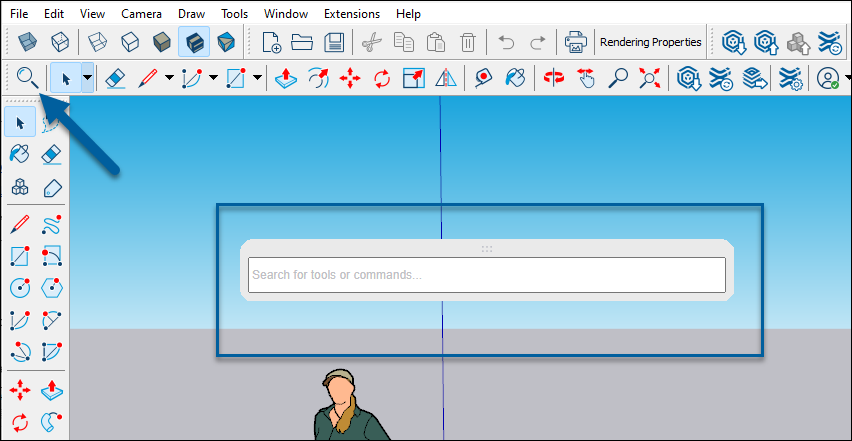
SketchUp's Search icon on the Getting Started toolbar, with the 'Search for tools or commands...' box open.

When you open Search, a text box appears. Type what you are looking for. SketchUp shows matching results as you type. Typing more narrows the results. Use Search to:

  • Find and activate commands. Select a command in the search results to activate it.
  • Concept Search. Type what you want to do, and SketchUp suggests a tool.
  • Find extensions. Search for an extension by its name or an associated command.

For example, type 'transparent' to find tools and commands that help you make geometry in your model transparent.
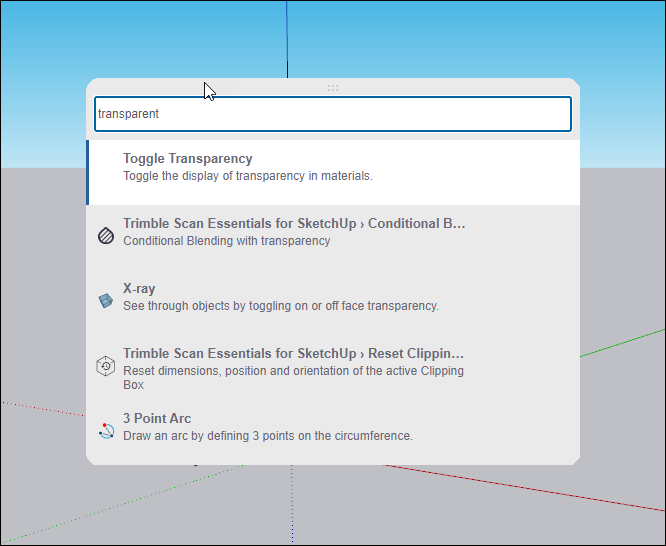
SketchUp Search results for 'transparent', including Toggle Transparency and X-ray.

Procadsys customer support

Still need help?

Licences, renewals and billing

Our New Zealand team looks after your SketchUp licences, renewals and invoices.

Monday to Friday, 9:00 am to 4:30 pm NZ time, excluding New Zealand public holidays.

Technical problems

Technical support from our New Zealand team is available with a current Procadsys SketchUp Plus subscription: Pro Plus, Pro Scan Plus, Pro Civil Contractor Plus, Pro Advanced Workflows Plus or Studio Plus.

Initial response within one business day.

On another SketchUp plan? Technical problems go to Trimble support.