Use the settings below to work with linked and embedded .vrscene files in Enscape Envision.
Overview
The .vrscene format is Chaos' proprietary text file format. It uses UTF-8 encoding without BOM. You can export it from all platforms that use V-Ray, Corona or Enscape. It contains all scene information, including geometry, lights and shaders. You can reference it as an asset in Envision.
Import a .vrscene file into Envision through File > Import. Envision links the file to your current scene. If you change the imported file, you can update it in Envision to show those changes.
You can embed a linked .vrscene file. Embedding unlinks it from the project, so you can no longer reload it and reapply your work in Envision.
Actions with linked files
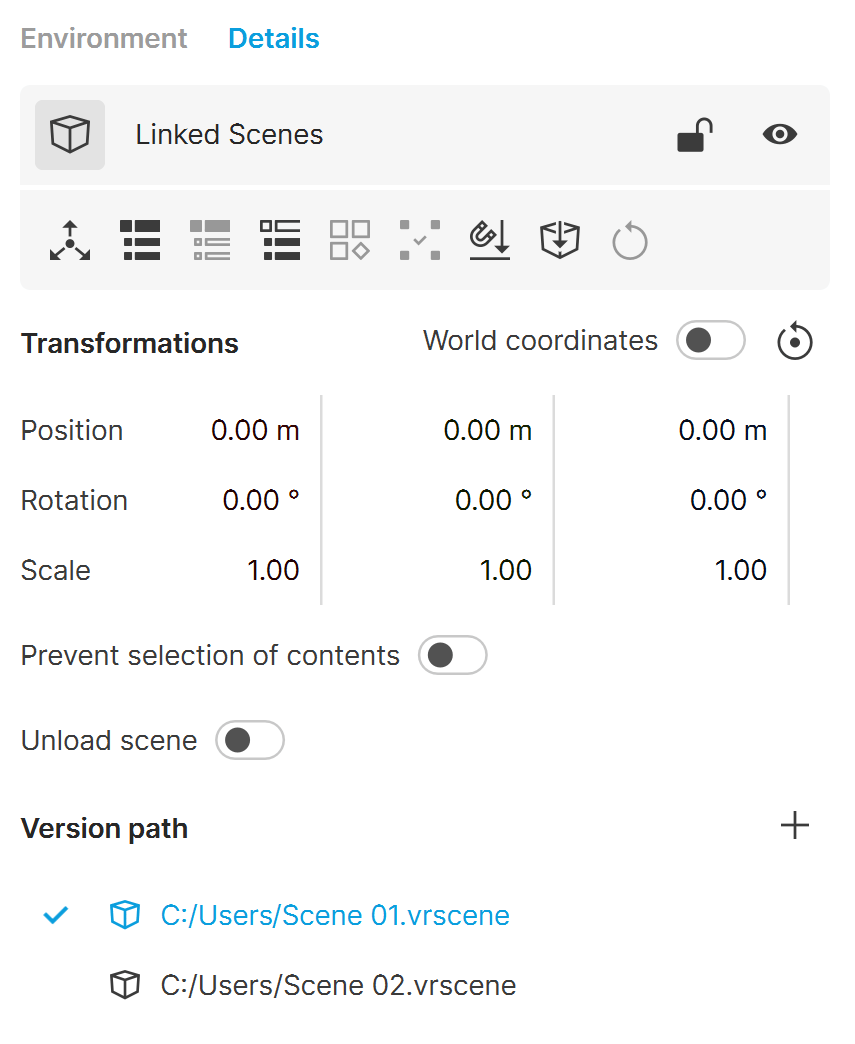
This field shows the selected vrscene file's name. You can rename it here. The new name appears automatically in the Objects tab. |
This field shows the selected vrscene file's name. You can rename it here. The new name appears automatically in the Objects tab. | |
Lock disables the vrscene's position, rotation and scale options. The options appear greyed out. Click again to enable them. | |
Hide shows or hides the element. Hidden vrscene files do not render. | |
Move pivot opens the Pivot Point Adjustment settings, where you can move the pivot point. | |
Select hierarchy All selects the parent and all children of your current selection in the scene hierarchy. | |
Select hierarchy Parent only selects only the parent of your current selection in the scene hierarchy. | |
Select hierarchy All children selects the remaining children in the scene hierarchy group that contains your current selection. | |
Make instance unique separates your selection from its other instances and makes it unique. This action is disabled if your selection has no instances. | |
Select all instances selects every instance of the selected objects in the scene. | |
Land to surface moves the selected object down along the Z axis until its bounding box touches the first object below it. | |
Embed scene embeds the scene and unlinks it from the project. You can no longer reload it and reapply your work in Envision. This action cannot be undone. Embed scene is disabled when the linked scene is unloaded. To revert embedding, press Ctrl+Z or select Edit menu > Undo. | |
Reset resets all changes to the linked scene. | |
Revert the transformation restores all position, rotation and scale values to their defaults of zero. | |
Add new version path loads a new version of the file and creates a separate path for it in the Version path list. | |
Replace scene replaces the loaded file with another file in the Version path list. | |
Remove deletes the file from the Version path list. |
Position moves the .vrscene along the X, Y and Z axes.
Rotation rotates the .vrscene along the X, Y and Z axes.
Scale scales the .vrscene along the X, Y and Z axes.
Prevent selection of contents treats the .vrscene as a closed container. Selecting a child selects the whole scene.
Unload scene reduces memory usage by unloading the scene.
Version path shows the path to the loaded .vrscene file.
Actions with embedded files
This field shows the selected vrscene file's name. You can rename it here. The new name appears automatically in the Objects tab. |
This field shows the selected vrscene file's name. You can rename it here. The new name appears automatically in the Objects tab. | |
Lock disables the vrscene's position, rotation and scale options. The options appear greyed out. Click again to enable them. | |
Hide shows or hides the element. Hidden vrscene files do not render. | |
Move pivot opens the Pivot Point Adjustment settings, where you can move the pivot point. | |
Select hierarchy All selects the parent and all children of your current selection in the scene hierarchy. | |
Select hierarchy Parent only selects only the parent of your current selection in the scene hierarchy. | |
Select hierarchy All children selects the remaining children in the scene hierarchy group that contains your current selection. | |
Make instance unique separates your selection from its other instances and makes it unique. This action is disabled if your selection has no instances. | |
Select all instances selects every instance of the selected objects in the scene. | |
Land to surface moves the selected object down along the Y axis until the axis crosses the objects. The bottom of the selected object's bounding box touches the object below it. | |
Move along path links the selected file to a path that defines its direction of movement. | |
Move along path settings opens the Move along path settings. It is available when the Move along path button is activated and a path is selected. | |
Revert the transformation restores all position, rotation and scale values to their defaults of zero. |
Position moves the .vrscene along the X, Y and Z axes.
Rotation rotates the .vrscene along the X, Y and Z axes.
Scale scales the .vrscene along the X, Y and Z axes.

Pivot point adjustments
Moves the pivot to the bottom centre of the bounding box. |
Moves the pivot to the bottom centre of the bounding box. | |
Moves the pivot to the centre of the bounding box. | |
Moves the pivot to the top of the bounding box. | |
Resets the pivot to its initial position. | |
The minimum bounding box value on the X / Y / Z axis. | |
The centre bounding box value on the X / Y / Z axis. | |
The maximum bounding box value on the X / Y / Z axis. |
Local Coordinates uses the object's local coordinate system to adjust the pivot point. Each object has its own coordinate system. The X, Y and Z axes align with the object's transformation.
World Coordinates uses the scene's global coordinate system to adjust the pivot. This system is the reference frame for the entire scene. The X, Y and Z axes always align with the scene's global orientation.
X shows the selected pivot's position on the X axis and lets you change it. The value depends on whether you use World or Local coordinate space.
Y shows the selected pivot's position on the Y axis and lets you change it. The value depends on whether you use World or Local coordinate space.
Z shows the selected pivot's position on the Z axis and lets you change it. The value depends on whether you use World or Local coordinate space.

Move along path
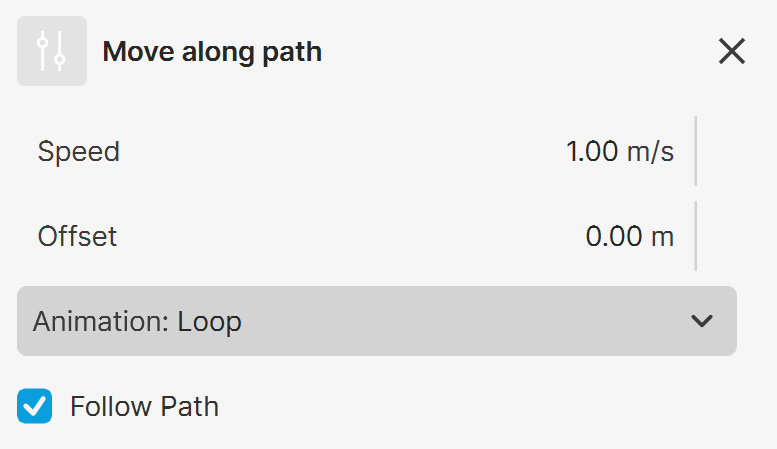
Speed sets how fast the file moves along the path.
Offset sets the file's forward offset from the path's starting point, measured in scene units. Use it to start the animation partway along the path.
Animation sets what happens after the animation plays. It can loop, stop, hide or extrapolate.
Follow Path aligns the file with the path's centreline when enabled. The file automatically follows the path and keeps the same direction as the path.
See also: