Enscape
Lighting for Archicad
This page provides information about the Lighting in Enscape for Archicad.
Last updated 28 May 2026
This page provides information about the Lighting in Enscape for Archicad.
Overview
Enscape is not currently mapped to all light settings for Archicad light types, and their individual settings are beyond the scope of this article.
For a full description of Archicad’s lights, please refer to the Archicad documentation.
There are two types of lights in Archicad:
- Light Objects
- Interior and Street Lamps
The Light Objects can be categorized into four basic light source types:
- Omni Light – Emits uniform light rays in all directions from a single point in space
- Spot Light – Emits light from a single point in space and provides a cone that can be adjusted to a specific direction, as well as allowing you to define the light's fall off
- Area Light – Emits soft light that uses a two- or three-dimensional surface as its source
- Infinite Light – Emits an infinite light in a consistent parallel direction
To open the light options, select the Light Tool from the More section of the Archicad side Toolbar.

Lamp Tool button location
This displays the Lights option in the Archicad Info Box, which is at the top of the Archicad viewport.
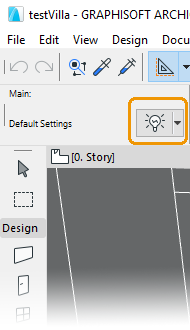
Light options in the Info Box
Click the light icon in the Info Box to open the Archicad Lamp Default Settings window. Select the General Light Sources category from the Archicad Library in the Lamp Selection Settings' top left menu structure.
Seven different light objects appear. However, we only deal with the Omni, Spot, Area, and Infinite light types.

Archicad's Default Lamp Settings
Enscape currently only supports to the basic settings of switching the Light on/off, the Main Intensity, and the light's Color settings.
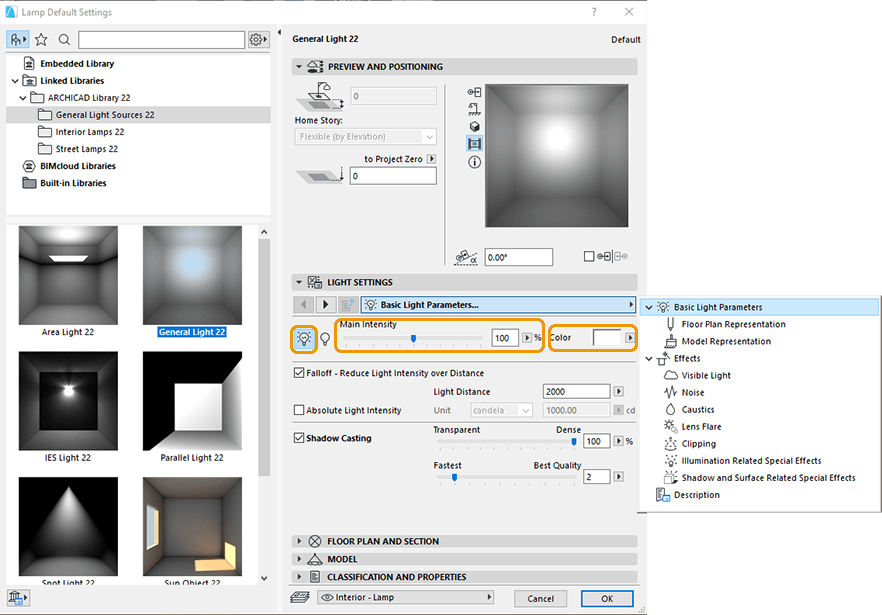
Archicad's Basic Light Parameters
The Absolute Light Intensity can also be adjusted, and you can choose between using candela and lumen as the Unit.

Choose between Candela and Lumen Light Intensity Units
Light Types and Placement
The placement of the light is indicated by a dark rectangular area.
Once placed, Archicad shows you the control points for adjusting the light's position, rotation, and falloff, depending on the light type.
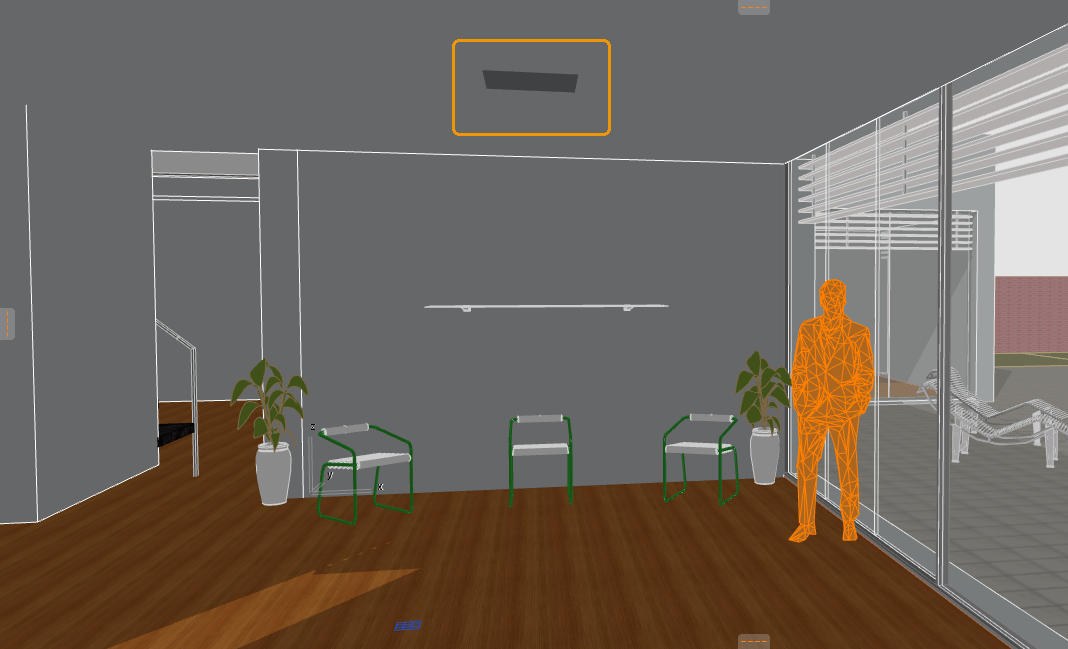
Light Placement Indicator
Omni Light (General Light)
The Omni Light, or General Light, emits uniform light rays in all directions from a single point in space.

Omni Light in the Enscape window

Omni Light in the Archicad viewport
Spot Light
The Spot Light emits light from a single point in space and provides a cone that can be adjusted to a specific direction and that allows you to define the light's falloff.

Spot Light in the Enscape window

Spot Light in the Archicad viewport
Area Light
The Area Light emits soft light that uses a two- or three-dimensional surface as its source.

Area Light in the Enscape window
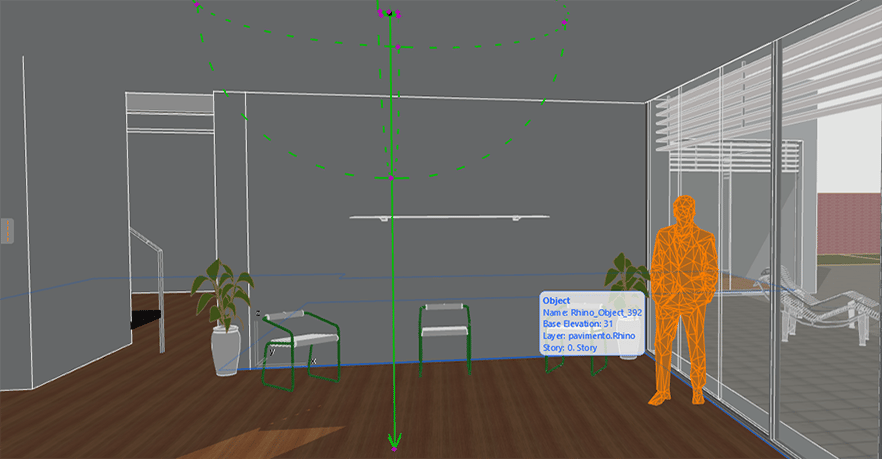
Area Light in the Archicad viewport
Parallel Light
The Parallel Light emits an infinite light in a consistent parallel direction.
To Move the Parallel light, grab the node at the end of the direction arrow.

Adjust the Parallel light direction

Parallel Light in the Enscape window

Parallel Light in the Archicad viewport
IES Light
If no *.ies light profile file is loaded, then ArchiCAD defaults to the Omni Light.
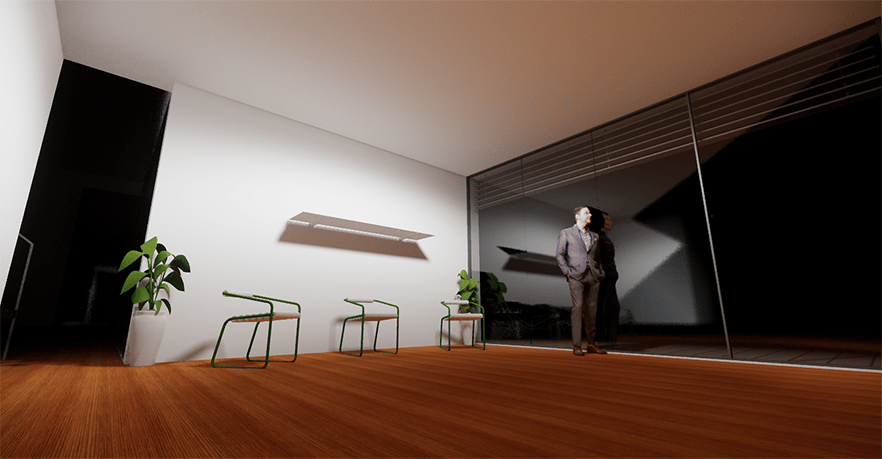
IES Light in the Enscape window

IES Light in the Archicad viewport
The option to select the IES Light profile is located under the Photometric File Name option.
Click the Details and Help… button for further information about where to place the IES files once you have downloaded them to your machine.

Select the IES Profile file
To adjust the light, click on its control nodes, which are colored points on the light cage.

Light Adjustment Nodes
Once you click on one of the adjustment nodes, you can see various options, depending on the control point you click. By clicking on the node nearest to where you originally placed the light, you are given the option to drag, rotate, mirror, or multiply that light.
If you press TAB on your keyboard, you can numerically adjust the parameters.

Light Placement Properties

Light Node Placement
Adjust the direction of the light by clicking on the node at the end of the light cage arrow.

Light Node Rotation Control
Interior and Street Lamps
Archicad includes a good selection of pre-modeled lamps for both interior and exterior applications. These are accessible by selecting either the Interior Lamps or the Street Lamps categories. The placement of Interior and Street Lamps is exactly the same as is with other Light Objects.
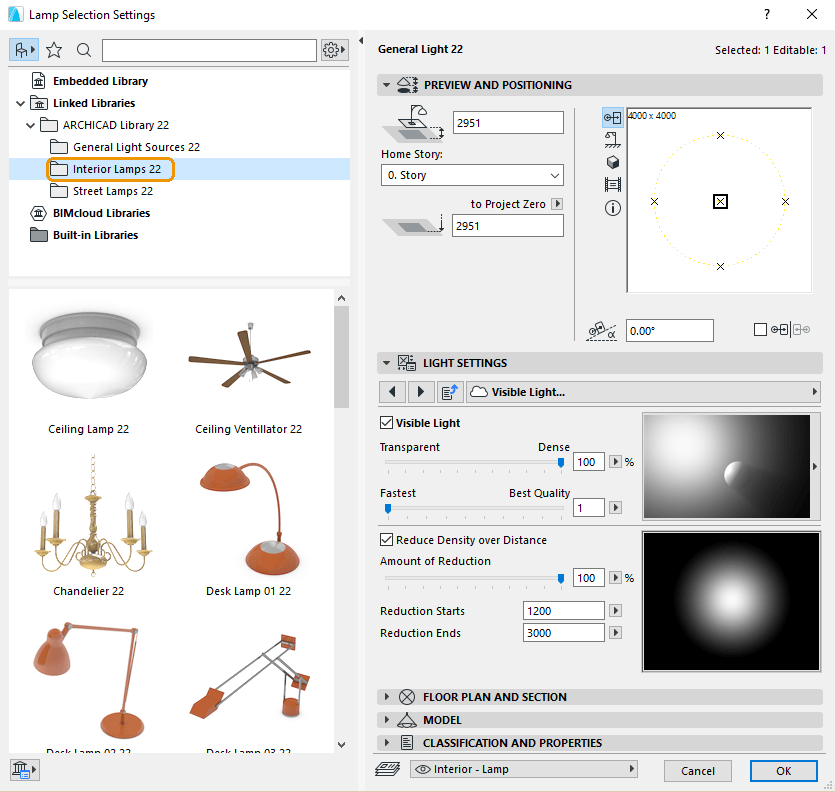
Archicad's Interior Lamps

Archicad's Street Lamps
All lamps can have their surface overridden via the Lamp Default Settings window under the Model option. In the following example, the lamp has a Metal Brass material.

Interior Lamp Placement
Using the control nodes, both the interior and the street lights basic geometry can be adjusted. For instance, we can extend the cable between the roof position and the lamp. The menu option to adjust the size then becomes available.

Interior Lamp Adjustment
With a standing light, we can adjust the overall height of the light. See the before and after.

Interior Light Height Adjustment
The same method can be used when adjusting Street lamps.

Street Light Height Adjustment