Enscape
Lighting for Vectorworks
This page provides information about the Lighting in Enscape for Vectorworks.
Last updated 28 May 2026
This page provides information about the Lighting in Enscape for Vectorworks.
Overview
Currently, Enscape uses the lighting tools that are already available in Vectorworks. Native Vectorworks light are used. They are displayed in the Enscape viewport (except for directional light).
The quickest way to start working with Vectorworks’ native lighting system is to click on the Visualization button, and then the Lightbulb icon for the desired light type.
The three main lights that are available in Vectorworks are:
- Point Lights – Emits light equally in all directions from a single point in space
- Spot Lights – Directs a narrow beam of light with Falloff
- Custom Lights – Allows control over all settings and also for the use of IES lighting profiles
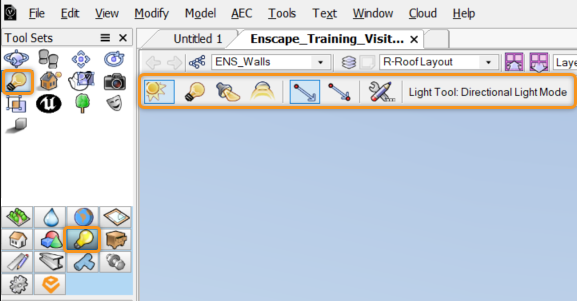
Vectorworks' Lighting options
There are also two additional light types that need to be converted from an object and do not have a symbol. These are:
- Line Lights – Where a light emits from a line
- Area Lights – Where light is emitted from a surface of an object, so-called emissive lighting.

Point, Spot, and Custom Light symbols in Vectorworks
Point Light
Point lights radiate light in all directions, like a bare light bulb. Use the Point Light Specs to specify the Distance Falloff, which sets how fast the light intensity falls off as you move away from the light.
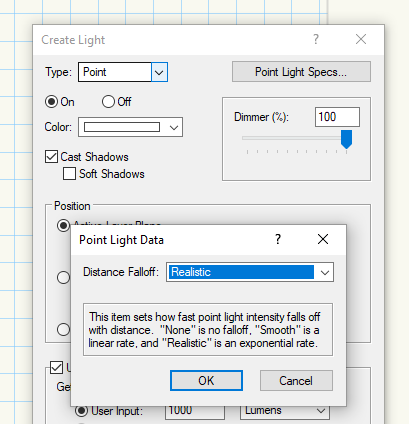
Point Light in Scene
Spot Light
Spot lights project light in a specific direction, and the light is aimed at a specific object.
Click to place the Spot light, drag to specify the light direction/target, and then click again to accept the changes. Use the Look To Height parameter in the Object Info palette to set an exact height.
Once placed, only see the target handle and projection line are visible when the spot light is selected. To move the light after it has been placed, or to adjust the target handle, use the Selection tool.
Select the Spot Light Specs to specify the angle of the beam/spread, and the Distance Falloff.
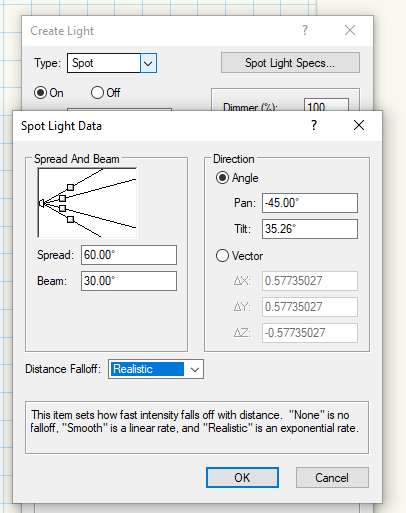
Spot Light dialog
Custom Light
With custom lights, you can adjust all parameters, and also load in additional light emission profile data from another file.
Select the Custom Light Specs to specify the parameters.

Custom Light dialog
Additional Light Types
If you are using Vectorworks, the following light types are also available:
- Line Lights – Light is emitted from a line; the converted object must be a line (2-point polygon) in the first place.
- Area Lights – Light is emitted from the surface of an object. This can be used to make objects self-illuminating, such as a television. Select Modify > Convert > Convert to Area Light.
The direction that the light is being emitted is indicated by a small arrow that can be seen attached to the rectangular plane.

Convert to Line or Area Light
Moving and Theatrical Lights
At present, Enscape does not support animation, so these moving lights are not officially supported. However, there is a workaround. In Vectorworks, the light source is inside the casing of the mover and is defined as a 3D locus (reference points). As the moving light symbol is a solid, Enscape does not allow the light to pass through it, so you need to use the Vectorworks Push/Pull tool to extrude the lens of the light past the 3D locus that defines the light source in the Vectorworks Lighting Device Symbol.

Moving and Theatrical Lighting Control
Sunlight
Within Enscape, you can change the time of day by holding down the Shift + right mouse button and moving the mouse. As it gets darker outside, your internal lights come on. Enscape does not store the time, so it resets to the default value each time you launch Enscape.
In Vectorworks, the sun can be set to a particular position. For more information about this feature, see the Sun, Geolocation, and Time of Year page.