This page provides information about Sun, Geolocation, and Time of the Year.
Last updated 28 May 2026
This page provides information about Sun, Geolocation, and Time of the Year.
Overview
The Sun settings allow adjustments to the project's visual appearance and atmosphere. Direct sunlight adjustments can be made in the Enscape window, while the Geolocation and Time of Year settings in the host platform effectively modify the sun's position. Additionally, the time of day can be adjusted in the Enscape window, and these settings can be saved for each view. This functionality enhances the overall visualization experience by providing control over lighting and shadow effects.
Shortkeys
Controls
Action
Controls
Action
Time of day
or
Press U or I to adjust the time of day.
Use Shift + Right Mouse Button while dragging the mouse right or left.
Solar angle
+
or
Press Shift + U or I to adjust the Solar angle.
Solar rotation
+
or
Press Ctrl + U or I to adjust the Solar rotation.
Reset Sun Position
Press the Home key to reset any modifications to the sun's position.
Adjust the Sun and Geolocation
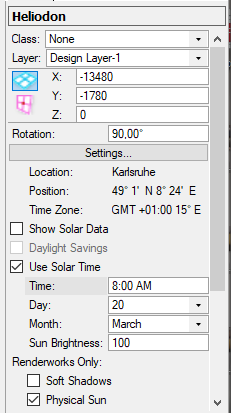
See how to adjust the Sun and Geolocation for the host platform of your choice in the expandables below:
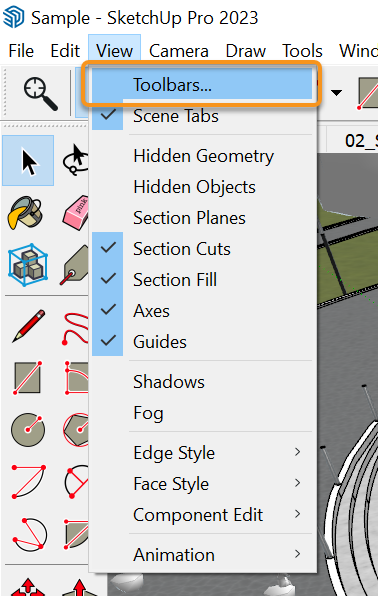
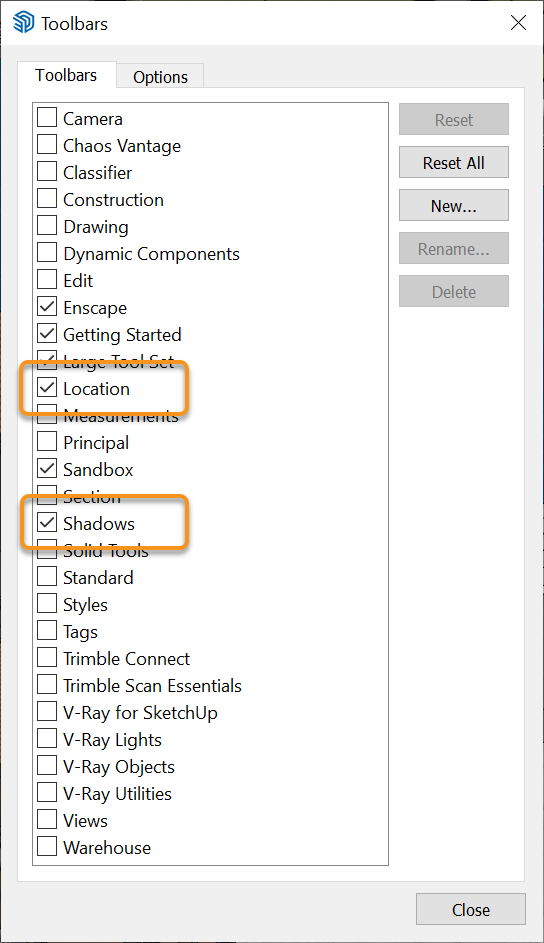
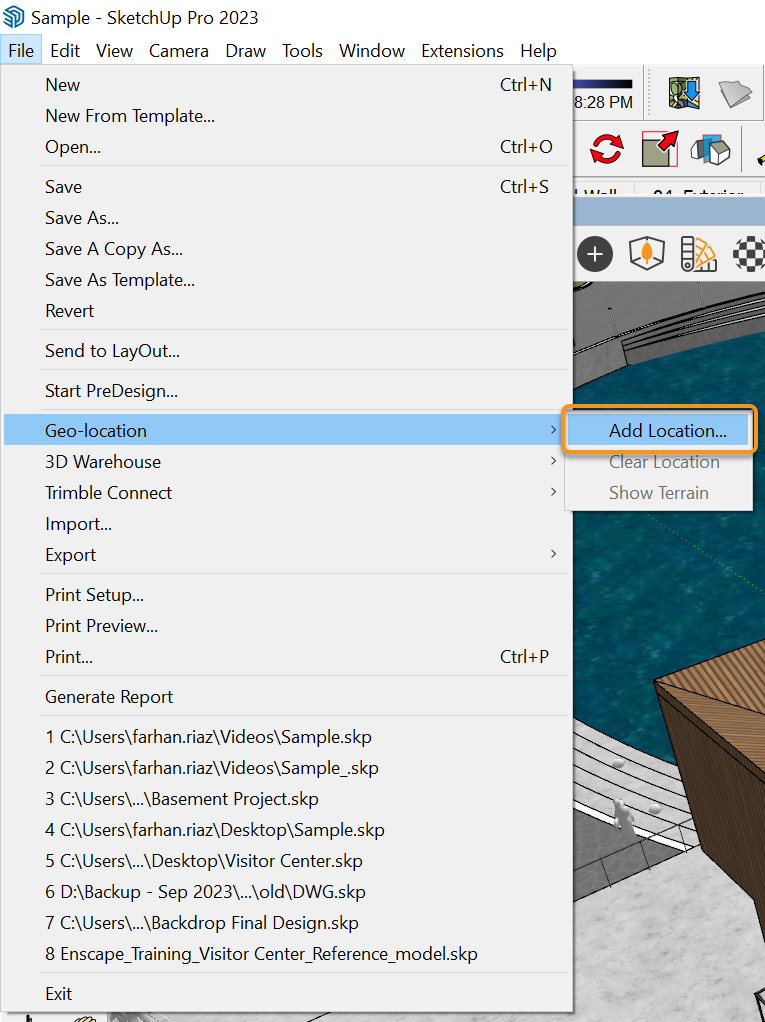
Adjust the Sun and Geolocation in SketchUp
Adjust the Sun and Geolocation in Revit
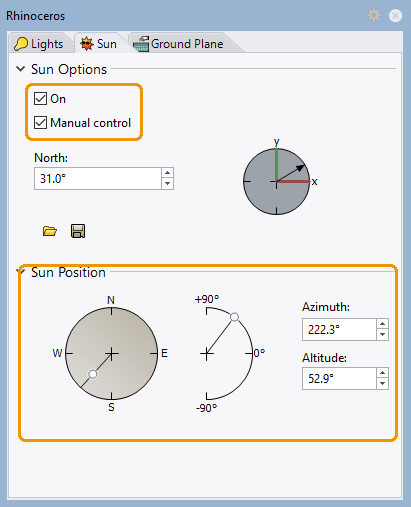
Adjust the Sun and Geolocation in Rhino
Adjust the Sun and Geolocation Archicad
Adjust the Sun and Geolocation in Vectorworks
Save Enscape Sun Position
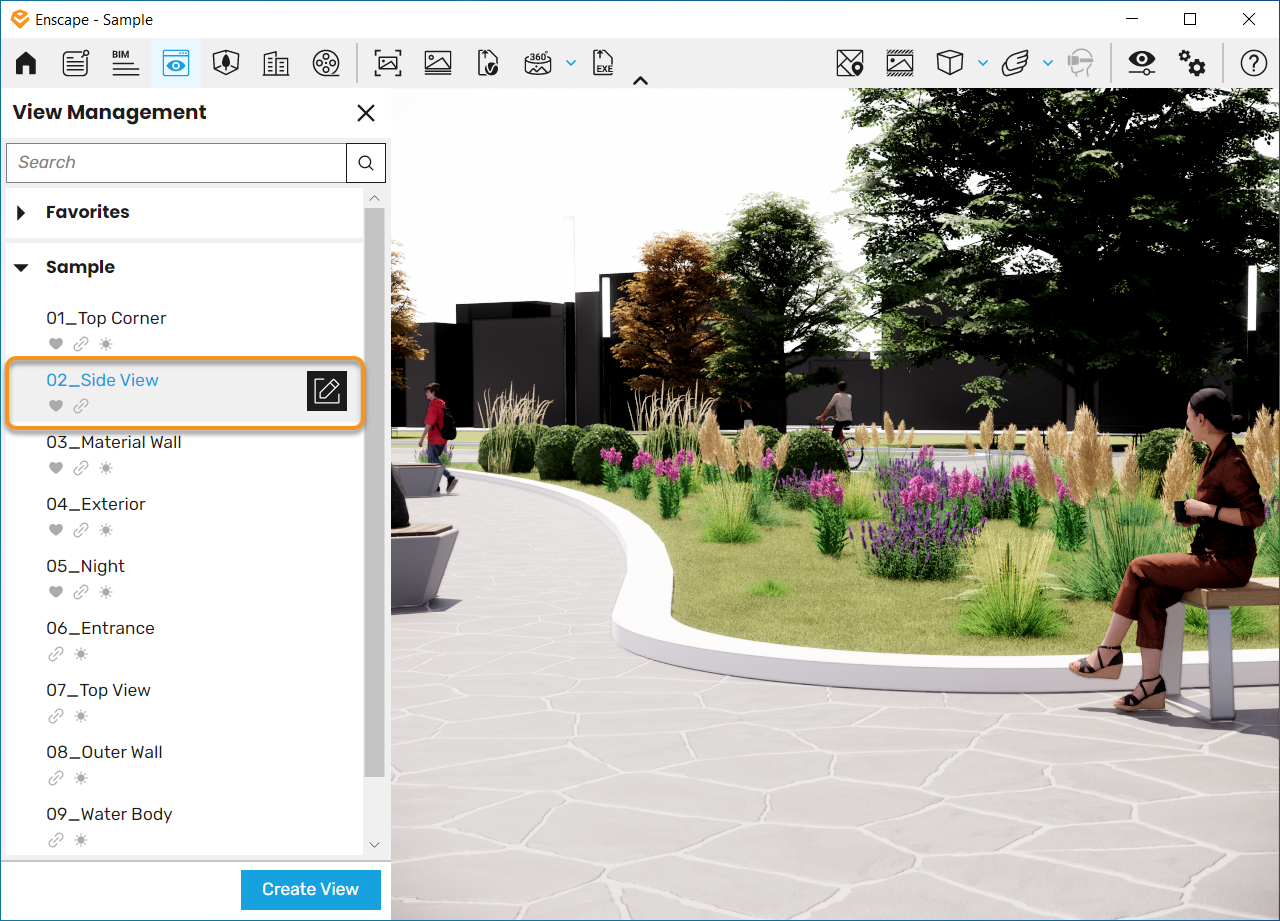
You can save the Enscape Sun Position through the View Management tab. Select the view you would like to save the sun position of.
Manage Views
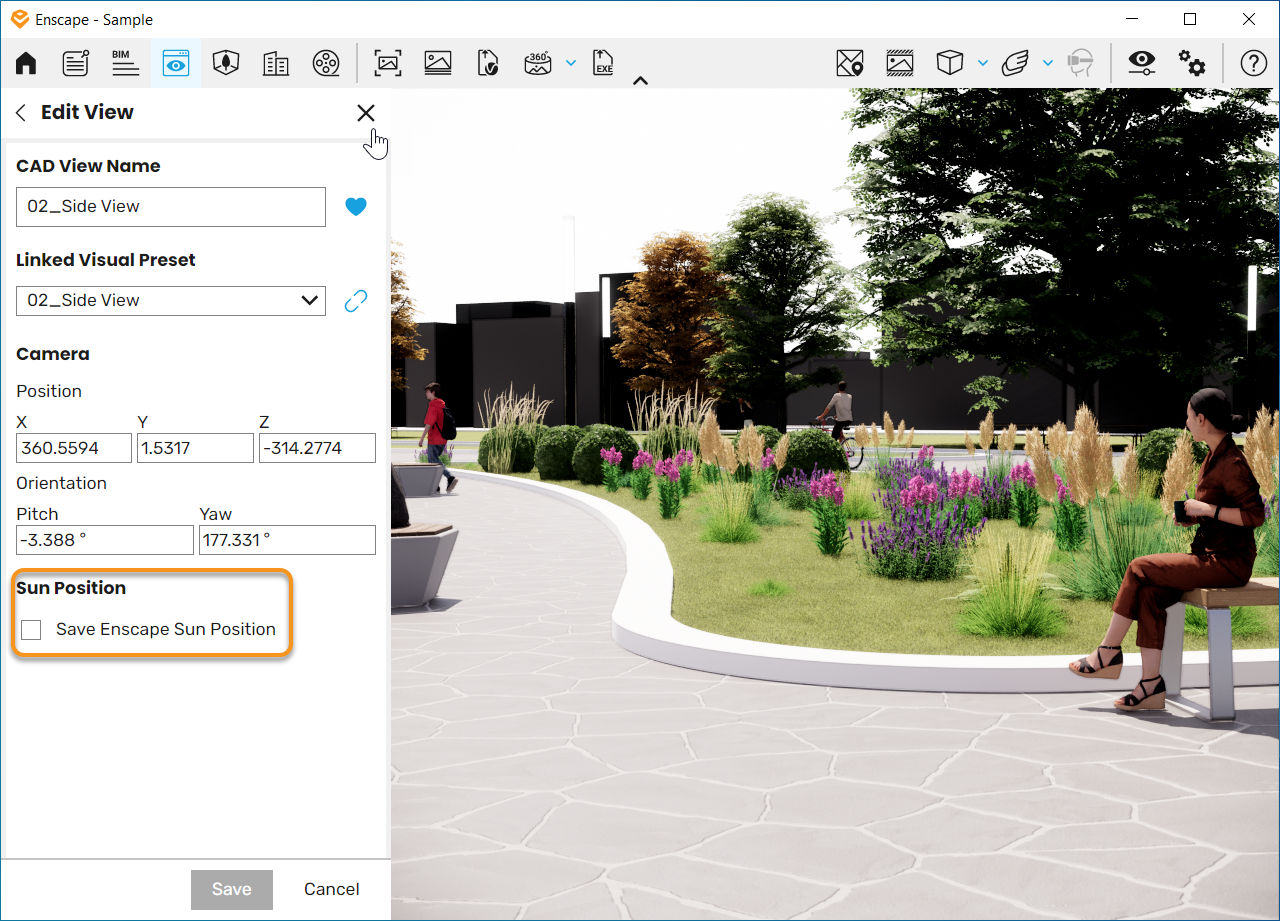
In the Sun Position section, enable Save Enscape Sun Position.
Sun Position Section
This opens the Enscape Sun Position settings.
Azimuth – Rotation of the sun around the building. Altitude – Rotation above and below the horizon line.
By adjusting these sliders, you see the time of day change to the desired result.
*If you need to undo the changes at any time, click the Undo button.
Once you are happy with the adjustments, click the Save Button at the bottom of the window.
Azimuth and Altitude Settings
The sun settings for this view are now saved.
*The sun icon indicates that the selected view’s sun settings have been edited.