V-Ray for 3ds Max
Chaos Cloud Rendering
This page provides information about submitting render jobs to Chaos Cloud Rendering from V-Ray for 3ds Max.
Last updated 4 June 2026
This page provides information about submitting render jobs to Chaos Cloud Rendering from V-Ray for 3ds Max.
Overview
Submitting render jobs to Chaos Cloud Rendering is done directly from V-Ray for 3ds Max's interface. This page walks you through the steps of doing so.
UI Paths


Submitting Render Jobs
V-Ray for 3ds Max provides built-in integration with Chaos Cloud Rendering so you can submit render jobs to the cloud directly from 3ds Max, using the dedicated Submit to Chaos Cloud rendering button. The button is located on the Toolbar.


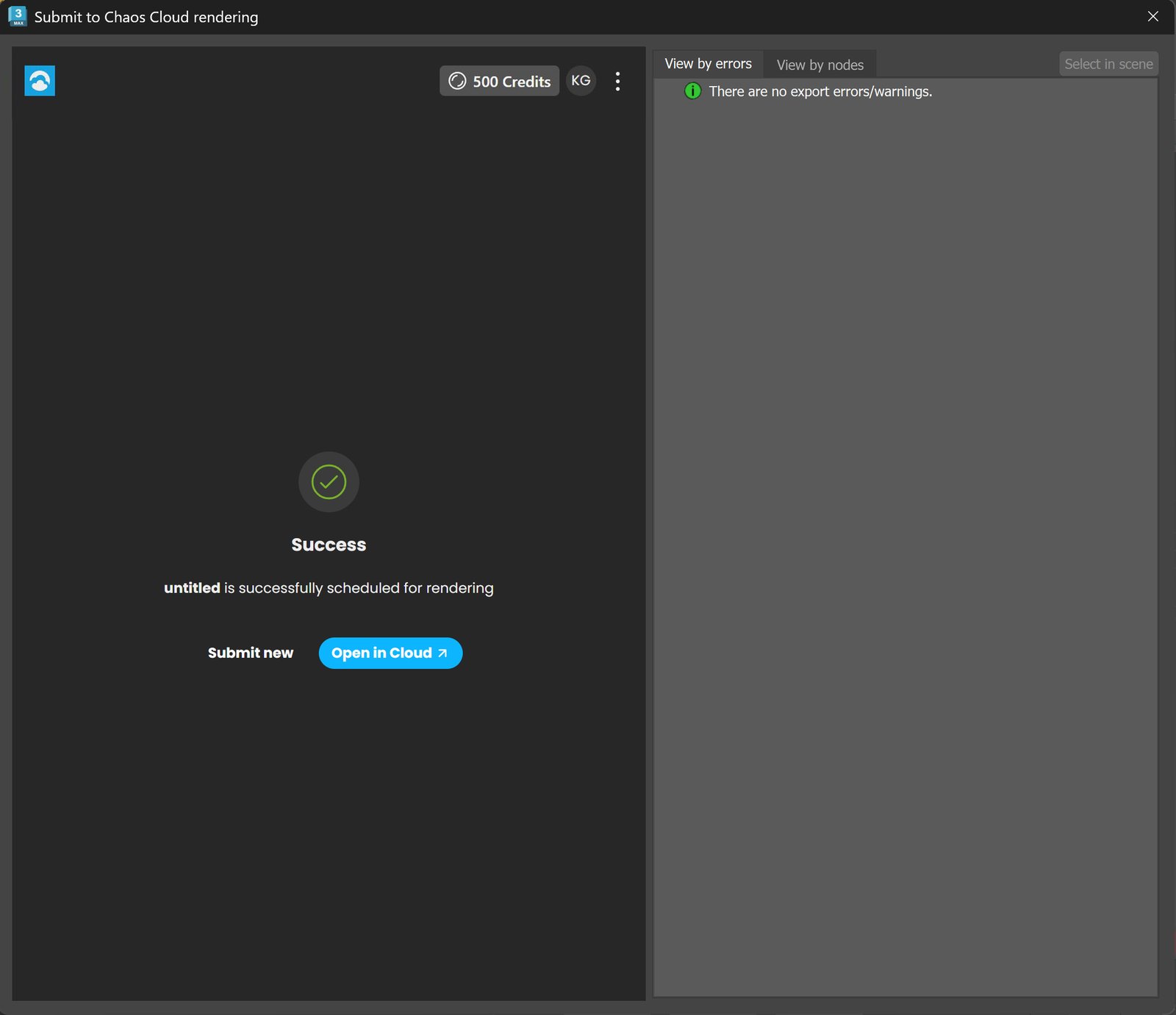
Clicking the button opens the Submit to Chaos Cloud rendering dialog. Click Submit to send your currently opened scene to Chaos Cloud for rendering.

Still Image Example

Animation Example
GPU jobs on Chaos Cloud default to RTX Render Mode, which uses both CUDA cores and RT cores. Enabling CUDA-only Mode overrides this to use only CUDA cores. Enabling CUDA CPU forces the job to run on CPU-only machines, which can lead to significantly longer render times.

Still Image V-Ray GPU Example

Animation V-Ray GPU Example
Once a job has been submitted, it gets analyzed and sent to Chaos Cloud for rendering. Press the Submit new button to submit another job. Press the Open in Cloud button to view your job on the Cloud.