V-Ray for 3ds Max
Chaos Cosmos Browser
This page gives information about Chaos Cosmos Browser in 3ds Max.
Last updated 1 July 2026
This page gives information about Chaos Cosmos Browser in 3ds Max.
Overview
Chaos Cosmos Content System delivers an asset library of high-quality, render-ready 3D content carefully selected from the rich Chaos ecosystem. It allows Chaos users from their respective Chaos products to browse, place, and render 3D assets in their visualization projects. The asset categories span across vegetation, materials, furniture, accessories, lighting fixtures, vehicles, people, animals, architecture, presets (i.e. ready-to-use predefined sets of 3D models like grass and dandelion lawns, tree avenues, river bed, wild bushes, palm forest, hedges, group of people and more), enmesh-patterns and HDRI skies, organized in four main categories and nine spaces.
In addition, all assets go through a rigorous process of selection and Chaos quality checks to make sure that they work seamlessly in different Chaos renderers (V-Ray 5 and later, V-Ray GPU, Corona, Vision, as well as Chaos Vantage) and host apps (3ds Max, Cinema 4D, Revit, Rhino, SketchUp, Maya, Houdini, etc).
youtu.be
UI Paths


Installation
Chaos Cosmos Browser is part of the installations of all Chaos renderers - V-Ray, Corona, and Vantage - and does not require any other specific actions. You can access the downloadable content of the Chaos Cosmos Platform from within the host platform once the renderer's installation is complete.
Usage
To start using Chaos Cosmos, you have to sign in. Click the Profile icon button at the top-right corner and enter your Chaos credentials in the newly opened browser tab.

Search And Filter
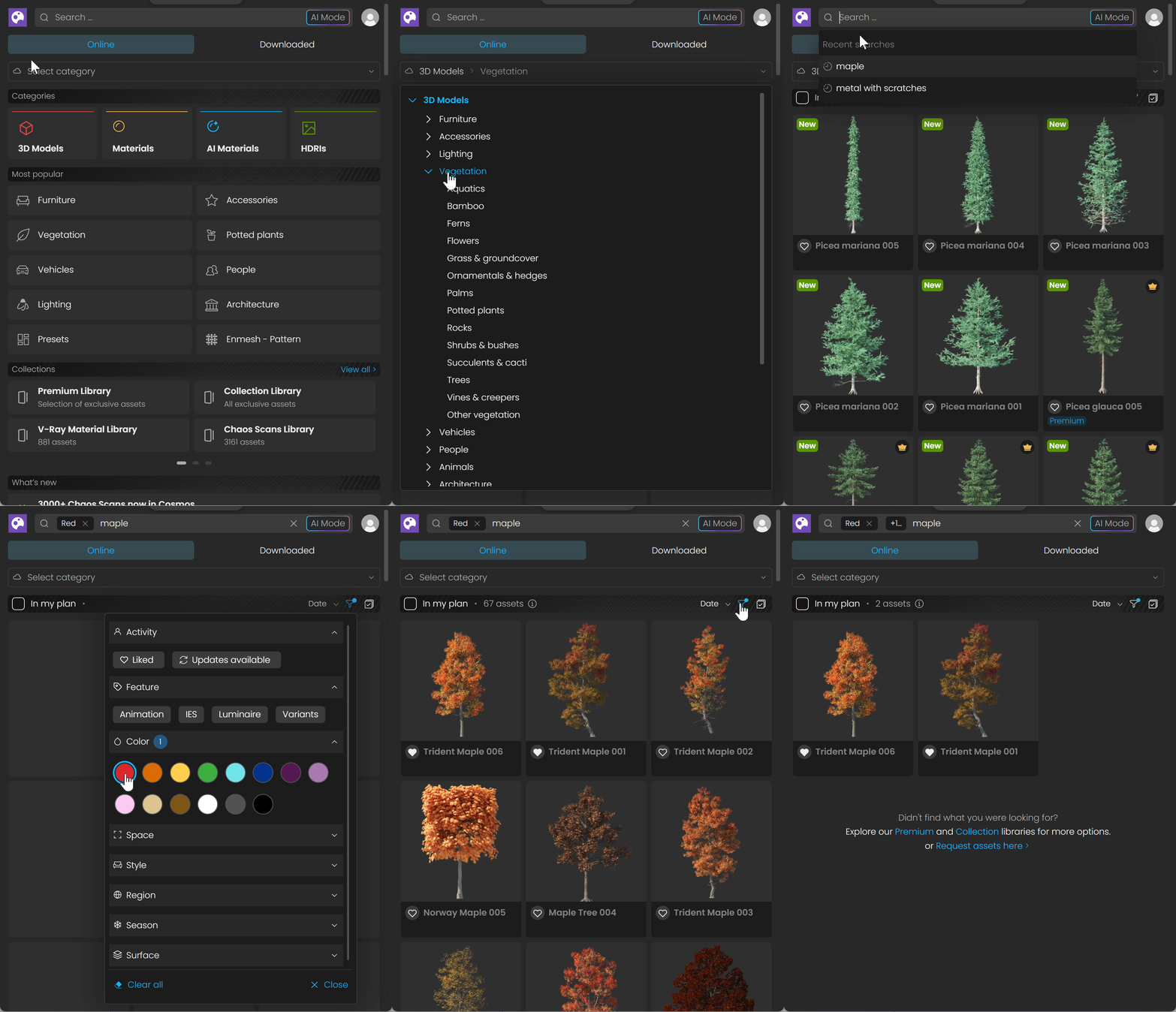
Switch between default and AI Mode Search options to enhance the provided results.

Default Search

AI Mode Search
The results show all available assets, regardless of the current subscription plan.
Use the In my plan filter to show only the assets available in your subscription plan.
Click on the Upgrade now button to upgrade your plan.

Use the categories menu to refine the search depending on the type of asset you are looking for, or you can select a themed Collection or Creator by which to filter.
The Filters menu provides options to filter by Color, by the Space where you might typically find assets, Surfaces they are often found on, and preset Tags.
At the top of the menu, you can also see the Liked filter and the Updates available filter.
Filters are combined with each other, they are not displayed simultaneously. If you filter by the color yellow and the liked assets, Cosmos shows you liked assets that are also yellow. Keep in mind that variants might have different filter tags, depending on their individual look (e.g., vegetation variants often have a summer and autumn variant, with one being tagged as summer and green, and the other as orange and autumn).
To remove all filters, use the Clear all button at the bottom of the Cosmos Browser.
Navigation bar

Button | Name | Description |
Button | Name | Description |
Home | Loads the Chaos Cosmos Browser home page. | |
Backward | Goes to the previous page. | |
Forward | Returns to the last opened page. | |
Settings | Opens the following Import options: Place imported materials of 3D models in the compact material editor – Switched off by default. When enabled, the material of the imported Chaos Cosmos asset is added to the Compact material editor. Keep geometry orientation independent of the target viewport – Imports the selected asset aligned to World space in the scene. Activate 3ds Max placement tool when asset is imported – Activates the Select and Place 3ds Max tool, which is used for placing assets in the viewport. The option eases the placing process, as it allows snapping to other geometry in the scene. |
Download Assets

Once you choose an asset, you have to download it. Hover over it and click the Download button.
Another way to download an asset is to click on it. This reveals additional information. You can see the creator, category, space, color of the asset, and other additional information. Other connected assets can be filtered by clicking on any of the additional information parameters. Click the Download button to download the asset.

All downloaded assets are marked with symbol. They are available in the Downloaded category.


Import Assets
Once the download is complete, a pop-up window will state that the asset is downloaded successfully. You can place it either in the center or at a random place in the scene.
Random place in the scene: Drag the asset into the viewport and place it wherever you want in the scene.

Center of the scene: Use the Import button functionality to bring the asset into the center of the scene. The Import button places the asset at 0,0,0 of the coordinates system.
Note that downloaded assets can be reused across different host platforms. They are saved locally at the following directory: C:\Users\[User]\Documents\Chaos Cosmos\Packages. The download storage can be configured. For more information on how to do it, refer to the Configuring the Asset Download Directory page.

Update Assets
Cosmos assets get updated over time. When an update is available, an update label appears. You can download the new versions from within the Chaos Cosmos Browser. Click on the labeled asset to open a popup window and click the Download now update text in the bottom.

Multi-Select Assets

Use the Multi-Select Mode ( ) button to enable the Multi-Selection Mode. In this mode, you can select several assets to download, import, update or delete at once. Note that multi-importing 3D objects and HDRI assets with drag and drop into the viewport allows specific placement per object using mouse clicks, while multi-importing via the Import button places the 3D objects and HDRI assets along the Y-axis.
Slate Material Editor
With every multi-import an additional View is created that holds the imported materials.
Compact Material Editor
Import several materials at once using the Import button or drag them into the viewport. The new materials fill in the empty slots in the Compact Material Editor while keeping the pre-existing scene materials.
Drag and drop the materials directly on a specific slot in the Compact Material Editor. This imports all the selected materials from this slot onward, while overwriting any pre-existing scene materials.
3D assets into Chaos Scatter
Drag and drop Cosmos 3D assets onto a Chaos Scatter icon or use the Import button with a pre-selected Chaos Scatter. The assets are added to the Scatter’s Instanced model objects.
Asset Types
Lights
Cosmos lights are imported as a hierarchy - the VRayProxy, which holds the geometry of the Cosmos asset, is a parent to the respective VRayLight and VRayLuminaire light (if available).
This means that moving or rotating the geometry keeps its VRayLight together with it.
Starting with V-Ray 6, update 2, the Chaos Cosmos library lets you import realistic IES light profiles.
www.youtube.com
HDRIs
The HDRI assets create a Dome Light with a VRayBitmap attached to it.
If a VRayLight (Dome) is already present in the scene, the drag & drop option creates a new VRayBitmap attached to it. Note that the cursor should be placed on the light itself when drag & dropping.
Materials
The Materials section contains an array of pre-made materials, such as wood, metal, glass and others. It also contains Decals, which can be used to simulate dirt or stickers on objects.
Once downloaded, materials can be imported via the Import button. If there is an object currently selected, the material is applied directly to it. Otherwise, the material is imported into the Material Editor. Alternatively, dragging onto an object in the scene or directly into the Material Editor also imports it.

Click the green arrow for two additional import options.
Use triplanar mapping – Enables triplanar mapping on VRayBitmaps (when adding the material to a scene or selection).
Use real-world scale – Enables real-world scale mapping for VRayBitmaps (when adding the material to a scene or selection).


Starting with V-Ray 7, update 1, the Materials section also contains Chaos Scans materials which are marked by the Chaos Scans ( ) marker.
The Chaos Scans materials import as VRayScannedMtl where physically accurate scans of real materials are loaded as ready assets.

Asset Variants
Asset Variants are Cosmos assets that have more than one variation regarding materials and geometry.
Downloading an asset with variants also downloads its variants. Import the selected asset variant from the Chaos Cosmos Browser. You can edit the asset appearance from the VRayProxy Cosmos Asset parameters.
Scatter Presets
The 3D Models category includes some Presets that work with Chaos Scatter.
When one of the presets is imported, a Chaos Scatter instance object is created. It distributes the model over the target area or spline.
These presets require existing selection of spline or surface as a guiding object for the scatter. You can either select the spline or surface and import the preset, or drag the preset from the Cosmos browser directly to the selected spline or surface of your choice.
As with other scatter objects, you can adjust the density, variation, etc.
www.youtube.com
Use Scatter with Chaos Cosmos assets
Another workflow for Chaos Cosmos with Chaos Scatter is to import your selected assets and scatter them manually. For more information on this workflow, please visit the How to Use Chaos Scatter for Corona page.
Cosmos Sets
Sets in Cosmos are a collection of compatible assets organized in a specific manner. They can be downloaded and placed as a single unit, which can later be rearranged.
The set is imported as an item. After the import is completed, each object can be moved separately.
Enmesh - Pattern
The Enmesh-Pattern category includes Enmesh patterns that can be applied to the geometry in the scene.
When an Enmesh asset is imported, a pattern is created in the scene. It can then be added to a VRayEnmeshMod as a mesh object, which is repeated on top of the underlying geometry.
If an object is already selected, the mesh is applied directly to the selection. Alternatively, the Enmesh pattern can be dragged onto a geometry in the scene to apply it to the selection.
The imported pattern can be edited as a VRayEnmeshMod, in the Modifiers of the underlying geometry.
www.youtube.com
Parallax Interiors
The Parallax Interior assets are found in the 3D models category. They import as native plane geometry shaded with self-illuminated material, where VRayParallaxTex is used to create the illusion of an interior with depth at the plane surface. Drag a Parallax Interior asset straight to the facade of your building in the 3ds Max viewport, and it aligns to it. Use the Self-illumination multiplier and the Compensate camera exposure checkbox in the VRayMtl to adjust the brightness of the interior in your scene.

Example: Parallax Interiors
This example illustrates a 180-degree view of a building with parallax textures applied to all its windows.
Notes
- Cosmos Browser is using a built-in browser window in 3ds Max 2019 and later, and opens an external window with previous 3ds Max versions.
- Decal presets are available in the Chaos Cosmos Browser for V-Ray 6.