The Transforms rollout is part of the Scatter parameters.
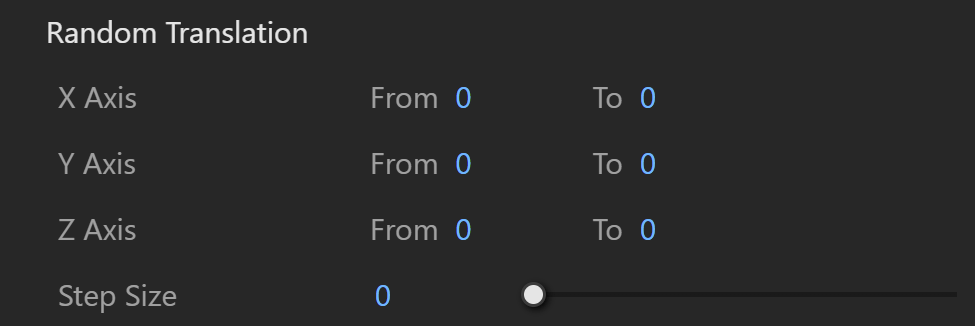
Random Translation
Moves instances along each axis between the From and To distances. See the Random Translation example below.
Step Size sets the random step size.
Example: Random Translation
This example shows how instances move along each axis.

X
= 0-0;
Y
= 0-0;
Z
= 0-0

X
= 0-25;
Y
= 0-25;
Z
= 0-0

X
= 0-100;
Y
= 0-100;
Z
= 0-0

X
= 50-100;
Y
= 50-100;
Z
= 0-0

X
= 50-100;
Y
= 50-100;
Z
= 0-2.5

X
= 50-100;
Y
= 50-100;
Z
= 0-100

X
= 50-100;
Y
= 50-100;
Z
= 50-100

X
= 0-100;
Y
= 0-100;
Z
= 0-0;
StepSize
= 0

X
= 0-100;
Y
= 0-100;
Z
= 0-0;
StepSize
= 50
Random Rotation
Rotates instances continuously within the From and To angles, in degrees. See the Random Rotation example below.
Step Size sets the random step size.
Normal Alignment aligns instances with the world up axis when you enter a value other than 0. Use it to keep scattered objects vertical on a curved host object rather than following the surface curve. Positive values align instances with the +Z axis (vertical up). Negative values align them with the -Z axis (vertical down). See the Normal Alignment example below.
Preserve Rotation keeps the objects' original rotation. See the Preserve Rotation example below.

Example: Random Rotation
This example shows how guest objects rotate within a set range.

X
= 0-0;
Y
= 0-0;
Z
= 0-0

X
= 0-360;
Y
= 0-0;
Z
= 0-0

X
= 0-360;
Y
= 0-360;
Z
= 0-0

X
= 0-0;
Y
= 0-0;
Z
= 0-360;
Step Size
= 0

X
= 0-0;
Y
= 0-0;
Z
= 0-360;
Step Size
= 25

X
= 0-0;
Y
= 0-0;
Z
= 0-360;
Step Size
= 125
Example: Normal Alignment
Enter a value other than 0 to align instances with the world up axis.
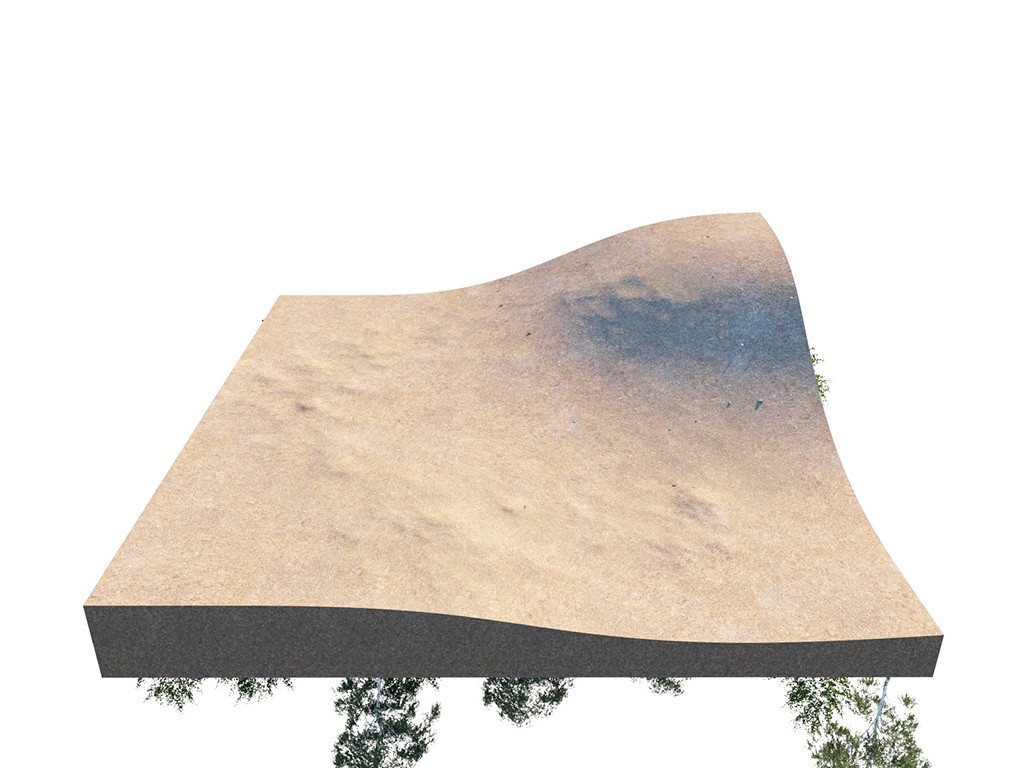
X
= 0-0;
Y
= 0-0;
Z
= 0-360;
NormalAlignment
= -0.75

X
= 0-0;
Y
= 0-0;
Z
= 0-360;
NormalAlignment
= -0.5
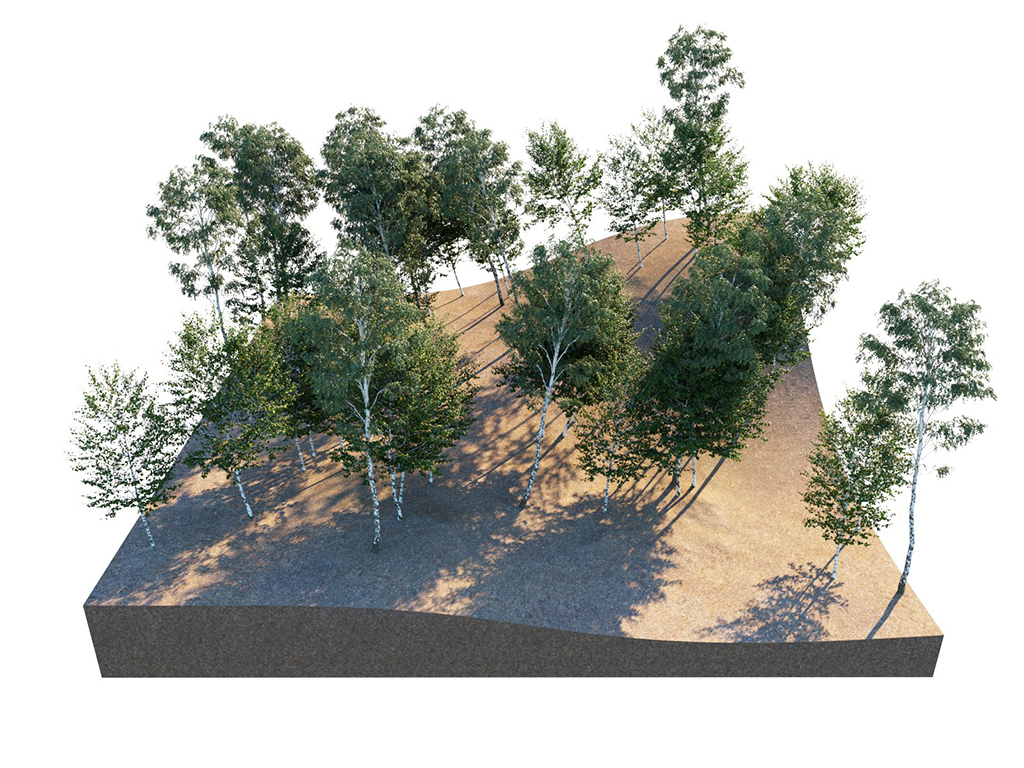
X
= 0-0;
Y
= 0-0;
Z
= 0-360;
NormalAlignment
= 0
Example: Preserve Rotation
Preserve Rotation controls whether instances keep the guest object's original rotation.

X
= 0-0;
Y
= 0-0;
Z
= 0-0;
Preserve Rotation
= Off (Guest not rotated)

X
= 0-0;
Y
= 0-0;
Z
= 0-0;
Preserve Rotation
= Off;
Guest Rotated
= 90

X
= 0-0;
Y
= 0-0;
Z
= 0-0;
Preserve Rotation
= On;
Guest Rotated
= 90
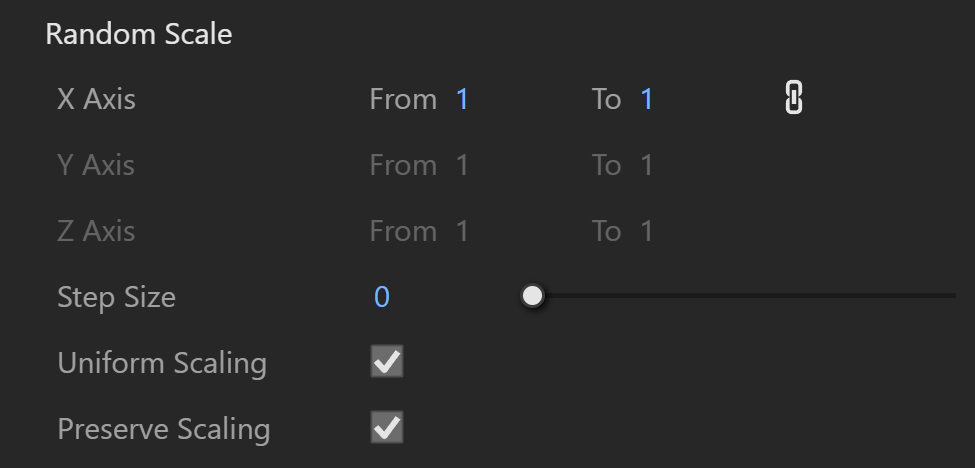
Random Scale
Scales instances continuously within the From and To values. When Uniform scale is enabled, the X axis values apply across the whole Distribute-on target object. See the Random Scale examples below.
Step Size sets the random step size.
Uniform Scaling uses the X axis values for the Y and Z axes as well.
Preserve Scaling keeps the objects' original scaling.
Example: Random Scale
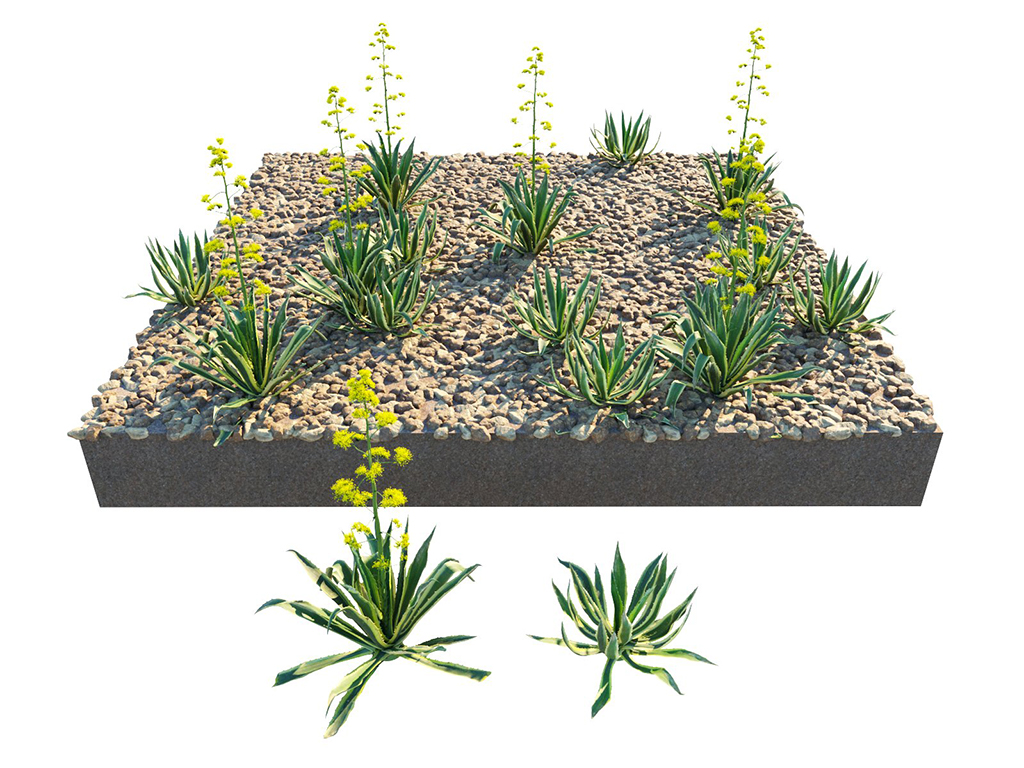
This example shows how guest objects are scaled. Compare the results with Uniform Scaling on and off.

X
= 1-1;
Uniform Scaling
= On

X
= 0-2;
Uniform Scaling
= On

X
= 1-1;
Y
= 1-1;
Z
= 1-1.5;
Uniform Scaling
= Off

X
= 0.75-0.75;
Y
= 0.75-0.75;
Z
= 1-1.5;
Uniform Scaling
= Off

X
= 0-1.5;
Uniform Scaling
= On;
Step Size
= 0

X
= 0-1.5;
Uniform Scaling
= On;
Step Size
= 0.75
X
= 1-1;
Uniform Scaling
= On;
Preserve Scaling
= On (Guests Not Scaled)

X
= 1-1;
Uniform Scaling
= On;
Preserve Scaling
= Off (Guests Scaled)

X
= 1-1;
Uniform Scaling
= On;
Preserve Scaling
= On (Guests Scaled)
Look At
Look At turns instances within a range towards a set direction when enabled. See the Look At example below.
Enables the Look At parameters.
Target Object selects the object used to calculate the direction. With a geometry object, each instance faces the centre of its bounding box. With a camera object, each instance faces the camera.
Look Axis selects which axis of the model object points towards the direction.
Reverse Axis points the reverse of the selected axis towards the direction when enabled.
Horizontal restricts the selected look-at axis to turning within the plane perpendicular to the normal when enabled.
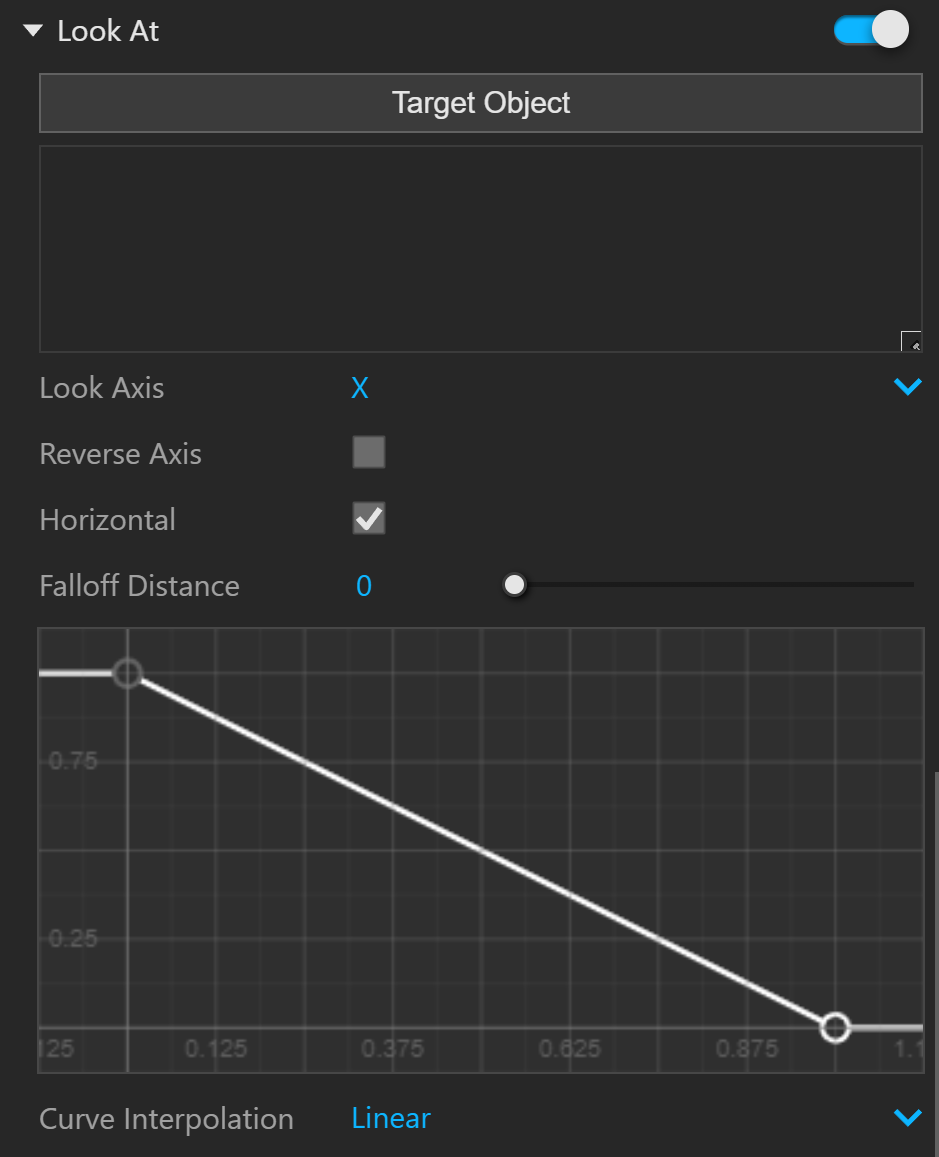
Falloff Distance sets the range affected by Look At. A non-zero value affects only instances within that range. Otherwise, it affects all instances. This setting has no effect when you select a sun object. See the Falloff Distance example below.
Use the Curve editor to remap the falloff.
Curve Interpolation sets the interpolation type to Linear or Cubic. The selected type applies to all curve points.
Context menus

Example: Look At
This example scatters sunflowers across a plane with Look At enabled. VRaySun is the Target object and moves across the sky as though setting over the horizon. Horizontal is enabled to make the sunflowers' rotation more realistic. Slide through the images to see their movement.


Example: Falloff Distance
In this example, the sunflowers face the blue butterfly. Falloff Distance limits the effect to an area around the Target object. Set the value to 0 to affect all scattered geometry. Scroll quickly through the examples to see which area remains affected.

Falloff distance = 0.0

Falloff distance = 3.0

Falloff distance = 9.0
Notes
- SketchUp always calculates scene units in inches.