Use the V-Ray Scene Importer in V-Ray for SketchUp to import .vrscene files as SketchUp models.
Overview
The V-Ray Scene Importer imports .vrscene files as SketchUp models, including geometry, material assignments and texture placement. It scales the imported scene to match the source file's unit settings. You can position the scene at the centre of your SketchUp project.
Video overview.
Open the import options
To open the VRscene Import Options window, select File > Import from SketchUp's main menu. Select a .vrscene file, then select Options... at the bottom of the browsing window.
VRScene Import Options
Use VRScene Import Options to choose what to import from the .vrscene file.
Use Materials to choose how to import materials.
V-Ray Materials imports geometry with its V-Ray materials.
Colours imports only the main (diffuse) colour.
Use Lights1 to choose whether to import lights.
Use Proxies to choose whether to import proxies.
Use Scene Scale to choose whether to import the project at its original scale.
Use Additional Scale to apply extra scaling to the .vrscene file during import.
Use Mode to choose how to import the .vrscene file into your project:
Add and Place is the default mode. It imports the scene so you can place it anywhere in the viewport.
Add Component adds the vrscene to your project, but it is not visible in the viewport.
Open File opens the vrscene in another project.

Import example
This example shows a .vrscene imported from 3ds Max. The first picture shows the source scene and its render in the VFB. After import into SketchUp, the render looks the same. The import uses the Texture & UVs option for Materials and preserves the original project's scale.
The bonsai model is a Proxy Mesh. It remains a proxy after import into SketchUp.
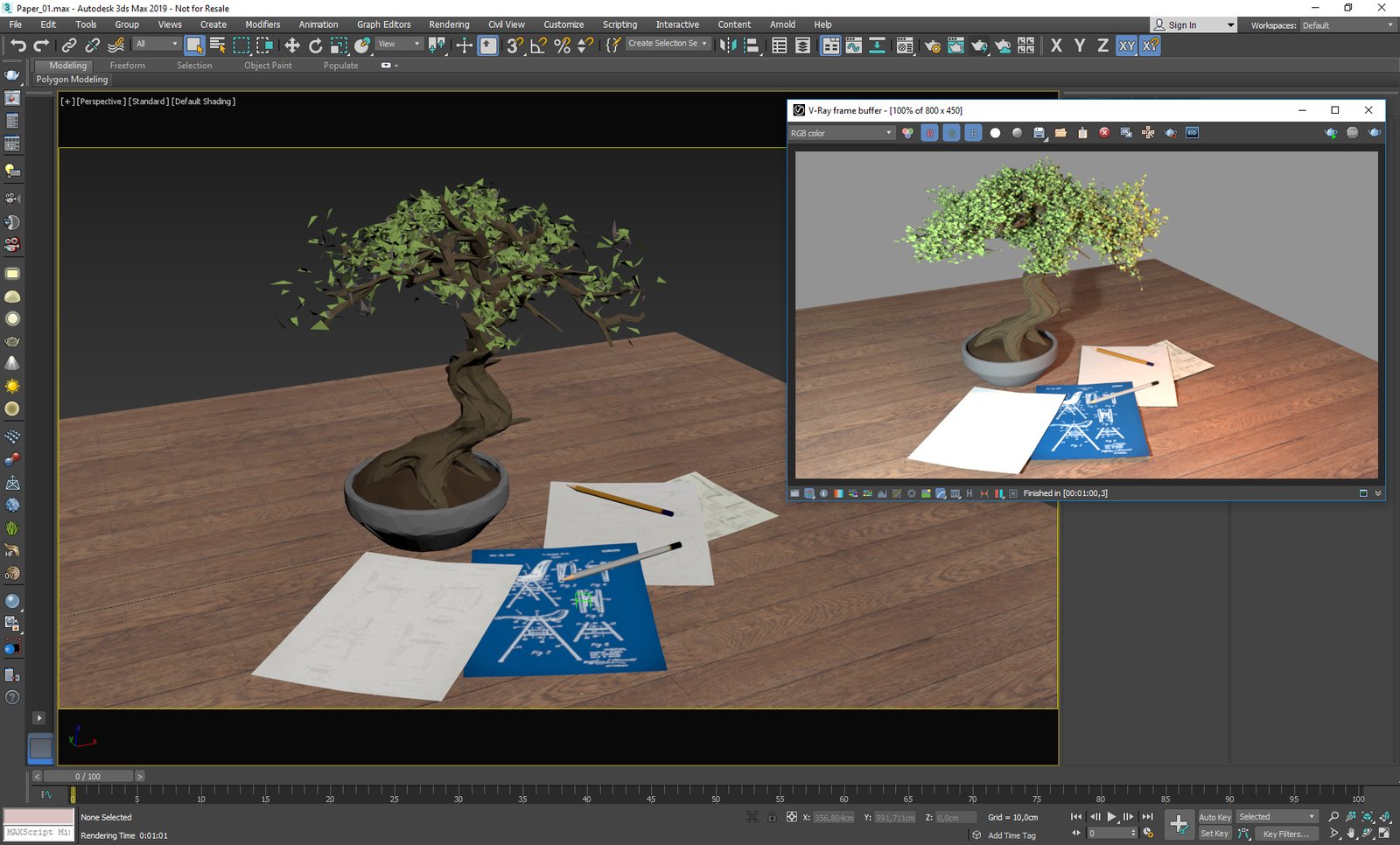
The scene in 3ds Max and its render in the VFB
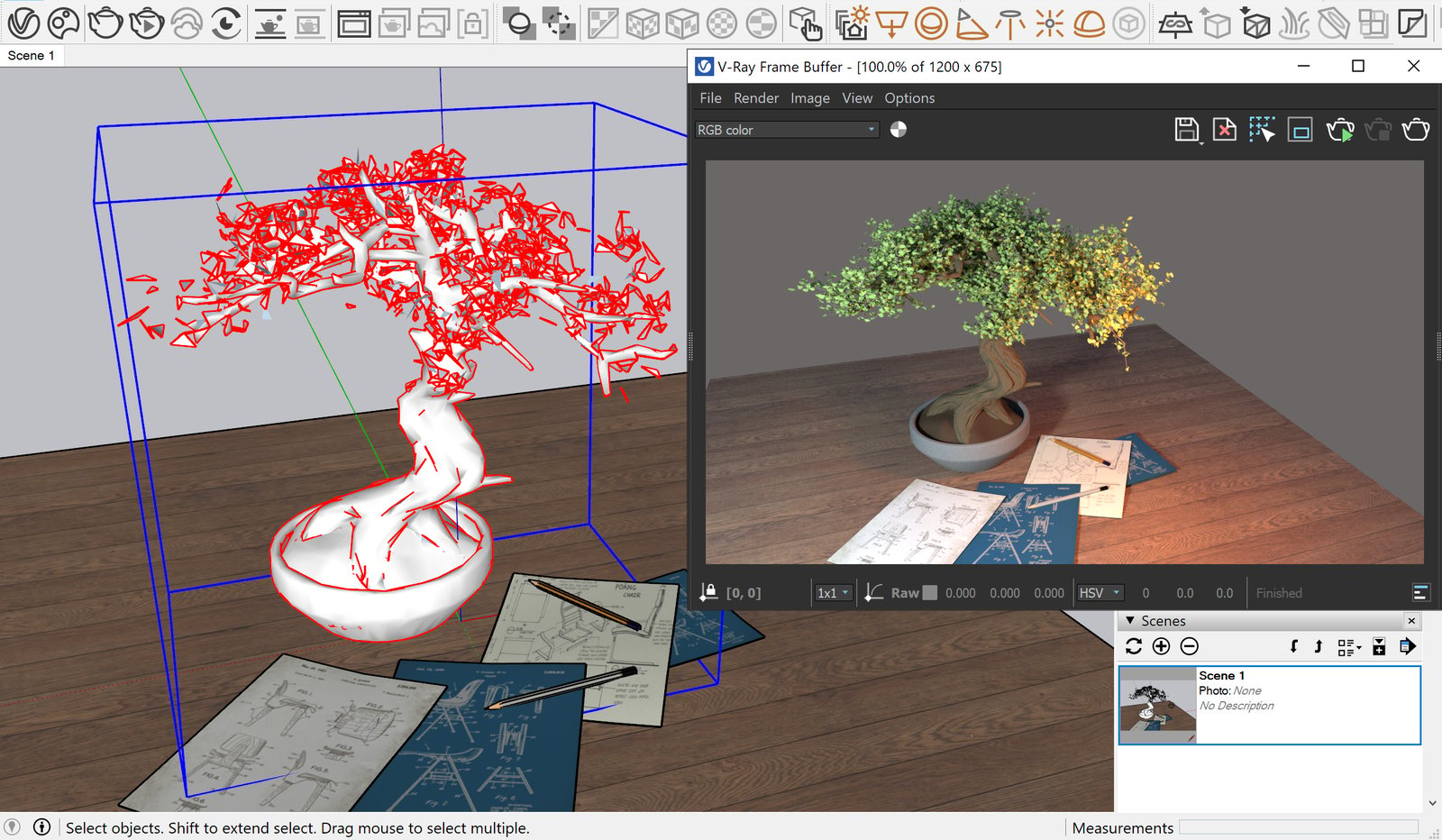
The imported .vrscene in SketchUp and its render in the VFB
Footnotes
- Dome, IES and Mesh lights are currently not imported.
- SketchUp scene units are always calculated in inches.
1. When you export a vrscene with an instanced light and then import it, the light imports as multiple separate assets instead of one. - Before importing VRScene files on macOS, make sure V-Ray is not activated. If V-Ray is already active, select Extensions > V-Ray > Help > License > Release V-Ray License.