KeyShot Studio
Geometry View Window
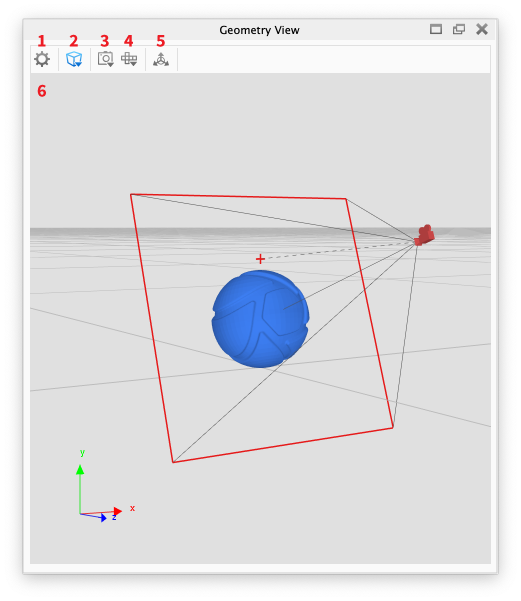
The Geometry View window provides a secondary OpenGL viewer for use as a secondary view for lighting, camera or animation setup. The Geometry view is dockable and can be launched from the Ribbon in KeyShot Studio, via the Main Menu, Window or via the hotkey O.
Last updated 3 August 2026
The Geometry View window provides a secondary OpenGL viewer for use as a secondary view for lighting, camera or animation setup. The Geometry view is dockable and can be launched from the Ribbon in KeyShot Studio, via the Main Menu, Window or via the hotkey O.
Geometry View
|
Learn more about what you can do in the Geometry View section.