Skip to content
07-848 2005

KeyShot Studio, materials

Multi-Layer Optics

Enter or edit the full material specification, including all layers, in plain text.

On this page
  1. Edit Specification
  2. Encrypt Specification
  3. Color
  4. Transparency Distance
  5. Refractive Index Outside
  6. Simulate Substrate Dispersion
MultilayerOptics edited

Use the Multi-Layer Optics material in KeyShot to create materials with multiple thin-film layers.

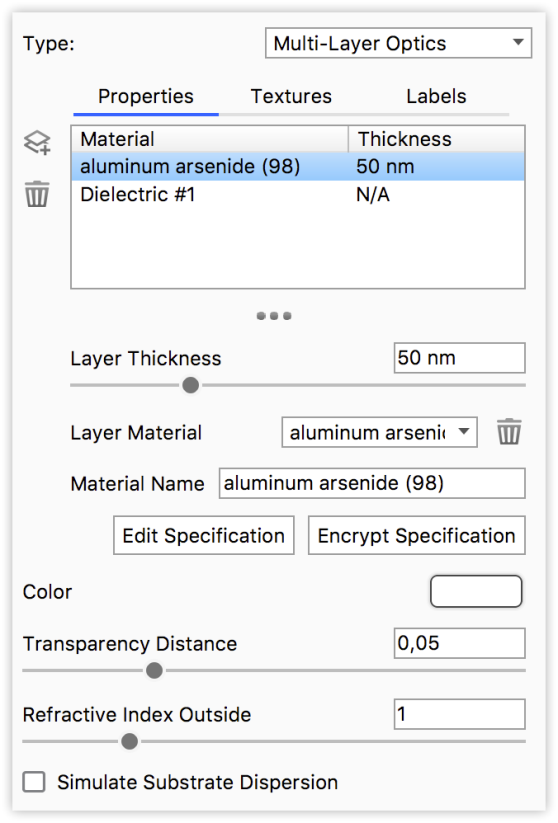
Multi layer optics material

Layer List

Lists all layers in the material. The first layer is the base layer (substrate).

Add layer icon Add layer
Add a layer from a file, a new dielectric layer or a copy of an existing layer.

Trash icon Delete layer
Deletes the current layer from the layer list. Its definition remains available in the Layer Material drop-down.

Layer Properties

These properties apply to the layer highlighted in the Layer List.

  • Layer Thickness Set the layer thickness. You cannot set the thickness of the first layer because it is the part's main material (substrate).
  • Layer material Select the material for the layer. The list includes all materials previously listed, including materials from deleted layers. The Trash icon next to the material drop-down deletes the current material specification and replaces all instances.
  • Material Name Edit the material name. This changes the material name, not the layer name.
  • Refractive index This slider controls how much light bends (refracts) as it passes through the material. The default of 1,5 accurately simulates most types of glass.
  • Abbe Number This setting controls light dispersion as light passes through the surface, producing a prismatic effect. A value of zero disables dispersion entirely. A low value produces strong dispersion. Higher values make the effect more subtle. Start around 35-55 for a subtle dispersion effect.

Edit Specification

Enter or edit the full material specification, including all layers, in plain text.

Encrypt Specification

Encrypt the material specification to protect it. Encryption hides the layer information and prevents further editing.

Encrypted materials cannot be decrypted. After encryption, you can use Clear Specification. This deletes the current material specification so you can start again.

Color

This setting controls the material's overall colour. Light takes on this colour when it enters the surface.

Transparency Distance

This slider controls the depth of the colour set in Transmission, based on the part's thickness. After choosing a colour in Transmission, use Transparency Distance to adjust its saturation and prominence. Lower settings make the colour stronger in thin areas of the model. Higher settings make it fainter in thin areas.

This setting physically simulates how colour changes with depth, like shallow water at a beach compared with the deep blue of an ocean. Without it, you could see the bottom of the deepest ocean as easily as the bottom of a swimming pool.

Refractive Index Outside

Use this setting to accurately simulate the interface between two different refracting materials.

Simulate Substrate Dispersion

Enable this setting to simulate caustics in a transparent substrate.

For more about caustics, see the Refractive Index page.

Procadsys customer support

Still need help?

Licences, renewals and billing

Our New Zealand team looks after your KeyShot licences, renewals and invoices.

Monday to Friday, 9:00 am to 4:30 pm NZ time, excluding New Zealand public holidays.

Technical problems

Installation errors, crashes and other technical problems with KeyShot are handled by KeyShot support.