Use the TranslucentMedium material to control subsurface scattering in skin, plastic and other materials. It generally renders faster than the basic Translucent material.
Surface Color
This controls the diffuse colour of the material's outer surface, which gives the material its overall colour. If the surface colour is completely black, you will not see the translucent effect of the subsurface colour.
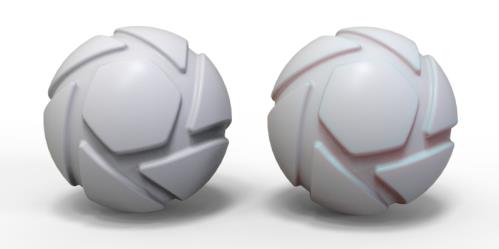
Subsurface Color This controls the colour light takes on as it passes through the material. Skin shows this effect. When bright light passes through the thin parts of an ear or the skin between fingers, it takes on a redder colour from beneath the surface. Light scatters in random directions as it passes through the surface. This creates a soft translucent effect rather than the direct refraction you see in glass and similar materials. For plastic materials, you will often use a colour similar to the surface colour, but slightly brighter. | The material on the left has a black Subsurface Color. The material on the right has a bright red Subsurface Color. |
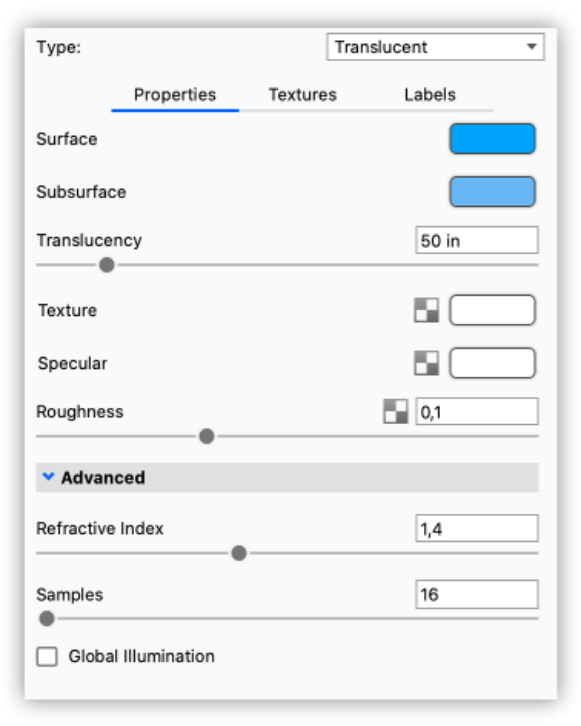
Translucency This controls how deeply light penetrates into and through the surface, based on the units set under Edit > Set Scene Units. Higher translucency values reveal more of the subsurface colour through the surface. They also make the material look softer. Specular This controls the strength of surface reflections. It works with Refractive Index to increase or decrease their strength. Roughness Increasing Roughness spreads reflections across the surface and gives it a more matte appearance. Refractive Index This controls how much light bends, or refracts, as it hits and passes through parts with this material. Start with the default value of 1.4. Increase it for stronger refraction within the surface. Samples A low samples setting (8 or lower) tends to make the surface look noisier, rougher and less uniform. Increasing the value evens out the noise and distributes the roughness more evenly. |