Trimble Connect in SketchUp for iPad
SketchUp for iPad features full integration with Trimble Connect. You can choose to save any SketchUp files created or edited with SketchUp for iPad instead of saving them locally.For information on creating and managing your Trimble ID or Multi-Factor Authentication, see Trimble ID.On the home screen, an icon
Last updated 17 July 2026
SketchUp for iPad features full integration with Trimble Connect. You can choose to save any SketchUp files created or edited with SketchUp for iPad instead of saving them locally.
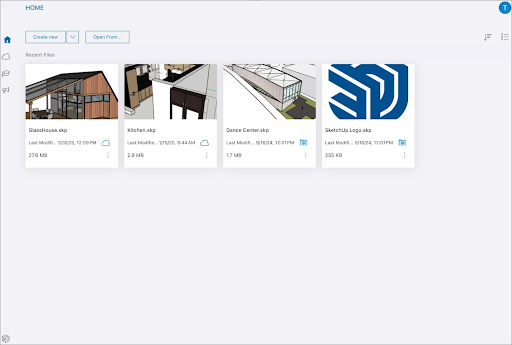
On the home screen, an icon designates a file’s status:
- Locally saved file –

- Saved to Trimble Connect –

If you want to move a locally saved file to Trimble Connect, tap the menu icon (  ) and select Publish to Connect . In the window that appears, choose the project you want to add the file to and tap Publish to Connect to save it.
You can access any file saved to a Trimble Connect project from the Trimble Connect tab on the Home screen.
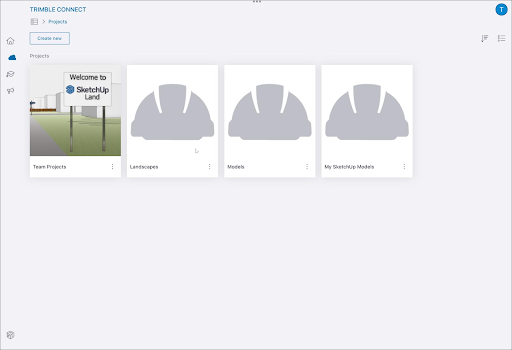
If you want to easily share a model saved to Trimble Connect, learn how to create and share a link to that model in Link Sharing .
Still need help?
Technical support from our New Zealand team is available to customers with a current Procadsys SketchUp Plus subscription: Pro Plus, Pro Scan Plus, Pro Civil Contractor Plus, Advanced Workflows Plus or Studio Plus. Self-help articles are public.
Contact SketchUp support