Share 3D models with anyone, including people who do not use SketchUp. Invite collaborators through private or public links. They can inspect designs, measure components, view specific scenes, leave comments or stream real-time edits in their browser. They do not need to download software or create an account.
Collaborators use a simplified version of SketchUp for Web to interact with your model. You can keep working on the model in SketchUp for iPad.
Set permissions to give external collaborators full access to explore the model or basic viewing controls. You can change permissions or revoke access at any time.
See Sharing a Model for sharing instructions and the permissions you can give collaborators.
Collaboration in SketchUp for iPad
In SketchUp for iPad, the Collaboration Toolbar is in the top right of the model window.

The toolbar includes:
- Avatars of collaborators currently viewing your model
- Visibility controls for the model's owner
- Share option
Select a collaborator's avatar to see the model from their point of view. Use the visibility controls to adjust how collaborators appear to each other in the model. See Real Time Viewing for details.
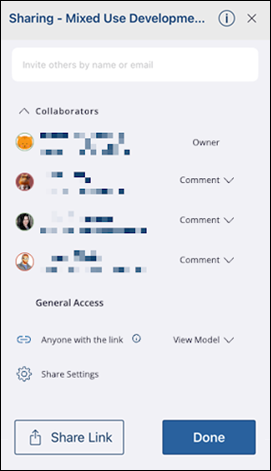
Select Share on the Collaboration Toolbar to open a dialogue where you can:
- Adjust collaborator permissions
- Copy a link to invite others to collaborate
- Change your share settings
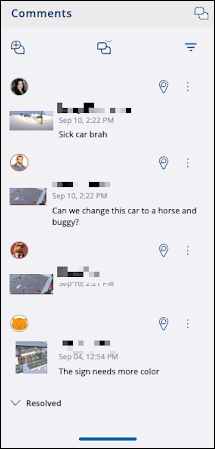
SketchUp for Desktop has a comments icon on the Collaboration Toolbar. SketchUp for iPad has a separate Comments panel. Use this panel to add comments or find and review comments from others.
When you invite collaborators, SketchUp creates a private link for the individual users you invite or a public link anyone can access. Depending on the access you give them, collaborators can open and view your model without signing in or installing an application.
See Collaborate in SketchUp for details on sharing a model and how invited collaborators can interact with it.