Use SketchUp's Collaboration Bar to share your model and get feedback from colleagues, stakeholders or other viewers. You can send private invitations or create a General Access link that anyone can view. Viewers can navigate the model, take measurements, leave comments and see your updates in real time.
You can only use SketchUp's collaboration features with models saved to Trimble Connect.
The Collaboration Bar interface
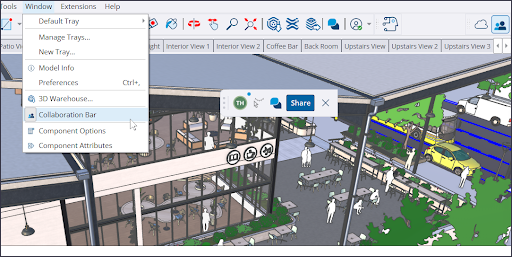
After opening the Collaboration Bar, drag the grip on its left side to move it. The bar has these options:
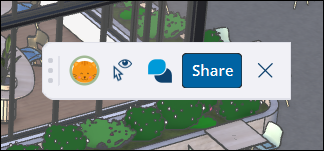
- Your profile picture brings everyone viewing your shared model to your point of view when you click it. See Real Time Viewing for details.
- Show/Hide Cursors (
 /
 ) shows or hides other viewers' cursors when you click it.
- Comments opens the Comments Panel. See Commenting on a Model for details.
- Share opens the Sharing window. You can also open it by clicking File > Trimble Connect > Share a Link.
- Click X to close the Collaboration Bar.
Share with the Collaboration Bar
Click Share in the Collaboration Bar to open the Sharing window. If your model is not saved to Trimble Connect, a prompt asks you to save it.
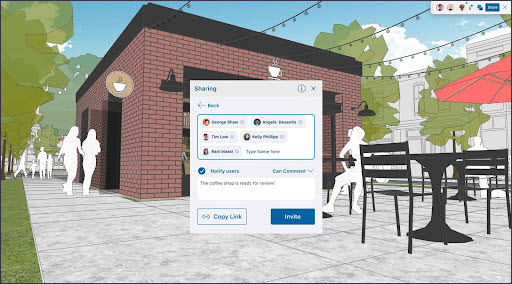
At the top of the window, enter the names or email addresses of the people you want to invite privately.
After entering everyone you want to invite, press Enter to open the Invite dialog.
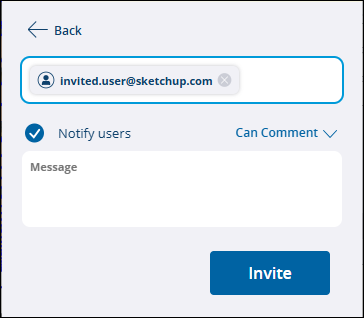
In the Invite dialog, choose whether to notify your collaborators, set their access level or add a message. Click Invite to finish the invitation.
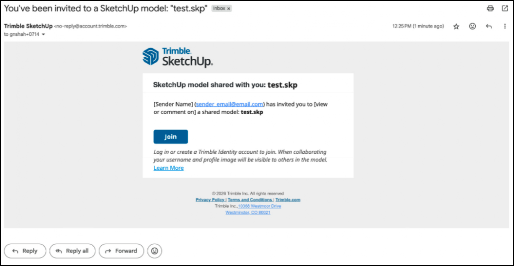
Anyone you have not shared a model with before receives an email invitation.
The Sharing window lists you as the model owner and everyone you have invited to collaborate. People who have not accepted their email invitation or have requested access appear under Invites Pending. They move to the Collaborators section when they accept the invitation or you grant access.
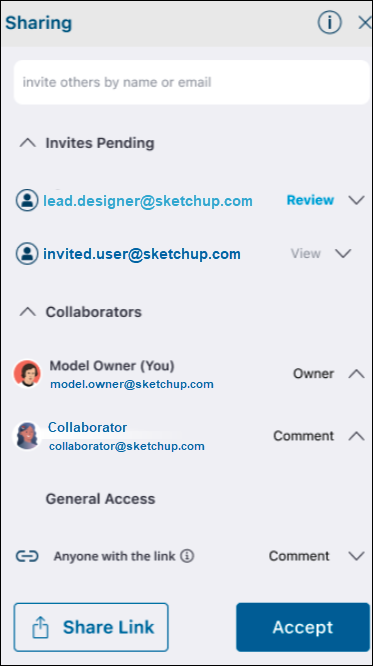
You can assign these viewer permissions to collaborators:
- View Scenes lets the collaborator view scenes in the model. They cannot navigate the model or leave comments.
- Comment lets the collaborator leave comments and use all available camera tools and viewer utilities.
- Remove removes the collaborator and all their access to the model.
Click Share Link to create a public link to your model. The General Access section sets the access level for people using this link. It also controls what happens when someone you have not invited tries to access the model. Viewers using the general access link cannot comment on your model.
You can set the model's General Access to:
- No Access requires people to send an access request before they can view the model.
- View Scenes lets anyone with the link view scenes. They cannot freely navigate the model.
- View Model lets anyone with the link navigate the model and take measurements.
Manage access requests
Follow these steps to approve or decline collaboration requests:
- In the Sharing window's Pending Invites section, click Review next to the person requesting access.
- In the window that opens, use the dropdown to set their access level. Choose whether to notify them when you approve or deny the request.
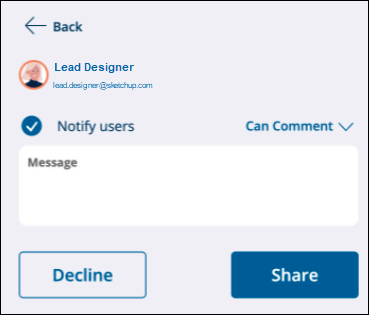
- Choose whether to notify them when you approve or deny the request.
- Add a message for the person requesting access.
- Click Decline to decline the request or Share to approve it.
Control cursor visibility
After you share a model, you and everyone viewing it can see each other's cursors. Viewers can see which tool you have active, and you can see how they navigate the model.
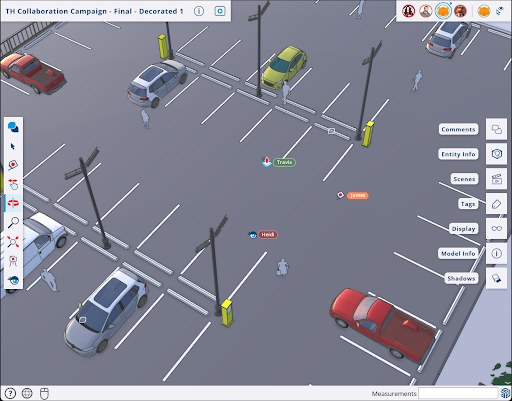
Many collaborators' cursors can be distracting or confusing. Displaying them can also put more load on your hardware and slow performance.
Click Show/Hide Cursors (/) in the Collaboration Bar to hide or show cursors.