Export your LayOut document as a single PDF file containing its pages. Follow these steps:
- Select File > Export. The Export PDF dialog box opens with PDF selected in the Save As Type drop-down list.
- Choose where to save the PDF and enter a file name.
- Click the Save button. The PDF Export Options dialog box opens.
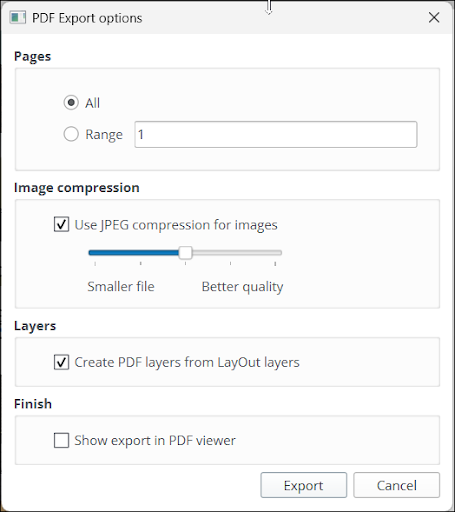
- LayOut includes all document pages in the PDF by default. To export a page range, select Range and enter the page range.
- To reduce the PDF file size, select Use JPEG Compression for Images and move the slider to Smaller File. This lowers the image quality and reduces the file size. For higher image quality, move the quality slider to Better Quality.
- LayOut creates a PDF layer for each layer in your document. To export without these layers, deselect Create PDF Layers from LayOut Layers.
- LayOut opens the PDF in your system's PDF viewer immediately after export. To keep it from opening, deselect Show Export in PDF Viewer.
- Click Export.