Adding Text, Labels, and Dimensions
Although LayOut has only a slim chance of moonlighting with an illusionist act in Las Vegas, LayOut’s text isn’t always what it seems.
Last updated 17 July 2026
Although LayOut has only a slim chance of moonlighting with an illusionist act in Las Vegas, LayOut’s text isn’t always what it seems.
Sure, you can type text into the drawing area like you would with any old word processor or presentation program. But you can also import text from a file or insert Auto-Text that displays text that you define based on special fields inserted into a document. See Typing, Importing, or Auto-Inserting Text for details. You can also format text so that the fonts, sizes, and colors reflect the look and feel that your document requires.
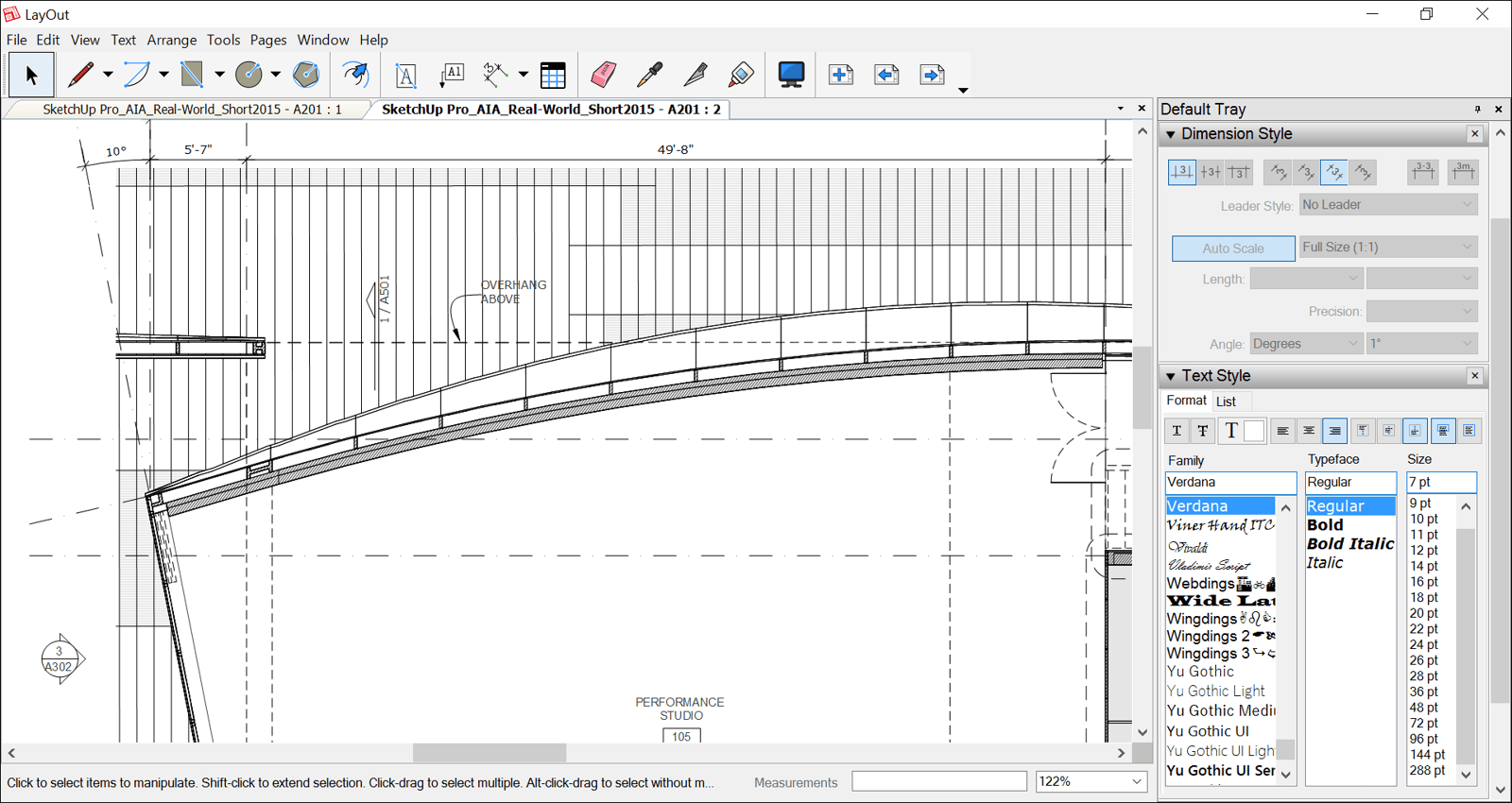
Even more spectacular are labels and dimensions. Labels include a leader line with an arrow so you can callout specific elements. And label text is able to display Auto-Text as well as data from a SketchUp model entity. For example, when a label points to a face, you can tell LayOut to display details only the model would know, such as the face’s area.
Dimensions are designed to display measurements on the page or from your SketchUp model. So, if you spend time labeling several dimensions in a document only to learn those dimensions changed in the original SketchUp model file, all you have to do is update the model references , and the dimensions in your document update automatically.
Still need help?
Technical support from our New Zealand team is available to customers with a current Procadsys SketchUp Plus subscription: Pro Plus, Pro Scan Plus, Pro Civil Contractor Plus, Advanced Workflows Plus or Studio Plus. Self-help articles are public.
Contact SketchUp support