LayOut links each imported SketchUp model to its viewport. This article explains how you manage model changes and other imported files in LayOut.
- Synced Updates lets you open a model in SketchUp from LayOut and make changes that appear in the LayOut viewport.
- Referenced Content appears in the References section of Document Setup. It lists every SketchUp model inserted into your document and when each model instance was last updated.
- Swap Out Models lets you replace the SketchUp model for each viewport in your document.
- Visibility lets you control which SketchUp tags are visible in LayOut.
Opening SketchUp from LayOut
To open a model in SketchUp from LayOut:
- In LayOut, context-click the viewport and select Open with SketchUp. SketchUp opens with the model loaded.
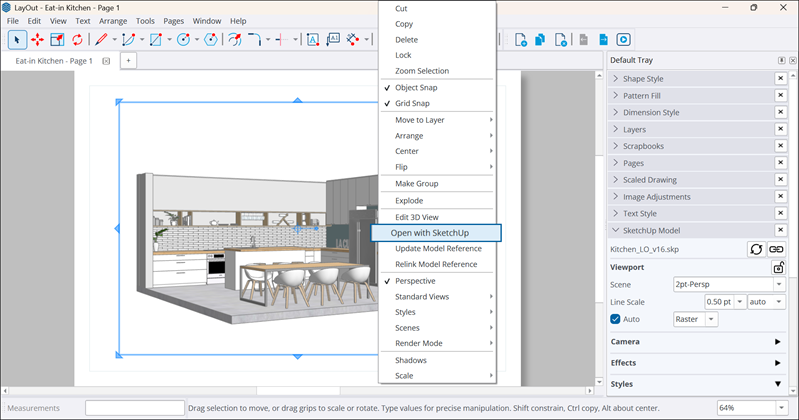
- Make changes to the model.
- Select File > Save. The LayOut viewport shows the changes to your SketchUp model.
Managing references in Document Setup
LayOut treats inserted images and imported files as references. After you modify a file, update its reference in the References section of Document Setup to show the changes in your document.
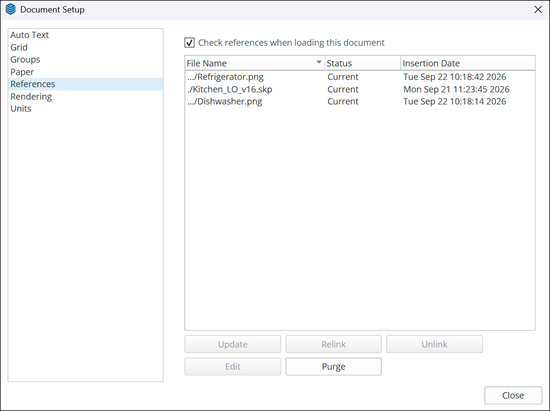
In the References section, select files and choose from these options:
- Update replaces an outdated file with its latest version.
- Relink lets you set a new location for a moved or renamed file.
- Unlink removes the connection between a file and its reference.
- Edit opens a referenced file in its native application for editing.
- Purge removes references to files that no longer appear in your document. It also removes unused styles in viewports.
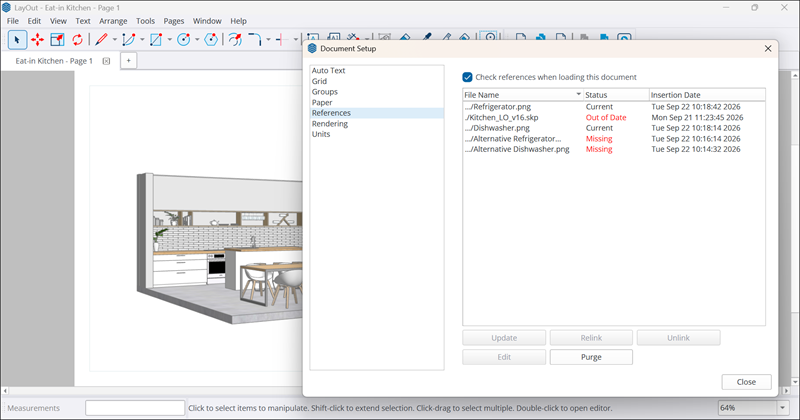
Select Check references when loading this document to have LayOut check all referenced files each time you open the document. If any files are missing or outdated, the Document Setup dialog opens with the References section selected.
To check and update model references:
- Select Window > Document Setup to open the Document Setup dialog.
- Select References on the left. Missing or outdated references have a red status in the file list.
- Select any outdated references and click Update.
- When you finish in Document Setup, click Close.
Replacing the model for a viewport
To replace the SketchUp model for a viewport:
- Select the viewport.
- In the SketchUp Model panel, select Link (
 ).
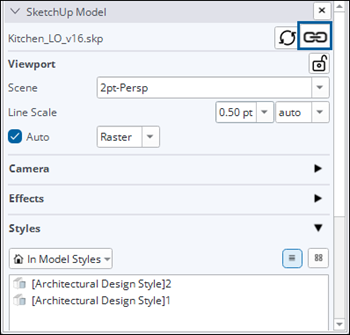
- Browse to the new file, select it and choose Open. The viewport switches to the new model.
Controlling the visibility of SketchUp tags
You can control which SketchUp model tags are visible in LayOut.
For more about SketchUp tags in LayOut, see Labeling Items in Your Document or Working with SketchUp Dashes in SketchUp Files.
To change tag visibility:
- Select a viewport.
- In the SketchUp Model panel, expand the Tags section. The tag folders and tags associated with the viewport appear.
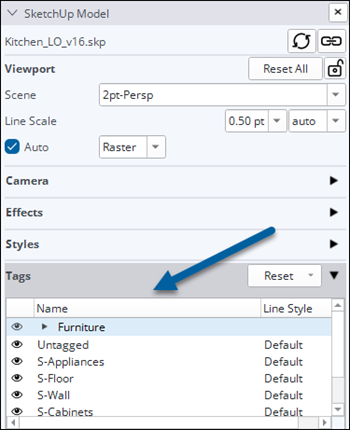
- Click the eye (
 ) next to a tag or tag folder to hide or show its tagged entities in the viewport.
To select multiple tags, use the Ctrl key in Windows or the Cmd key on Mac OS. Use the Shift key to select a group of tags.