Use LayOut to adjust linework styles from your SketchUp model, including dashed lines.
Set up scenes in SketchUp to capture model views and styling. Assign tags to objects whose lines need different styles. For example, a viewport could show a floor plan scene with separate tags for the project site's topographic layers.
Style linework
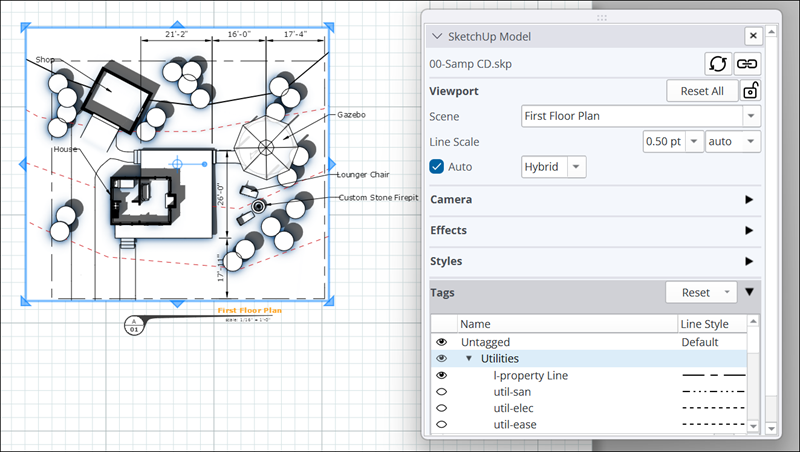
The SketchUp Model panel controls how SketchUp model viewports appear. It has settings for all linework in a viewport and separate controls for the linework and visibility of tagged objects.
Select the viewport. Then select Window > Default Tray > SketchUp Model to open the SketchUp Model panel.
Set the viewport line scale
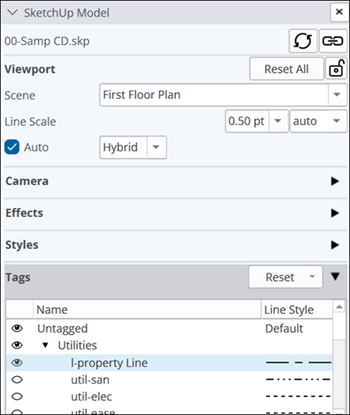
The Line Scale settings in the Viewport section control Edge width and Dash Scale. Use them to apply the same Edge width and Dash Scale to all lines in the viewport.
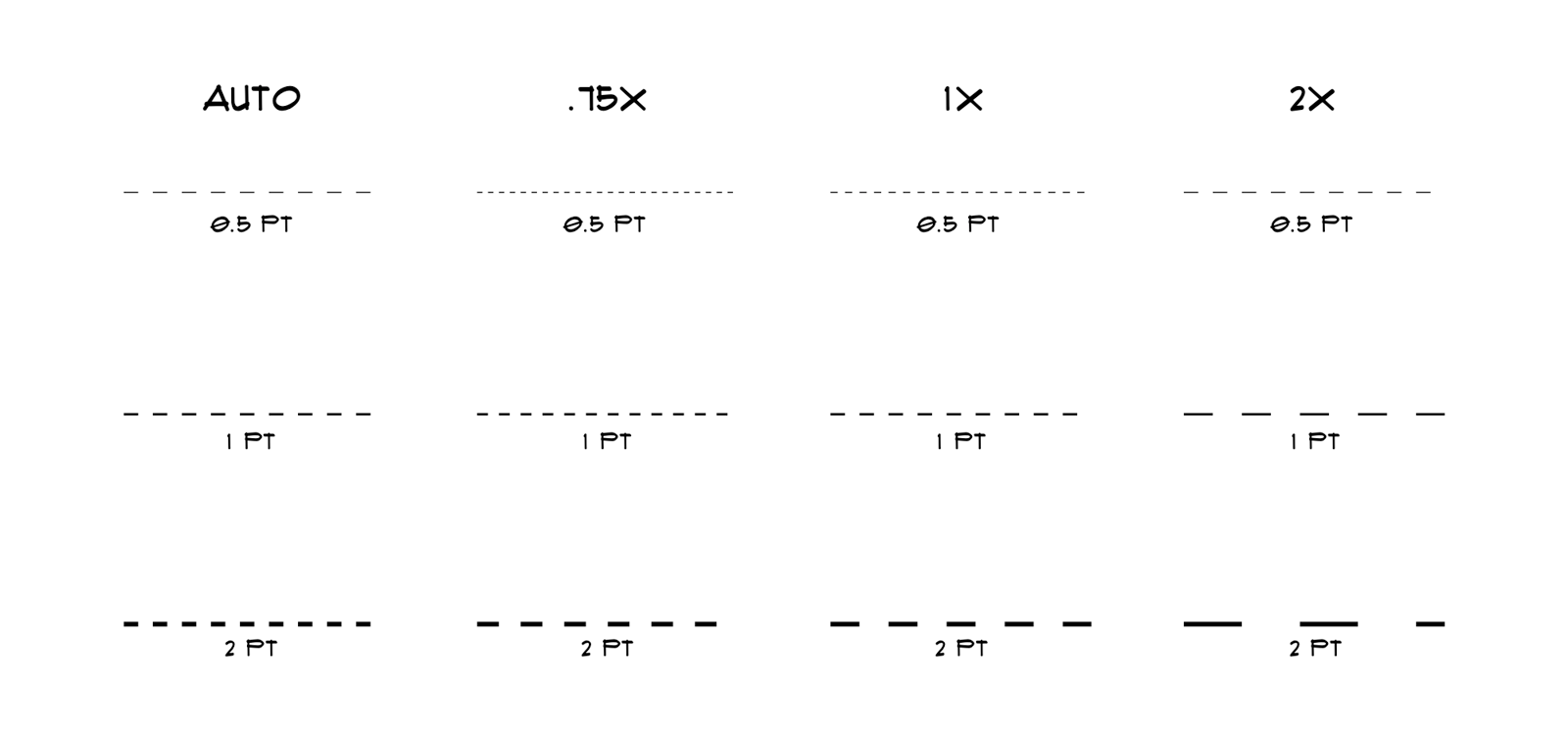
A 1pt Line Scale displays your model's Edges and Profile Edges at the same width as in SketchUp. By default, LayOut gives viewports a 0.50 pt stroke width and the auto dash scale. If you applied a dash pattern in SketchUp, the auto option keeps the pattern's scale as you increase or decrease the stroke width. The other options apply specific line setting values.
Rendering
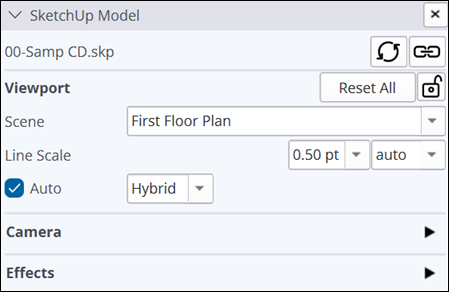
LayOut has three rendering modes for linework in SketchUp models inserted into a document. Your choice affects the viewport's styling.
- Vector and Hybrid generate crisp vector linework from model edges. Choose Vector for clean line drawings without image textures. It is the most efficient mode for these drawings. Choose Hybrid to render image textures, transparency and shadows with crisp edges.
- Raster produces less crisp lines but supports display options such as sketchy edge styles, back edges, fog and depth cue. Transparent faces tend to render best in Raster mode.
Change linework styles for tags
If your SketchUp model contains tagged entities, use the Tags section of the SketchUp Model panel to control their visibility and line styles separately. You can override the linework style for each tag.
To edit a tag's line style, select its pattern in the Line Style column. If the tag has no pattern, select Default. The line style options replace the list of tags.
To hide a tag, click the visibility icon ( ) to the left of its name. For more about tag visibility, see Managing Changes and Updates to SketchUp Files.
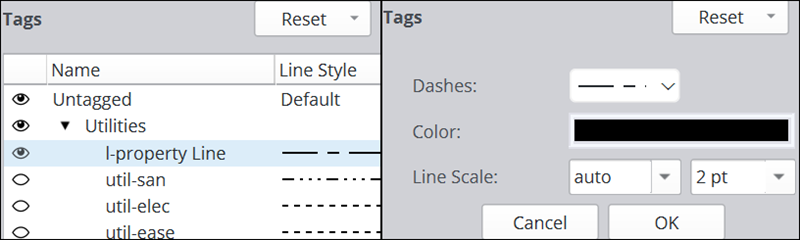
A tag with the Default line style inherits its Line Scale settings from the viewport.
The line styling interface has these settings:
- Dashes: Applies a pattern to the tag's linework. Any dash pattern you assigned in SketchUp appears here. If the linework has no pattern, select one before editing the other settings.
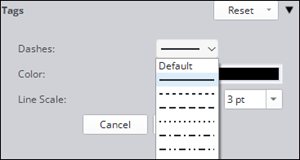
- Color: Sets the line colour using the colour picker.
- Line Scale: Controls how the selected dash pattern renders. The default is auto . The auto setting keeps the pattern's scale as you change edge width. Increase the scale to loosen the pattern, or decrease it to tighten the pattern. Edge width sets the line weight for the tag's linework. The same Line Scale settings apply to viewports and tags.
Click OK to save the linework settings. Click Cancel to return to the list of tags without saving your changes. LayOut automatically renders the viewport whenever you change linework settings.
How tag overrides work
LayOut and SketchUp share settings such as tag visibility and line style. When you change these settings in LayOut, they override the SketchUp model settings for the viewport. You can return to the SketchUp model settings or update the model with your tag overrides. Models and their viewports are linked, so the changes apply to all viewports in your document that use the model.
Reset settings
To restore all SketchUp model settings, including linework, click Reset All in the Viewport section. To restore only tag settings, click Reset in the Tags section.
Use the Reset dropdown in a tag's line styling interface to reset line dash and visibility overrides separately.
For each tag, you can:
- Click Reset All to reset all line styling overrides.
- Click Reset Dashes to reset line dash overrides.
- Click Reset Visibility to reset a visibility override.
Explode a viewport to edit individual lines
You can explode a viewport to turn it into an editable vector drawing. This breaks its connection to the SketchUp model and creates LayOut entities in a Scaled Drawing. You can then change the widths and styles of individual edges using the Stroke settings in the Shape Style panel.
To explode the viewport and edit its linework, follow these steps:
- Select the viewport.
- Select the Vector or Hybrid rendering mode in the Viewport section of the SketchUp Model panel. The viewport renders again.
- Context-click the viewport and select Explode. The viewport lines become vector shapes.
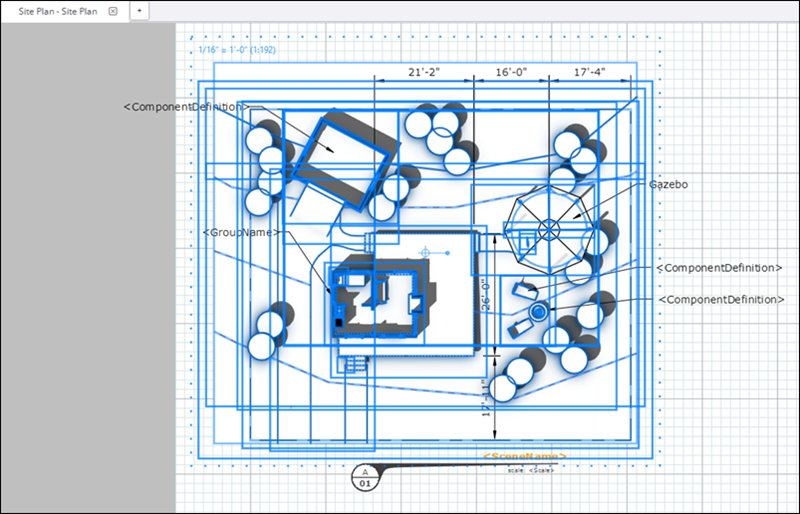
- Use the Shape Style panel to edit the dashed lines in the exploded viewport. For more about this panel, see Customizing Line Widths and Styles.