Use the Shortcuts section of the LayOut Preferences dialog box to manage your keyboard shortcuts. You can:
- View LayOut commands and shortcuts
- Find specific commands
- Add or edit a shortcut
- Delete shortcuts
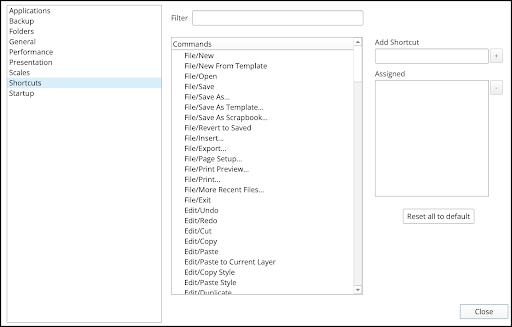
LayOut includes these default shortcuts:
Action | Shortcut |
|---|---|
Enable Draft Mode | V |
Pan | H |
Zoom Window | Z |
Zoom to Page | P |
Bring Forward | + |
Send Backward | - |
Select | Space |
Erase | E |
Move | M |
Scale | S |
Rotate | Q |
Style | B |
Line | L |
2-Point Arc | A |
Rectangle | R |
Circle | C |
Offset | F |
Fillet | Shift+F |
Chamfer | Shift+C |
Trim | Shift+T |
Extend | Shift+E |
Text | T |
Linear Dimension | D |
Type in the Filter text box to find a command and view its shortcut. LayOut filters the command list as you type.
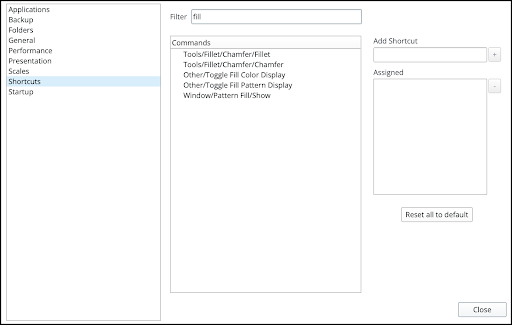
To add or edit a command's shortcut, follow these steps:
- Find the command whose shortcut you want to add or edit.
- Click the command in the Commands column.
- If the command has no shortcut, the text box below the command list is blank.
- If the command already has a shortcut, it appears in the text box.
- Click the text box.
- Press only the exact keys you want to use for the shortcut. LayOut shows a notification if another command already uses that shortcut.
- On MacOS, no further steps are needed. On Windows, click the plus sign (+) next to the text box to save the shortcut.
To remove a shortcut, select it in the list box. On Windows, click the minus sign (-). On MacOS, press Delete.