Use LayOut's text formatting options to change characters and paragraphs. Both support bold, italic and text colour. Character options include superscripts and subscripts. Paragraph options include horizontal alignment, vertical anchoring and line spacing.
Use your organisation's fonts and colours to match its branding and make text easier to read.
You can set formatting before or after adding text. Formatting you select before creating a text box applies to the new box. To change the formatting of all text in an existing box, select the box and adjust the formatting options. To change a word or character, double-click the text box and adjust its formatting. For more about text boxes, see Typing, Importing, and Changing Text.
Formatting words and characters
Character formatting applies to a word or a single character. Find these options on the Format tab of the Text Style panel. Open the panel in the Default Tray or select Window > Default Tray > Text Style.
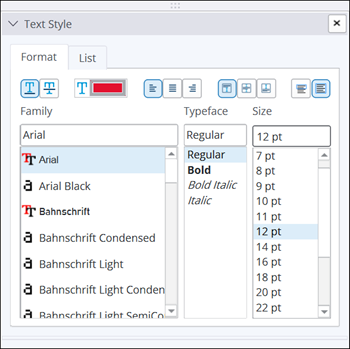
The Format tab has these character formatting options:
- Family lists all supported fonts available to LayOut. Select a font to apply it to the selected text.
- Typeface lists bold and italic styles if your font supports them.
- Size lets you select a font size or type a size and press Enter. For a less precise adjustment, scroll through the options or select Text > Bigger or Text > Smaller.
- Underline (
 ) and Strikethrough (
 ) are available in the toolbar at the top of the window.
- Text color changes the text colour. In the Fonts toolbar, click the colour swatch (
 ) to the right of Font Typeface (
 ) to open the Colors panel. Select a colour using the colour wheel, sliders, image or presets. See Choosing Colors for details.
- Superscript and Subscript change the position of a selected number, character or symbol. Select Text > Baseline > Superscript or Text > Baseline > Subscript.
Formatting paragraphs
Paragraph formatting applies to whole paragraphs. For example, you can centre a paragraph, but not a single word within it. Find these options in the Text Style panel and the Text menu.
LayOut has these paragraph formatting options:
- Alignment sets the horizontal position of paragraphs within a text box. In the Fonts toolbar, select left (
 ), right (
 ) or centre (
 ) alignment. You can also select Text > Align and choose Left, Right or Center.
- Anchoring positions text at the top, centre or bottom of a text box. To change it, select the text and click Anchor Top (
 ), Anchor Center (
 ) or Anchor Bottom (
 ) in the Fonts toolbar. You can also select Text > Anchor and choose Top, Center or Bottom.
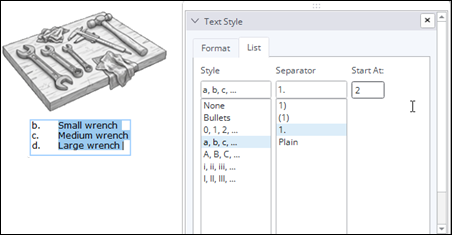
- Lists formats selected paragraphs as bulleted or ordered lists in the List tab. Ordered lists can use numbers or letters.
For ordered lists, you can set the separator and starting position. For example, in a lower-case alphabetical list, enter 1 to start with "a" or 2 to start with "b".
Managing fonts
LayOut supports OpenType fonts with TrueType and PostScript outlines. These fonts use the .ttf or .otf file extension. Install a supported font on your computer to make it available in the Text Style panel's font family options.
LayOut does not embed fonts in its files. If you share a file with someone who does not have the font you used, the text may look different. LayOut automatically replaces missing fonts with a default font.