Use the Colors panel to choose colours and save swatches for your LayOut document. It opens when you select a colour swatch, such as those in the Shape Style panel, or select Window > Default Tray > Colors. Saved swatches help you apply colours consistently.
Finding your way around the Colors panel
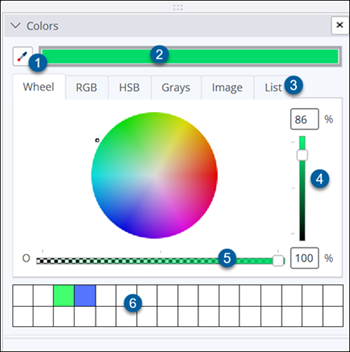
The Colors panel has the following controls. The list numbers match the numbers in the illustration above.
- Use Sample (
 ) to pick any colour visible on your LayOut page and make it the active colour. You can match colours from images or other elements in your document.
- Color well shows the selected colour. Drag this colour onto a selected shape in your document to apply it as a fill.
- Use Tabs to choose how you pick a colour, such as with the colour wheel or colour mode sliders.
- Use Brightness to adjust the selected colour's brightness. Move the slider for an approximate value, or type an exact value.
- Use Opacity to adjust the colour's transparency. At 100%, the colour is opaque. Lower percentages make it more transparent. Move the slider for an approximate value, or type an exact value.
- Use Palette to save colours for later. Drag a colour from the colour well to a square on the palette.
You can't delete palette colours in LayOut. To replace a colour, drop a new colour onto its square. Your customised palette stays available whenever you use LayOut until you replace its colours.
Selecting a colour from the colour wheel
Use the colour wheel when you know the approximate colour you want and don't need an exact shade. Hues sit around the wheel, with the highest saturation at the outer edge.
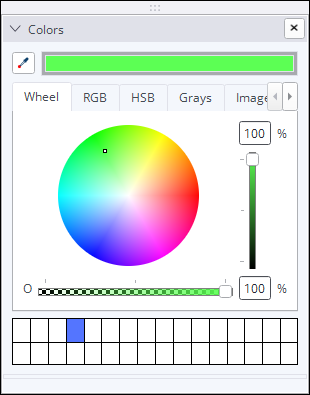
To select a colour, follow these steps:
- Click a hue on the colour wheel. The selected colour appears in the active colour well.
- (Optional) Adjust the selected colour's brightness and opacity by dragging the slider or entering a percentage in the box above it.
- (Optional) Adjust the colour further by switching to the RGB or HSB tabs and changing their sliders.
Setting exact colours with the colour mode sliders
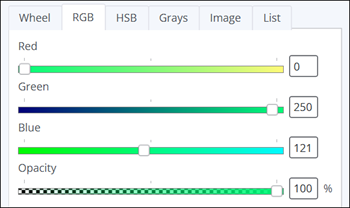
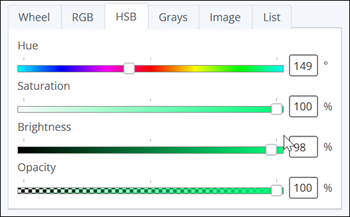
Use the sliders in the Colors panel's RGB, HSB and Grayscale tabs to set an exact colour. Each tab controls different colour values:
- RGB sets on-screen colours with red, green and blue values. Adjust each slider to mix the colour shown in the active colour well.
- HSB sets on-screen colours with hue, saturation, brightness and opacity values.
- Grayscale has a slider for choosing a pure grey without colour undertones.
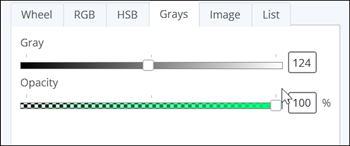
To select a colour with the RGB, HSB or Grays tab, follow these steps:
- Select the tab for the colour system you want to use.
- Set each value by dragging its slider or entering a number in the box next to it.
Picking colours from an image
Use the Image tab to load an image and select colours from anywhere in it. The tab shows a colour spectrum by default.
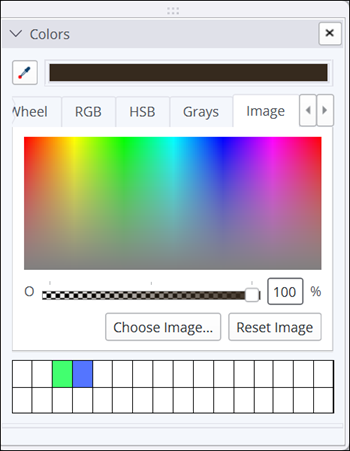
The tab shows a colour spectrum by default.
To load an image and pick colours, follow these steps:
- Click the Image tab.
- Click Choose Image.
- Find and select your image in the Open dialogue box.
- Click Open. Your image appears in the tab.
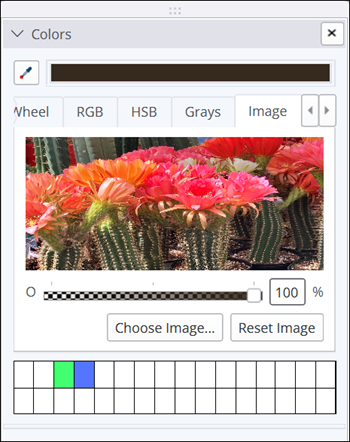
- Click a spot in the image to select its colour. You can also click and drag around the image to preview colours in the colour well.
Selecting preset colours
The List tab contains preset colours you can select.
To select a preset colour, follow these steps:
- Select the List tab.
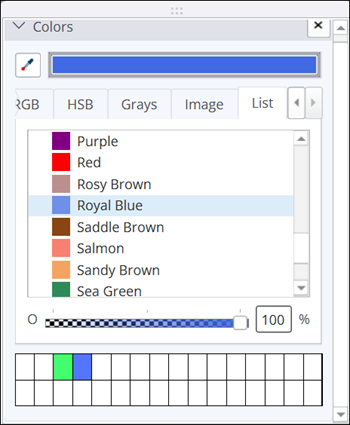
- Scroll through the list and select a colour.