Use LayOut's Style tool ( ) to sample style settings from one entity and apply them to another.
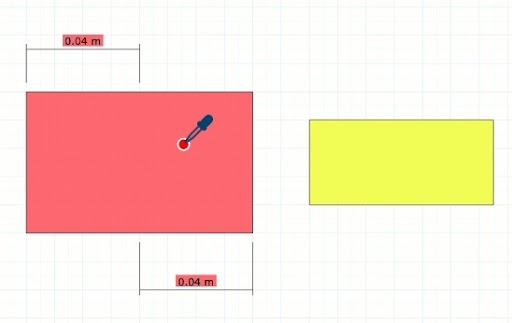
Follow these steps to copy style settings between entities:
- Select the Style tool () from the Main toolbar or select Tools > Style.
- Click an entity in the document area or scrapbook to sample its style settings. The cursor changes to a paint bucket (
 ).
- Click the entity you want to apply the sampled styles to.
- Press Esc at any time to start over.
The Style tool works with shapes, images, text boxes, SketchUp model entities and scrapbook items. What it samples and applies depends on the entity:
- Dimensions. When you sample a dimension, the Style tool samples all Shape Style, Text Style and Dimensions Style panel settings. After applying these styles to another dimension, you can edit the extension line style, dimension line style and offset distance.
- Text Boxes. When you sample a text box, the Style tool samples all Shape Style and Text Style panel settings.
- SketchUp Models. When you sample a SketchUp model, the Style tool samples all Shape Style panel settings. It also samples the scale, render method, shadows, fog and style settings in the SketchUp Model panel.
- Pattern Fill origin is included when you sample an entity with a pattern fill. This lets you line up pattern fills across multiple entities. For example, you can line up a brick pattern across two different faces of your elevation.
- Filling a SketchUp Model. When you apply a style with a fill to a SketchUp model entity, the fill appears on top of the model's background.
- Strokes. When you apply a style with a stroke, the stroke appears on a shape's edge or the bounding box of an image, text box, SketchUp model entity or scrapbook item.
You can apply a style as soon as you create an entity by pressing the Style tool's default shortcut, B. For example, if a dimension you are creating with the Linear Dimension tool has the wrong style, press B to activate the Style tool. Sample the existing style you want, then click the dimension you created.
See Customizing Line Widths and Styles for LayOut's stroke settings. See Filling Shapes with Colors and Patterns for how to select a fill.