Use LayOut's tools to arrange and size entities precisely in your document.
Use a grid
Use the grid to align entities on a page. Select View > Show Grid to show it, or View > Hide Grid to hide it. You can also context-click a blank space in the drawing area to find these options in the context menu.
To customise the grid's appearance and spacing, use these options in the Grid section of File > Document Setup:
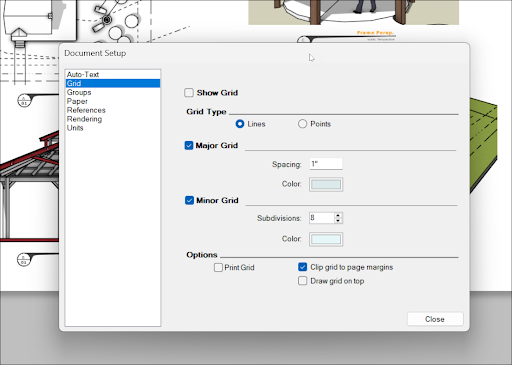
- Use Show Grid to show or hide the grid in your document.
- Use Grid Type to choose lines or points.
- Use Major Grid to set the spacing and colour of the major grid lines. These thicker lines form the main grid in your document.
- Use Minor Grid to set the spacing and colour of the minor grid lines. These thinner lines appear within the major grid lines.
- Select Print Grid to include the grid when you print your document.
- Use Clip Grid to Page Margins to stop the grid at the page margins and leave the margins blank.
- Select Draw Grid On Top to display the grid over all elements in the drawing area.
Use inferences
LayOut shows inferences as coloured lines or dots that correspond to entities already in your document. Use them to help you draw and arrange entities.
Inference | Appearance | What it identifies |
|---|---|---|
On Point | Green circle | The end point of an entity |
Midpoint | Blue circle | The middle point on a line |
Intersection | Red X | The point where a line, arc or curve intersects another line, arc or curve |
On Shape | Blue diamond | A point on a shape |
On Line | Red square | A point along a line or curve |
On Axis | Dashed line in the corresponding axis colour (red or green) | Alignment with one of the drawing axes |
From Point | Dashed line in the corresponding axis colour (red or green) | Alignment from a point in the direction of a drawing axis |
Perpendicular | Dashed magenta line | Perpendicular alignment to a line |
Parallel | Dashed magenta line | Parallel alignment to a line |
Stack, space and arrange entities
Use the Arrange menu or the options in the context menu to stack and space entities.
Use these options to change a selected entity's stacking order relative to other entities:
- Bring to Front
- Bring Forward
- Send Backward
- Send to Back
Use these options to align or space two or more entities at the same time:
- Align Left, Right, Top, or Bottom
- Align Vertically or Horizontally
- Center
- Space
- Flip
Move, rotate and scale
The Move ( ), Rotate (
 ) and Scale (
 ) tools work much as they do in SketchUp. Select an entity and activate a tool to arrange it in your document. Use the Measurements box to enter precise values.
Activate the Move tool () and click the entity you want to move. Drag it to its new location and click again. Press Ctrl to switch to Copy or Stamp mode to make a copy or multiple copies of the entity.
Activate the Rotate tool () and click to set a base point. Rotate the entity as needed, then click again to finish.
Activate the Scale tool () and select the entity you want to scale. Move your mouse, then click again to set the scale. You can also use a 2-point scale operation. Activate the tool, select the entity and move the cursor to the point you want to scale from. Then define a second point.