Use the LayOut Circle ( ) and Ellipse (
 ) tools to draw circles and ellipses. Find them on the Main and Drawing toolbars, or select Tools > Circles and choose a tool.
Draw a circle or ellipse with your mouse. For an exact size, enter coordinates or measurements, such as the radius, in the Measurements box.
Keep these tips in mind when drawing a circle or ellipse.
- Switch between drawing with your mouse and entering measurements as needed. For example, place a circle's centre point with your mouse, then set an exact radius or diameter in the Measurements box after drawing it.
- If you make a mistake, press the Esc key to start again.
- Absolute coordinates are measured from the drawing area's upper-left corner. For example, to place an ellipse coordinate 4 inches along the X axis and 4.5 inches down the Y axis, type
[4",4.5"].
Draw a circle
Follow these steps to draw a circle.
- Click the Circles icon () on the toolbar and select Circle from the dropdown if needed. You can also select Tools > Circles > Circle.
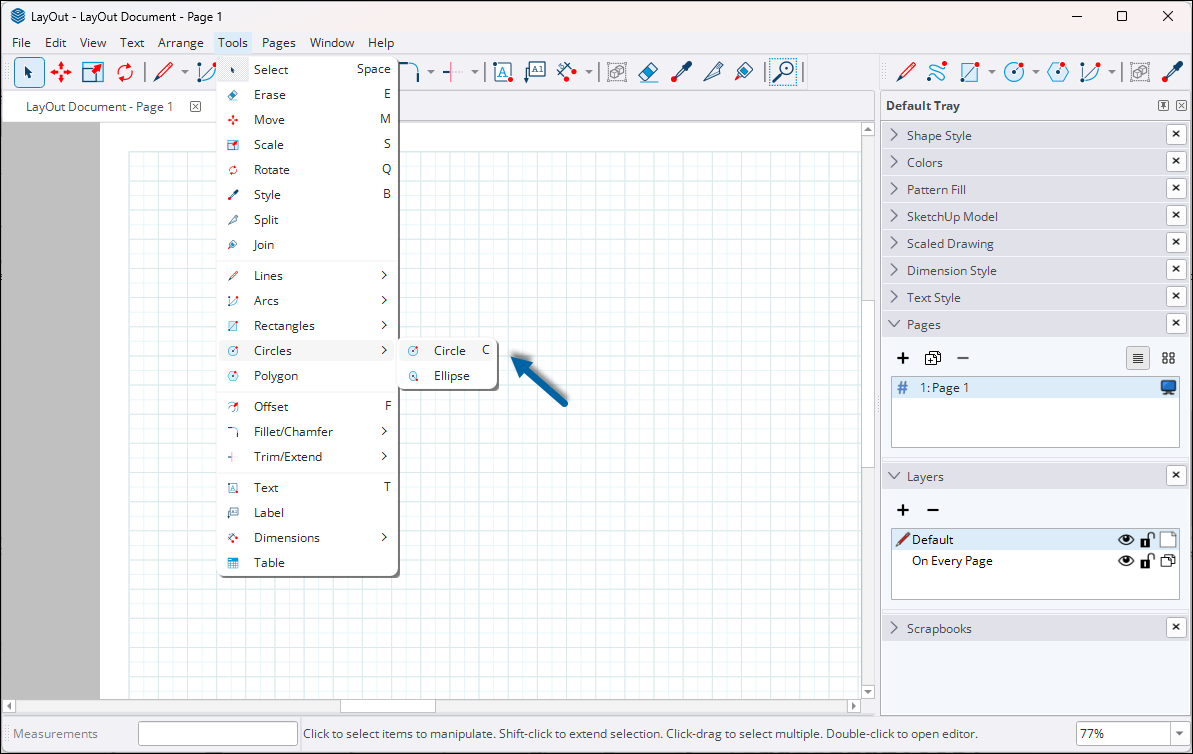
- Click to place the circle's centre point.
- Draw the circle using one of these methods.
- To set the radius with your mouse, move the cursor away from the centre point and click when the circle is the size you want.
- After drawing a circle with your mouse, type a radius or diameter value with a unit of measure.
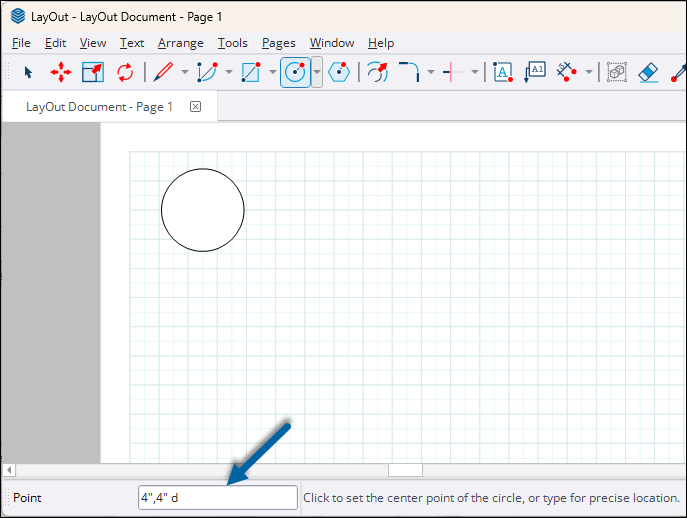
- After placing the circle's centre point, type the radius or diameter.
- If you entered exact coordinates or measurements, press Enter (Microsoft Windows) or Return (Mac OS).
Draw an ellipse
Follow these steps to draw an ellipse. You can set its shape with your mouse or enter exact measurements.
- Click Circles () on the toolbar and select Ellipse () from the dropdown menu. You can also select Tools > Circles > Ellipse.
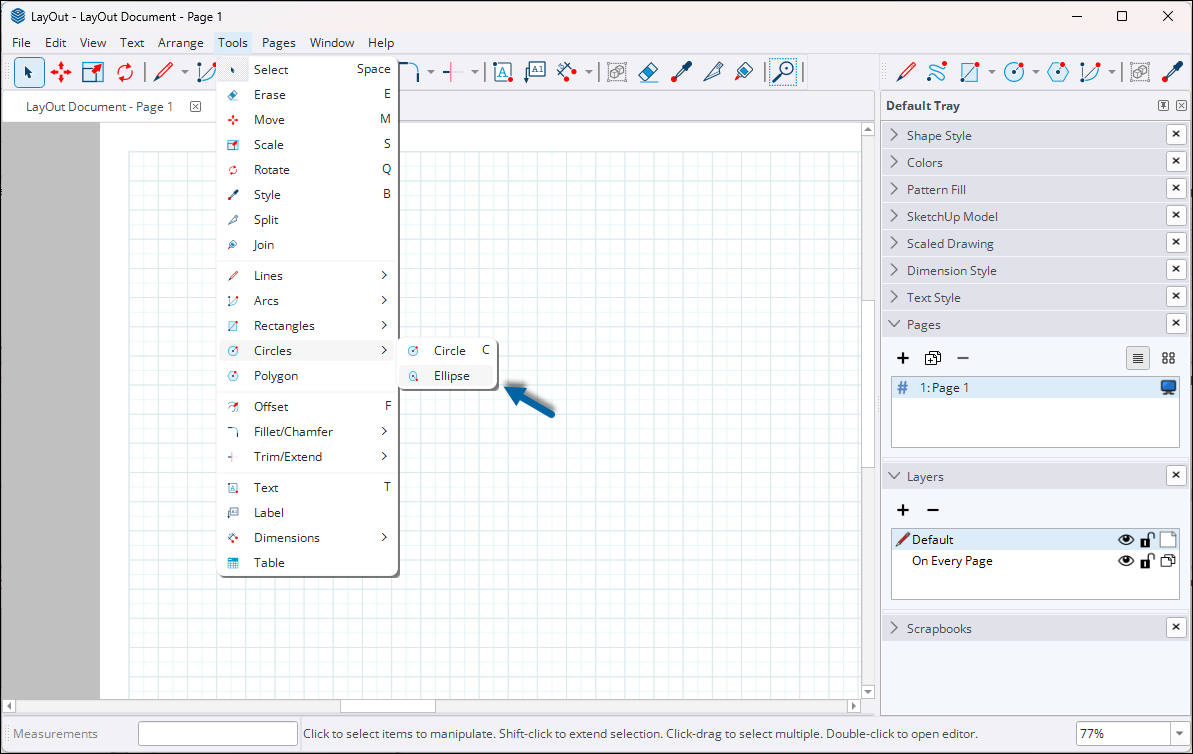
- Click in the drawing area to place the ellipse's starting point.
- Move the cursor away from the starting point to shape the ellipse with your mouse. You can also use these options:
- Hold down the Shift key to constrain the ellipse to a circle.
- Hold down the Ctrl (Microsoft Windows) or Option (MacOS) key to draw the ellipse from its centre instead of the upper-left corner.
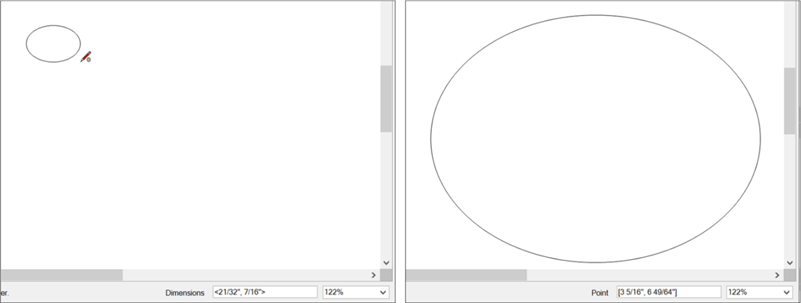
- For an exact size, type absolute coordinates for the end point or enter the width and height. Your mouse position determines the direction of these dimensions. For example, to draw an ellipse towards the lower-left that is 4 inches wide and 3 inches high, type
4,3and press Enter (Microsoft Windows) or Return (MacOS). The figure below shows the ellipse before you enter the dimensions (left) and after (right).
- If you used exact measurements, the ellipse is complete. If you used your mouse, click to finish the ellipse.