LayOut has four rectangle tools for drawing rectangles with different sides and corners. The following figure shows what each tool does:
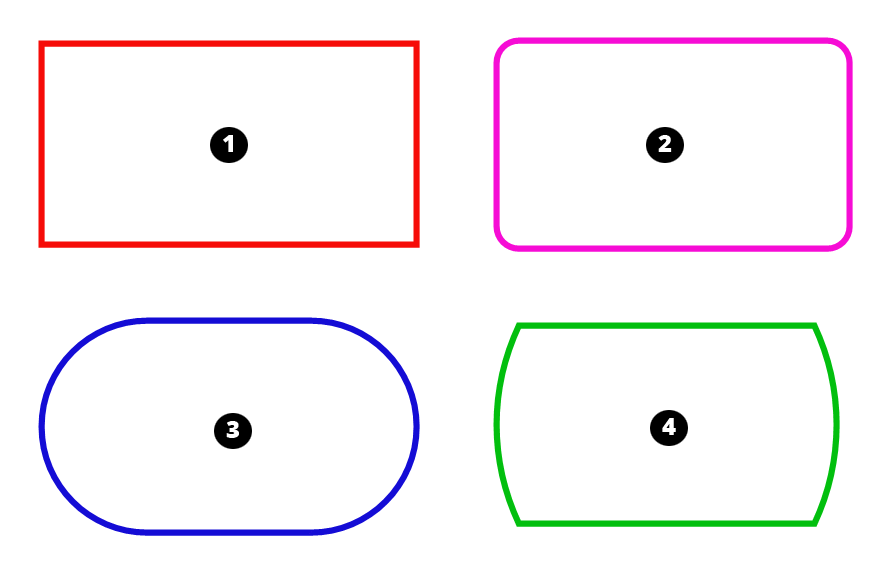
- The Rectangle tool (
 ) draws a basic rectangle with four corners at 90 degree angles. (Callout 1)
- The Rounded Rectangle tool (
 ) rounds the corners. (Callout 2)
- The Lozenge tool (
 ) creates a rectangle with corners rounded enough to look like an oval. (Callout 3)
- The Bulged Rectangle tool (
 ) bows out two sides of the rectangle. (Callout 4)
Follow the same steps for each rectangle tool:
- Select a rectangle tool from the default toolbar's Rectangles menu, or choose Tools > Rectangles and select a tool from the submenu.
- Click in the drawing area to set the rectangle's starting point, or type absolute coordinates in the Measurements box. For example, to start 1 inch across on the X axis and 2 inches down on the Y axis from the drawing area's upper-left corner, type [1“,2”] and press Enter (Microsoft Windows) or Return (Mac OS X).
- Drag diagonally from the starting point and click to set the rectangle's final shape. Hold down Shift as you drag to constrain it to a square. To set a precise size, type an absolute coordinate for the opposite corner (for example, [7“,10”]) or rectangle dimensions (such as 6“,8”), then press Enter or Return.
Use modifier keys or the Measurements box to adjust rectangles in these ways:
- Size a rectangle from the center. Hold down Ctrl (Microsoft Windows) or Option (Mac OS X) before you set the rectangle's starting point. Then drag the mouse away from the centre point to size the rectangle.
- Duplicate a rectangle you just created. Double-click in the drawing area immediately after you create the rectangle.
- Round the edges of any rectangle. Press Up Arrow or Down Arrow while creating the rectangle.
- Change the rounding of rounded rectangles. Immediately after drawing with the Rounded Rectangle tool, set the corner radius by typing a value with its unit of measure followed by the letter r in the Measurements box. For example, type 10pt r for a point value, then press Enter or Return.
- Define a bulge value immediately after you draw a bulged rectangle. Type a point value or a value with its unit of measure followed by the letter r in the Measurements box. For example, type 1" r and press Enter or Return. You can also set the bulge value by pressing the up or down arrow key.