Create as many pages as your document needs and manage them in the Pages panel. You can also use the Pages menu to create and navigate pages.
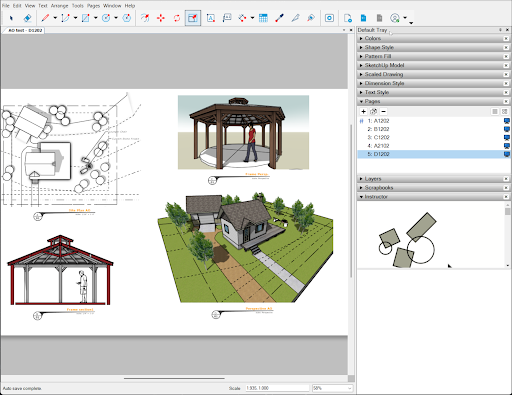
Use these options in the Pages panel to manage your pages:
- Use Add to add a blank page to your document.
- Use Duplicate to copy the selected page or pages.
- Use Delete to delete the selected page or pages.
- Use Rename to change the selected page's name.
- Use Move Up, Move Down to move the selected page up or down in the page list.
- Use Export to export pages in your chosen format. Select one or more pages, right-click and choose Export.
- Use Print to print selected pages. Select one or more pages, right-click and choose Print to proceed to open print options for those pages.
- Turn on Show In Presentation to show the selected page when navigating between pages. Turn it off to hide the page during navigation.
To navigate between pages, click Previous Page or Next Page in the toolbar, or select Previous or Next in the Pages menu. You can also click a page in the Pages panel to go straight to it.