Shaping Polygons
A polygon is a piece of geometry where three or more straight lines join at endpoints to create shapes. The number of the lines determines the shape. For example, a pentagon is a polygon with five sides while a polygon with six sides is a hexagon.LayOut’s Polygon tool () enables you to draw a polygon with three or more
Last updated 17 July 2026
A polygon is a piece of geometry where three or more straight lines join at endpoints to create shapes. The number of the lines determines the shape. For example, a pentagon is a polygon with five sides while a polygon with six sides is a hexagon.
LayOut’s Polygon tool (  ) enables you to draw a polygon with three or more sides.
You can draw a polygon by hand using your mouse. To create a polygon with precise dimensions, type coordinates and values in the Measurements box to specify its size. Below are a few tips to keep in mind when creating polygons:
- You can switch between the two methods (drawing by hand and specifying absolute measurements) as needed. For example, you might use the mouse to place a polygon’s center point but use the Measurements box to set the vertical plane.
- If you make a mistake, press the Esc key to start over.
To draw a polygon, follow these steps:
- Click the Polygon tool ( ) on the toolbar, or, select Tools > Polygon .
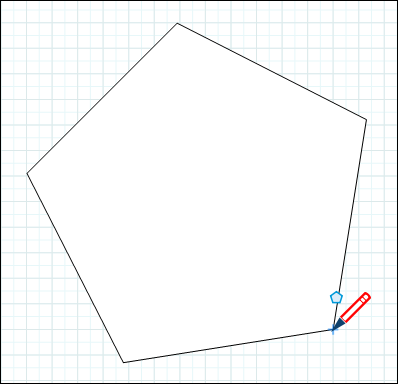
- Click in the drawing area to place the polygon’s center point. Move the cursor away from the starting point so the polygon is the size and shape that you want.
- Click again to create the polygon.
Or, use the Measurements box to specify a polygon with a specific center point and size.y
After you have drawn a polygon, type g absolute coordinates that are relative to the upper-left corner of the drawing area. For example, to place the center point 5.5 inches along the X axis and 4.25 inches on the Y axis, type [ 5.5",4.25" ] .
- Press Enter (Microsoft Windows) or Return (Mac OS X or higher).
- (Optional) By default, polygons in LayOut have 5 sides. To specify the number of sides you want, press the up or down arrow keys. Or type a number and the letter s . For example, if you want 6 sides, as shown in the following figure, type
6sand press Enter or Return . - Move the cursor in or out from the center point to size the polygon and click to finish the shape. Or use the Measurements box to specify a radius. The radius value can be a unit of measure or a point value. For example, type 3" and press Enter or Return . You can continue to change the number of sides and radius until you draw another polygon or select another tool.
The Polygon tool can also do a few other tricks:
- As you draw a polygon, hold down the Shift key to lock a side of the polygon to the red or green axis.
- Immediately after you create a polygon, double-click in the drawing area to duplicate the polygon. You can keep double-clicking to create as many copies as you need.
Still need help?
Technical support from our New Zealand team is available to customers with a current Procadsys SketchUp Plus subscription: Pro Plus, Pro Scan Plus, Pro Civil Contractor Plus, Advanced Workflows Plus or Studio Plus. Self-help articles are public.
Contact SketchUp support