Use the Join (  ) and Split (
 ) tools to create complex lines and shapes from those already in your document.
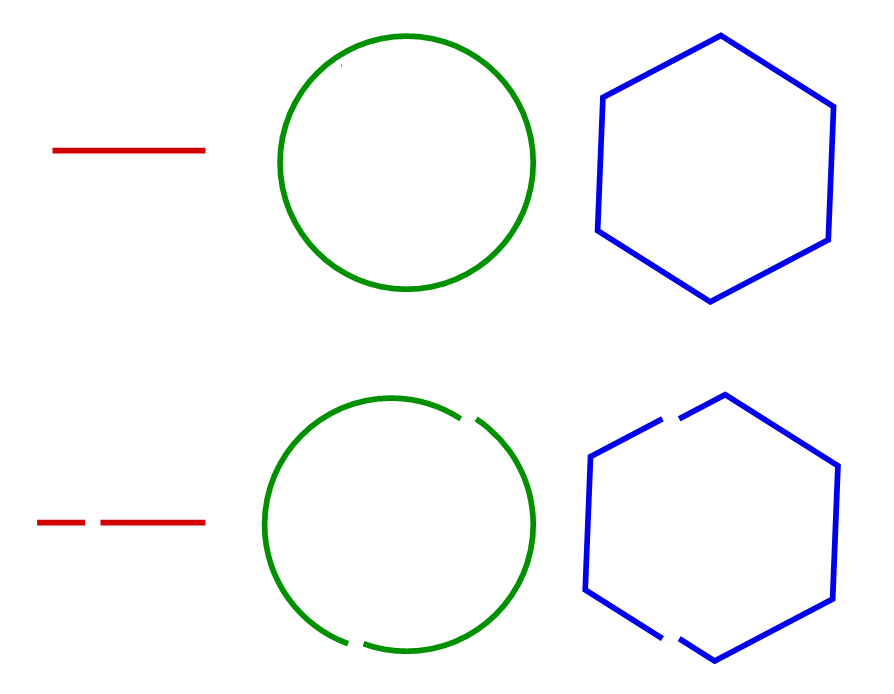
To split a line or shape:
- (Optional) Select the entity you want to split.
- Activate the Split tool ( ).
- If you selected an entity first, LayOut splits it at its corners or midpoints.
- If you did not select an entity first, click where you want to split the line or shape.
- The split appears where you click.
After splitting a line or shape, you can drag the pieces elsewhere in the drawing area or delete them.
To manually join two or more lines or shapes:
- Select and drag the shapes so they overlap where you want them to join.
- Activate the Split tool ( ) and click each point where the shapes overlap to create shared vertices.
- Activate the Erase tool (
 ) and click any piece you do not need in the final shape.
- Activate the Join tool ( ) and click an edge in each piece. The joined shape uses the fill colour of the first shape you click.
You can also select all the shapes you want to join and activate the Join tool. LayOut joins the selected shapes automatically.