Skip to content
07-848 2005

SketchUp, LayOut

Printing your document

Print your document on paper. Start by selecting File > Page Setup.

Follow these steps to set up, preview and print your LayOut document.

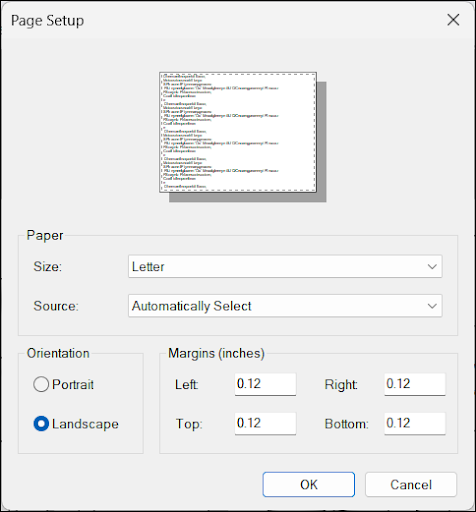
  1. Select File > Page Setup.
Page Setup dialog with Letter paper, Landscape orientation and margins set to 0.12 inches.
  1. Adjust the following options as needed, then click OK:
    • Size sets the paper size.
    • Source sets the paper tray.
    • Orientation lets you choose Portrait or Landscape.
    • Margins lets you adjust the margins.
  2. Select File > Print Preview to open LayOut's Print Preview dialog.
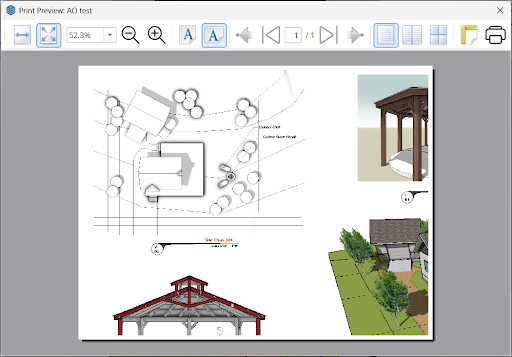
LayOut's Print Preview dialog displays a landscape page with a plan, elevation and 3D model views.
  1. Preview each page of your document. You can zoom in and out or change the orientation. If the pages do not look as expected, return to Page Setup to adjust the options.
  2. Click Print in the upper right, or close the window and select File > Print.
  3. Review the options in the Print dialog. These depend on your printer and operating system.
  4. Click Print when you are ready to print your document.

Procadsys customer support

Still need help?

Licences, renewals and billing

Our New Zealand team looks after your SketchUp licences, renewals and invoices.

Monday to Friday, 9:00 am to 4:30 pm NZ time, excluding New Zealand public holidays.

Technical problems

Technical support from our New Zealand team is available with a current Procadsys SketchUp Plus subscription: Pro Plus, Pro Scan Plus, Pro Civil Contractor Plus, Pro Advanced Workflows Plus or Studio Plus.

Initial response within one business day.

On another SketchUp plan? Technical problems go to Trimble support.