Use the Edit Normals tool in KeyShot to align normals if your model appears to have holes or flat areas.
Updated 3 August 2026 1 minute read
Use the Edit Normals tool in KeyShot to align normals if your model appears to have holes or flat areas.
A normal points perpendicular to a mesh surface. In a 3D model, normals should face the same direction. Otherwise, holes may appear. If vertex normals are not aligned, curved surfaces may have flat spots.
How to edit normals
Open the Edit Normals tool from the Tools section in the Ribbon, or from the context menu in the Real-time View or the Scene tree.
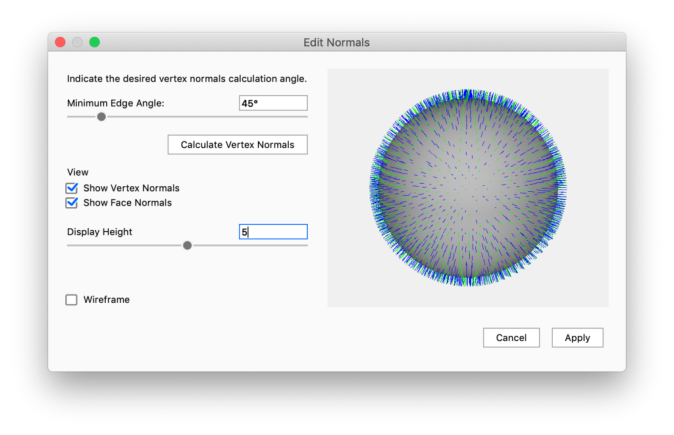
Minimum Edge Angle Adjust the Minimum Edge Angle to prevent normals at creased edges from being aligned.
Calculate Vertex normals Use Calculate Vertex Normals if a missing polygon's normal points in the opposite direction, or if vertex normals on adjacent polygons are not aligned. This previews the new normals. Select Apply to apply them to the model.
View
Show Vertex Normals: show or hide the green vertex normal indicators.
Show Face Normals: show or hide the blue face normal indicators.
Display Height: adjust the height of the normal indicators.
Wireframe: show or hide the part's wireframe to help you see the surface topology.
 Edit Normals tool from the Tools section in the Ribbon, or from the context menu in the Real-time View or the Scene tree.