Find material presets in the Material tab of the KeyShot Studio Library and apply them to your model.
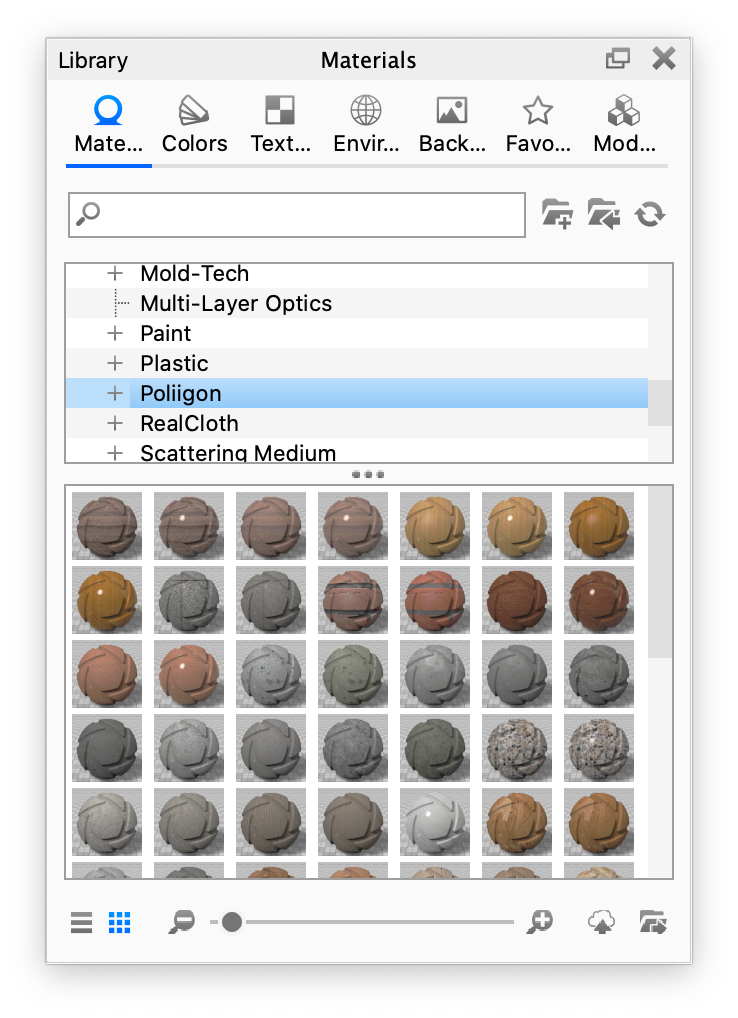
Each material preset uses a KeyShot Studio Material Type and shows only the parameters it needs. For example, Metal library materials use the Metal material type and show parameters for metals. Plastic library materials use the Plastic material type and show parameters for plastics.
Tip
To change a material's thumbnail style, go to Library > Material, right-click the material and select Thumbnail Style from the context menu.
Stock materials
KeyShot Studio includes 750+ materials, including cloths, leathers, metals, plastic and smoke. The materials are organised into folders.
Library updates
The KeyShot Studio Library has been updated to use the latest KeyShot Studio material, texture and environment capabilities.
Custom materials
Use library materials as a starting point to create your own. You can edit, copy and save materials.
Import materials
Import materials directly into the library (MTL, KMP, AxF and U3M), or use the Material Importer in the Tools section.
To import directly into the library, select the destination folder, click the Import icon  and select the file.
KeyShot Cloud materials
KeyShot Cloud has thousands of KeyShot Studio materials created by KeyShot, KeyShot partners and KeyShot users. Open KeyShot Cloud  from the far left of the KeyShot Studio Toolbar, or visit KeyShot Cloud.
Read more about KeyShot Cloud.
Additional materials
The KeyShot Content installer is available for KeyShot Studio 2026 on Windows and Mac. It includes materials with textures from Poliigon that are excluded from the regular KeyShot Studio installer because of their size. You can only use the included Poliigon textures inside KeyShot Studio. If you need textures for other purposes, visit the Poliigon Textured Materials page for a list of the textures used.
Download the installer
Content installation
Run the downloaded installer. It adds the resources to your KeyShot Studio Resource folder, with a new Poliigon folder inside your Materials folder. The materials appear in the KeyShot Studio library's Materials tab the next time you launch KeyShot Studio.
Note
These are the same materials included in the Content installer for previous versions. They have been updated to use the material improvements in KeyShot Studio 2026.
If you installed the Poliigon material pack in KeyShot 11/2023/2024 and migrated your resources to KeyShot Studio 2026, check the Poliigon folder's location. The installer only overwrites the materials with the new version if you have moved the folder from the migration folder to the root of the Material library before installing the KeyShot Studio 2026 Content pack. Otherwise, you will have 2 versions of the same material.