Use material templates in KeyShot Studio to apply materials automatically when you import CAD models into a scene.
Material Templates automatically applies materials to parts in your scene. This can save time when you work with large assemblies. Once you create a template, you can use it to apply materials to a new model during import.
A material template applies materials from the KeyShot Studio library to your model's parts based on their original material names.
Open the Material Template window from Main menu > Window, or select the material template icon  in the Tools section of the Ribbon.
Create a template
Click the add icon to create a template.
Method Two methods are available for creating a material template: Automatic and Manual.
Type Choose whether the template applies materials by part name or original material name.
|
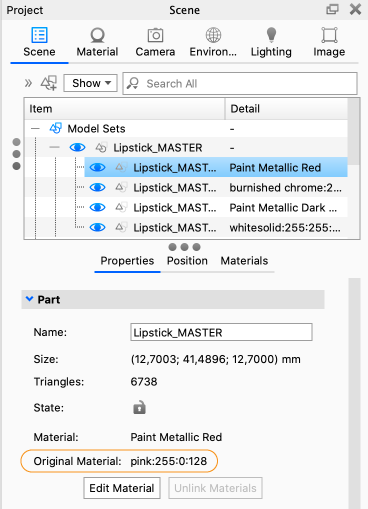
Wildcard
Use a wildcard in the source name to apply a material to several parts. Add asterisks (*) to the source name. For example, Holder* applies the destination material to all parts whose names contain "Holder" when you apply the template.
Each new template appears in the template list. You can access this list from any open scene in KeyShot Studio.
Add template rules
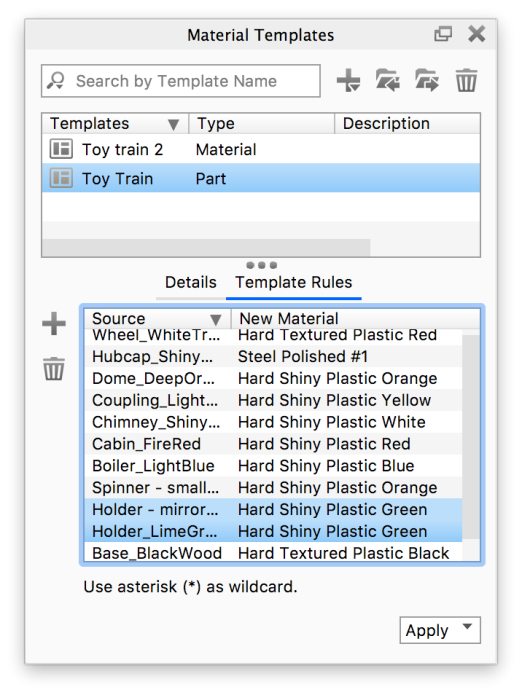
The Automatic method creates rules for all KeyShot Studio materials in the scene. The Manual method requires you to choose the parts that need rules. You can add rules at any time, whether you created the template with the Manual or Automatic method.
Each template rule has a Source, which is a part name or source material name, and a New Material name.
Use the  button next to the template to create a rule and add a source. Alternatively, drag a part from the Scene Tree onto the list to create a rule using the part's name or source file.
Drag a material from the Material library/Material tab onto a rule in the template list to add it to that rule.
Apply templates
You can apply templates from the Material Templates window or the import window.
Material Template Dialog Click Apply to choose between two options: To Scene or To Selection.
|
Import dialog
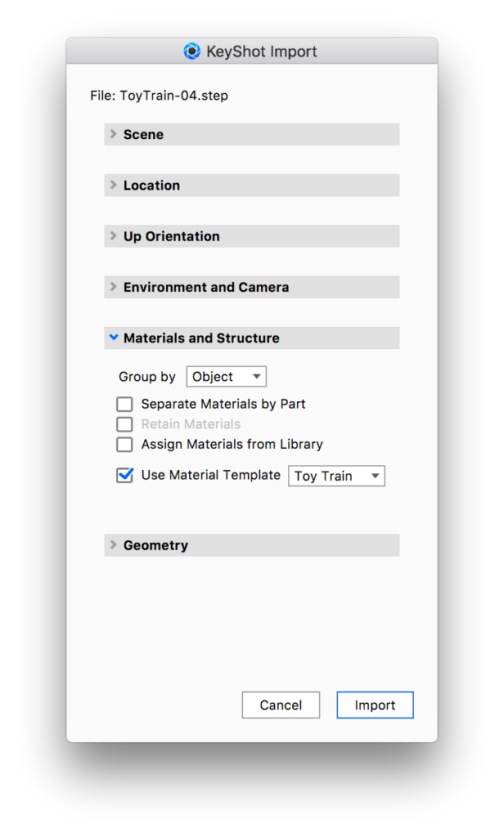
Expand Materials and Structure to show the Use material template checkbox.
Select the checkbox and choose a template from the list.
Click Import to complete the import.