Re-tessellate models that contain NURBS data directly in your KeyShot scene without importing them again.
Use the  Re-Tessellate tool to adjust tessellation quality for entire models or individual parts in your scene.
Increasing the tessellation value makes your model's surfaces smoother but increases the scene file size.
How to re-tessellate
- Launch the Re-Tessellate tool
Open the tool from the Tools section in the Ribbon. You can also right-click a model, part or selection of parts in the scene tree or Real-time view. If nothing is selected, a selection dialog opens. Select a part from the list or click it in the Real-time View to highlight it in the list. - Adjust the Tessellation quality
Increase the value for smoother surfaces. Decrease it for a faster scene with fewer triangles.- Distance Tolerance is the maximum allowed distance between any triangle and the actual NURBS surface, expressed as a percentage of the model's bounding box. A lower value produces smoother surfaces.
- Angle Tolerance is the maximum allowed angle between adjacent triangles on your model's surface.
- Maximum edge is the maximum allowed distance between any triangle and the actual NURBS surface, expressed as a percentage of the model's bounding box. A lower value produces smoother surfaces.
- Click Tessellate
Click Tessellate after adjusting the values to see the result. Use the Preview settings Wire-frame/Glossy to inspect the tessellation in the preview. - Click Apply
View the current tessellation quality in the Real-time View with your current materials and lighting. You can still cancel at this stage. Closing or cancelling the tool restores the tessellation quality from before you opened it. - Click Done or Cancel
Click Done to commit your changes to the scene. Cancel restores the original tessellation and closes the dialog. You can undo committed changes with Ctrl/Cmd+z. You can also re-tessellate again as long as the part contains NURBS data.
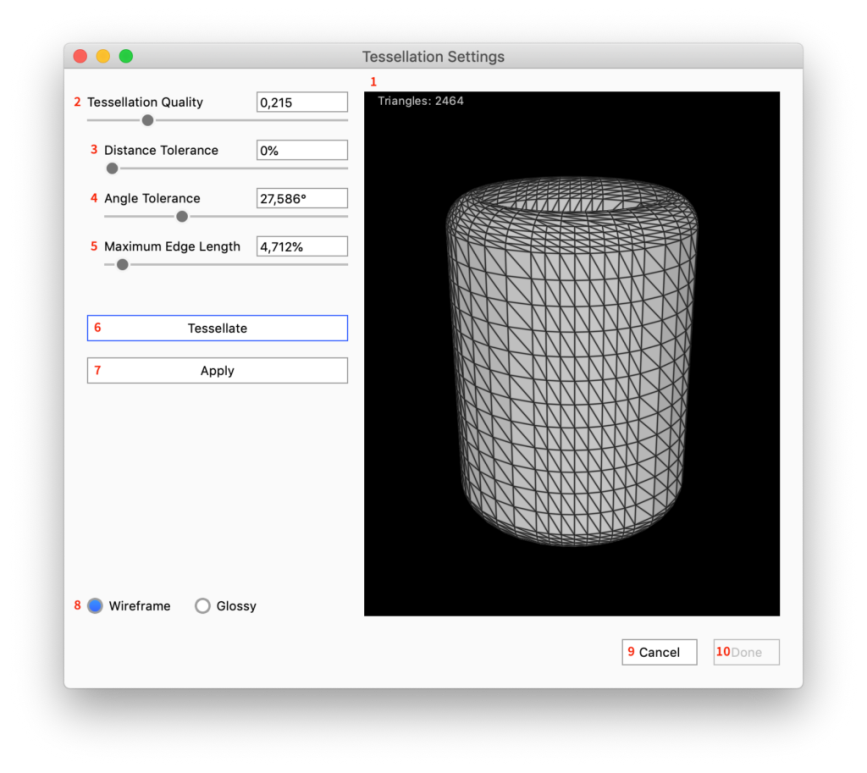
Tool interface
|
- Apply
Apply the current tessellation quality to the Real-time View to inspect it with your current materials and lighting. You can still cancel at this stage. Closing or cancelling the tool restores the tessellation quality from before you opened it. - Tessellation Preview
Shows a preview of the detail on your model's surface.- Triangles
Shows the total number of triangles that make up your model's surface.
- Triangles
- Appearance
Select Wireframe for a polygon view or Glossy to inspect surface smoothness. - Cancel
Click to undo your tessellation changes and close the Tessellation Settings window. - Done
Click to accept your changes and apply them to the scene. You cannot undo the changes after clicking Done.