Use scattering medium in KeyShot to simulate particle scattering for fog, smoke or volumetric lighting, such as visible beams or rays of light.
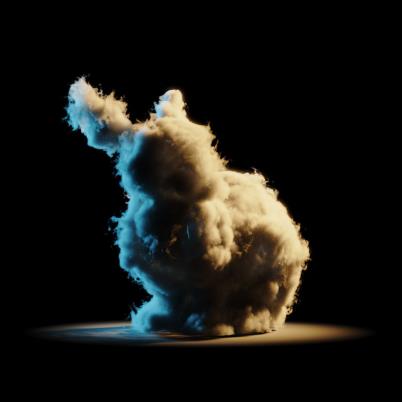
Scattering medium with a Volume map applied to the Density texture. | Applying Scattering Medium In the Project window > Material tab, select Scattering Medium from the Type dropdown menu. Assign textures to Density Texture in the Textures tab. To load OpenVDB files, select Volume Map from the Texture dropdown. You can also load them through the Material Graph and apply the Volume Map to Density Texture on the Scattering Medium material node. |
Adjusting scattering medium
Properties
Transmission
Sets the material's overall colour. Light takes on this colour when it enters the surface. The colour density setting also affects how much colour you see. If the transmission colour looks too faint, see the colour density section.
Transparency Distance
Controls the depth of the Transmission colour based on the part's thickness. Use Transparency Distance to adjust how saturated and visible the Transmission colour appears. A lower setting makes the colour more visible in thin areas of the model. A higher setting makes it fainter in those areas.
Density
Controls how close the particles are. Higher values make the scattering medium look more solid. Lower values spread the particles out and make it look hazier.
Multiple Scattering
When selected, rays bounce multiple times inside the geometry. This represents the material more accurately but affects processing time.
Advanced
Albedo
Sets the colour of light scattered by small particles inside the scattering medium. With Multiple Scattering, the medium's colour may be the inverse of the albedo colour. Scattering can prevent light from reaching you as it travels through the medium.
Scattering Directionality
Controls the direction in which light scatters. A value of 0 scatters light uniformly. Negative values scatter light backwards. Positive values scatter light forwards.
Samples
A low setting (8 or lower) tends to make the surface look noisier, rougher and less uniform. Increasing the value evens out the noise and distributes the roughness more evenly.
Textures
Density Texture
Acts as a mask on the material. Black areas show no particles. Lighter areas show more particles. To use VDB files for the density texture, add a Volume Map.
Labels
Use labels to add another material to the scattering medium's surface. Control the label with the 4 primary Map Types: Diffuse, Specular, Bump and Opacity. Add an opacity map when you use a label. Without it, you cannot see the scattering medium.