Use Set Camera Target in KeyShot to choose the point the camera faces.
Once you select a camera target, Tumble rotates the camera around it. Dolly moves the camera closer to or further from it. Both use this target even after you pan the camera and the target is no longer in the centre of the Real-time View.
You can set the camera target in either of these ways:
- Use the Set Camera Target tool.
- Use the Real-time View context menu.
Set Camera Target with the tool
- Open the
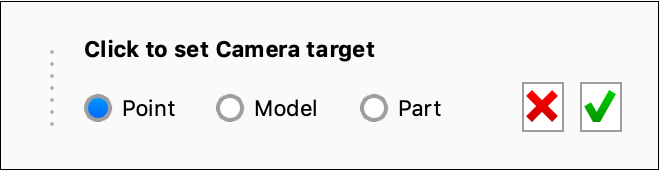
 Set Camera Target tool in the Tools section of the Ribbon. A widget opens with these camera target options:
- Select what to target.
- Point: Sets the point you click on a surface as the camera target.
- Model: Sets the centre of the model you click as the camera target. All groups in the Scene Tree count as models, but Set Camera Target uses the top level model.
- Part: Sets the centre of the part you click as the camera target.
- Click in the scene to set the camera target.
- Click the green check mark
 to accept the camera target and close the tool. To restore the camera target you had before opening the tool, click the red
 .
Set Camera Target from the Real-time View context menu
- Right-click an object.
- Select Select Camera Target to set the point you clicked on the surface as the camera target.