Skip to content
07-848 2005

KeyShot Studio, tools

Split object surface

Use Split Object Surfaces in KeyShot to separate polygons from a part. You can then apply separate materials or work separately with parts modelled together.

On this page
  1. How to split object surfaces
  2. Tool controls
  3. Quick tip

Use Split Object Surfaces in KeyShot to separate polygons from a part. You can then apply separate materials or work separately with parts modelled together.

How to split object surfaces

  1. Select a part and open the Split surface iconSplit Object Surfaces tool from the Tools section in the Ribbon or the context menu in the Real-time View.
  2. Choose a Splitting Method: By Splitting Angle or by Polygons.
  3. Choose whether to split a single surface using Marquee, Brush andSurface Selection or all surfaces using Part Selection.
    • Marquee selection:
    1. Hold Shift+LMB and drag to use the marquee selection.
    2. Click Split Surface to separate the selected area into a surface. The surface appears in the parts list.
    • Brush selection:
    1. Hold Alt+LMB to paint your selection onto the model with the brush selection.
    2. Click Split Surface to separate the selected area into a surface. The surface appears in the parts list.
    • Surface selection:
    1. Click the surface you want to split in the preview. It is highlighted in green. Hold Ctrl/Cmd while selecting surfaces to select multiple surfaces.
    2. Click Split Surface to separate the selected area into a surface. The surface appears in the parts list.
    3. Select the part in the list, then click its name again to rename the surface.
    • Part selection:
    1. Select the part to split. It appears with an orange outline in the preview.
    2. Click Split all. New surfaces appear in the list based on the splitting method.
  1. If you split something by mistake but want to keep the other surfaces you created, merge the relevant surfaces again.
    • Select the relevant surfaces in the list. Hold Shift while selecting to select multiple surfaces.
    • Click Merge.

Tool controls

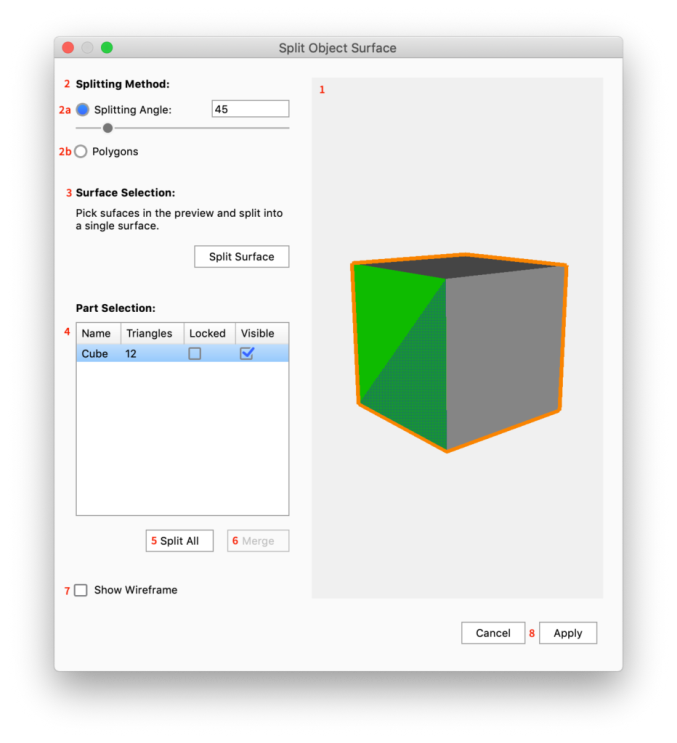
Split surface UI
  1. Preview Shows the object you selected to split. Use Split Surface to separate the green highlighted area into a single surface. Use Split All to split objects outlined in orange into multiple surfaces, based on the splitting method.
  2. Splitting Method Determines how the surfaces are split.
    1. Splitting Angle: Sets where to split the part based on the angle between adjacent polygons. Polygons with a face angle below the entered value are highlighted. Use this when the part has a clear crease or angle.
    2. Polygons: Lets you select individual polygons from the surface.
  3. Marquee Selection: Lets you drag a selection frame over the area you want to select.
  4. Brush Selection: Lets you paint your selection onto the model.
  5. Surface selection Lets you select and split individual surfaces. Click a surface in the preview to select it. Hold control to select multiple surfaces.
    • Split Surface Splits the selected green area into a separate surface.
  6. Part Selection Lets you split all surfaces of a selected part based on the splitting method.
    • Parts List: Lists all parts.
  7. Split All: Select a part in the list and press Split All.
  8. Merge: To merge split parts again, hold shift while selecting the parts, then click Merge Selection.
  9. Show Wireframe Shows the part's wireframe when enabled.
  10. Cancel/ Apply Click Apply to finalise the split and create the new parts in the scene tree. Cancel stops the process and restores the part to its state when you opened the tool.

Quick tip

Procadsys customer support

Still need help?

Licences, renewals and billing

Our New Zealand team looks after your KeyShot licences, renewals and invoices.

Monday to Friday, 9:00 am to 4:30 pm NZ time, excluding New Zealand public holidays.

Technical problems

Installation errors, crashes and other technical problems with KeyShot are handled by KeyShot support.