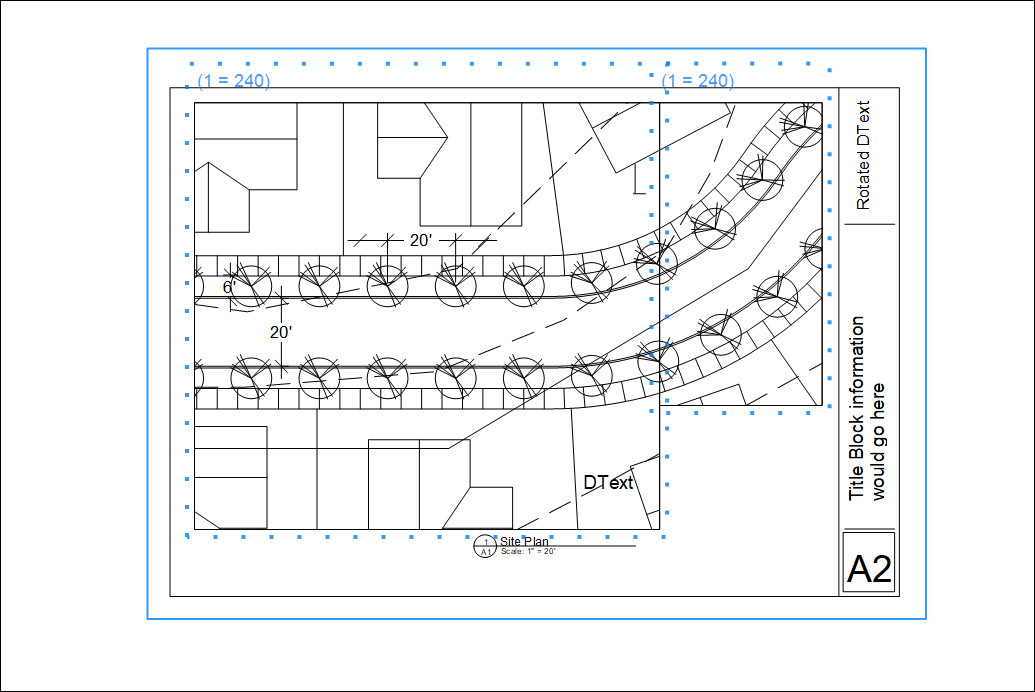
Create scaled drawings in LayOut using the Scaled Drawing panel. A scaled drawing is a group of geometry with the same scale applied to every part.
Draw Mode in the Scaled Drawing panel gives you a paperless canvas with real-world coordinates, where you can draw at full 1:1 scale. When you exit Draw Mode, LayOut groups your work at a displayed scale. Set the scale before entering Draw Mode or after exiting, or keep LayOut's default measurements.
Paperless drawing lets you draw beyond the page while SketchUp keeps all entities to scale. You can focus on drawing without managing the page boundaries.
Paperless drawing canvas
Like the SketchUp modelling environment, LayOut's paperless drawing canvas has red and green axis lines starting at 0,0 on a white background by default. You can choose a custom paper colour for the paperless background. All grid settings also work in Draw Mode. Find the Paper and Grid settings in Document Setup. See Document Setup for details.
Use the Hide and Fade rest of document slider options in the Scaled Drawing panel to control how entities outside the current drawing context appear. You can set this display behaviour independently for groups and scaled drawings.
Changes in the Scaled Drawing panel automatically update the matching settings in Document Setup. Changes in Document Setup also update the panel. For details about the Hide and Fade rest of document slider options, see Document Settings.
Follow these steps to create a scaled drawing:
- Click Enter Draw Mode in the Scaled Drawing panel to open the paperless canvas.
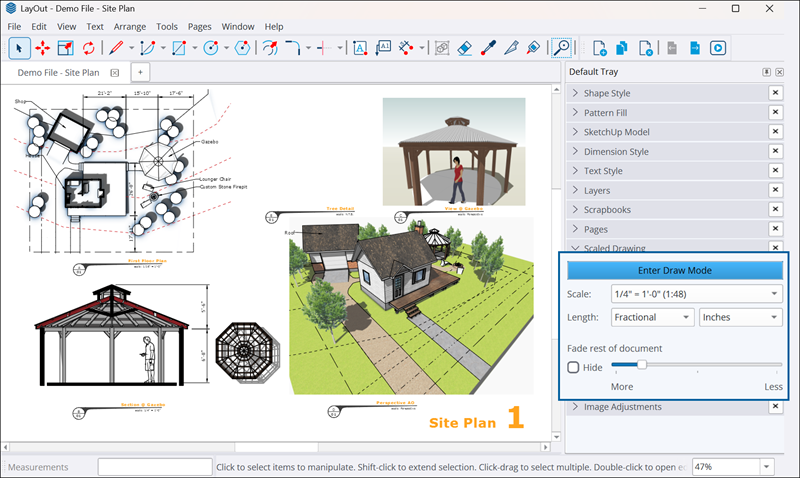
- (Optional) Use the Hide and Fade settings to control how entities outside the current drawing context appear.
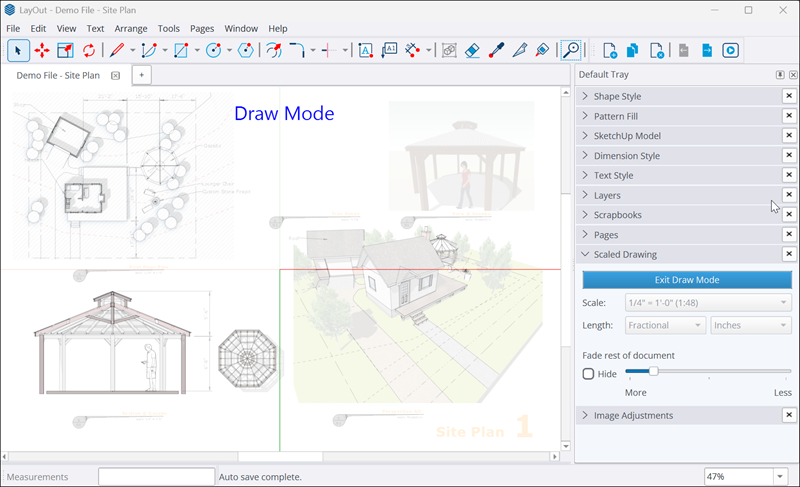
- Start drawing.
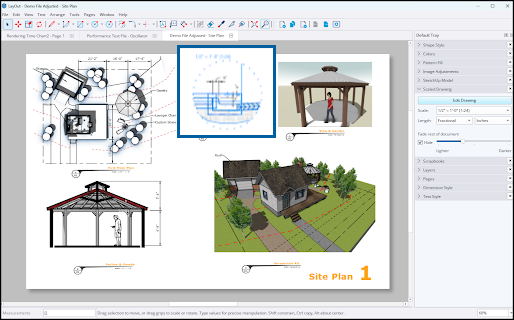
- When you finish, click Exit Draw Mode or press Esc. LayOut converts your work into a scaled group.
A dotted line around the group and scale indicators show that it is a scaled group.
Creating a scaled drawing from groups
You can scale existing groups. To learn how to create groups, see Grouping Entities.
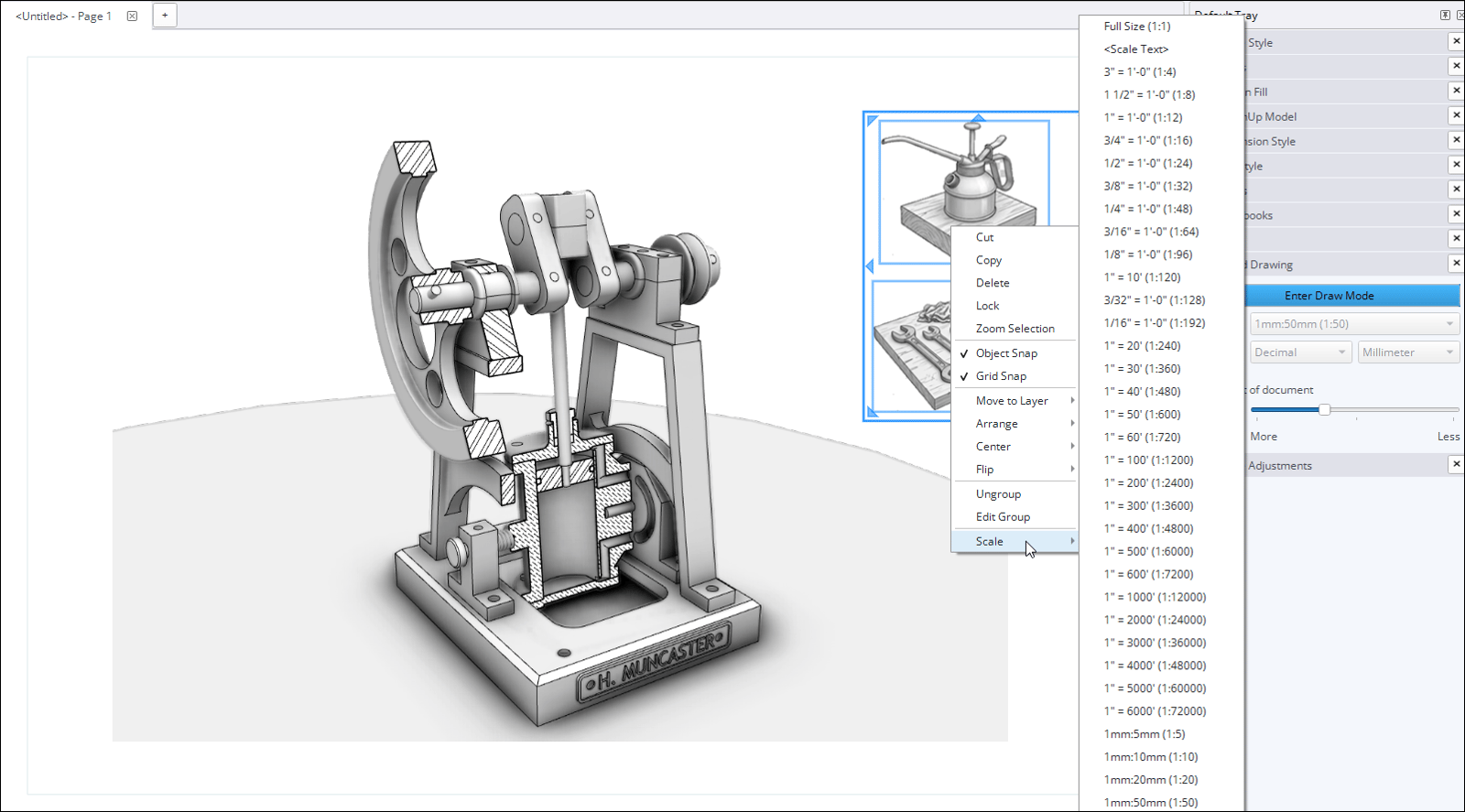
To scale groups and entities, context-click the group, choose Scale, then select a scale from the menu.
Editing a scaled drawing
Use Draw Mode to edit any scaled drawing on a paperless canvas. You can add or modify entities. When you finish editing and exit Draw Mode, LayOut groups all the entities together.
Follow these steps to edit a scaled drawing:
- Select a scaled drawing.
- (Optional) Set a new scale in the Scaled Drawing panel.
- Click Enter or Edit Drawing in the Scaled Drawing panel, or double-click the scaled group, to open the paperless canvas.
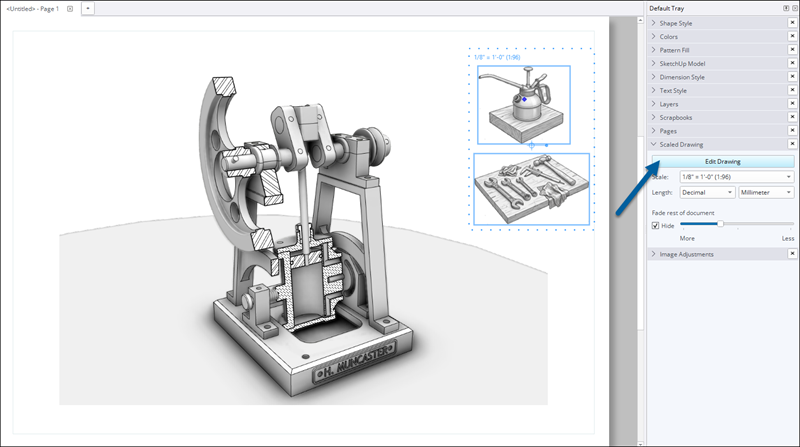
- (Optional) Use the Hide and Fade settings to control how entities outside the current drawing context appear.
- Start drawing.
- When you finish, click Exit Draw Mode.
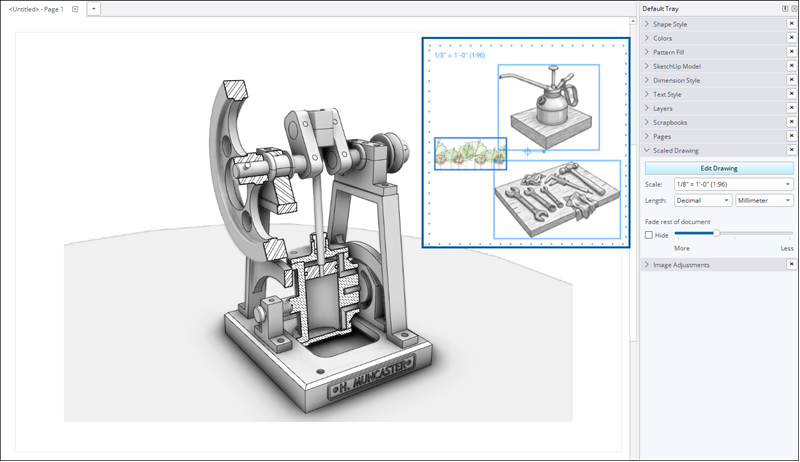
Select the edited scaled drawing to show Edit Drawing again.
Working with SketchUp viewports and CAD files
A SketchUp viewport cannot be part of a scaled group. To draw over a SketchUp viewport, lock the viewport on a separate layer. Then create a scaled drawing on the new layer. For details about layers, see Using Layers.
Imported CAD files
- When you import a CAD file as a referenced file using Model Space, LayOut keeps its existing scale. You can adjust the scale to fit your document, but you cannot edit the file in LayOut. If you import the file as a SketchUp model, LayOut creates a viewport that does not update when you edit the referenced file.
- The Paper Space import option converts CAD data into native LayOut entities and keeps the original scale. You can use this data to create and edit scaled drawings.
For details about importing CAD files, see Importing CAD Data into LayOut.