Computer Aided Design (CAD) software lets you create, modify, analyse or optimise 2D or 3D designs. This article explains how to import CAD data into LayOut and choose how to use it.
Import a CAD file using Paper Space Options
LayOut imports paper space data as follows:
- Paper space information, such as title blocks, legends and north arrows, imports at full size (1:1 scale) as native LayOut entities.
- If the file contains model space information, select or clear SketchUp model reference to choose how LayOut imports it:
- If Import model space viewports as SketchUp model references instead is cleared, LayOut imports the information as native LayOut entities at the scale set in the imported file.
- If Import model space viewports as SketchUp model references instead is selected, LayOut imports the information as a scaled SketchUp model reference. The data appears in a SketchUp model viewport.
- LayOut groups entities by their layers in the original CAD file.
To import a CAD file using the paper space options, follow these steps:
- Select File > Insert.
- Find and select the CAD file you want to import, then click Open. The DWG/DXF Import Options dialog box appears.
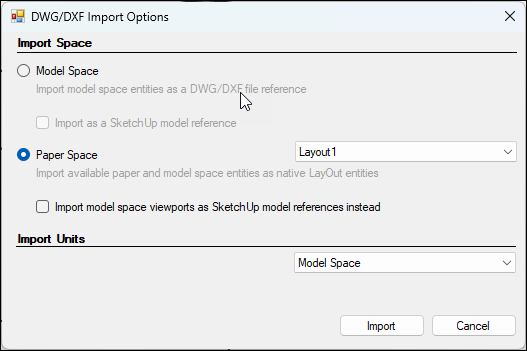
- Make sure Paper Space is selected.
- If the CAD file has multiple sheets or pages, select one from the drop-down list.
- If the model has defined units, select the unit of measurement from the Model Space Units drop-down list.
- Select Import model space viewports as SketchUp model references instead if you want to import model space information as a SketchUp model reference.
- Click Import on Windows or OK on Mac.
Import only model space data from a CAD file
You can import only the model space data from a CAD file. Choose whether to import it as LayOut entities or a SketchUp model reference.
To import only model space data into LayOut, follow these steps:
- Select File > Insert.
- Find and select the CAD file you want to import, then click Open. The DWG/DXF Import Options dialog box appears.
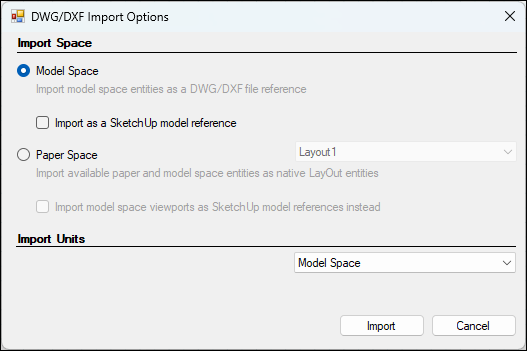
- Select Model Space.
- If the model has defined units, select the unit of measurement from the Model Units drop-down list.
- Select Import as a SketchUp model reference if you want to import model space information as a SketchUp model reference.
- Click Import on Windows or OK on Mac.
Supported CAD elements in LayOut
LayOut supports these CAD elements:
- 3D faces
- 3D solids
- Arcs
- AutoCAD regions
- Circles
- Dimensions
- Ellipses
- Entities with thickness
- Faces
- Hatching
- Images
- Layers (groups based on layers)
- Leaders
- Lines
- Line styles
- Line weights
- MInsert blocks
- Polylines
- Splines
- Text (both Mtext and Dtext)
- XREFs
LayOut does not support proprietary ADT or ARX objects.