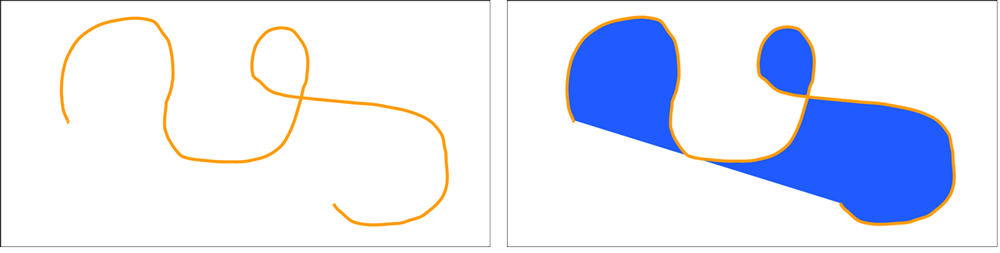
Use the Line tool to draw straight lines in your LayOut document. Use the Freehand tool to draw curves and irregular lines. The following figure shows an example of each.
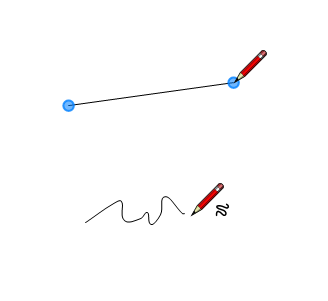
The following sections explain how to use each tool.
Draw straight lines
Find the Line tool ( ) on the default toolbar or the Tools menu.
Follow these steps to draw a line or connected lines:
- Select the Line tool.
- Set the line's starting point by clicking in the drawing area or entering a precise location in the Measurements box. The following table explains how to use the Measurements box. Hold down Shift to lock the line to the red or green axis. See Drawing Lines and Shapes for an introduction to LayOut's inference engine.
- Double-click in the drawing area to set the line's end point. You can also select a new tool to finish the line.
When you select the Line tool, you can enter precise points, or coordinates, in the Measurements box to define your line. Follow these steps:
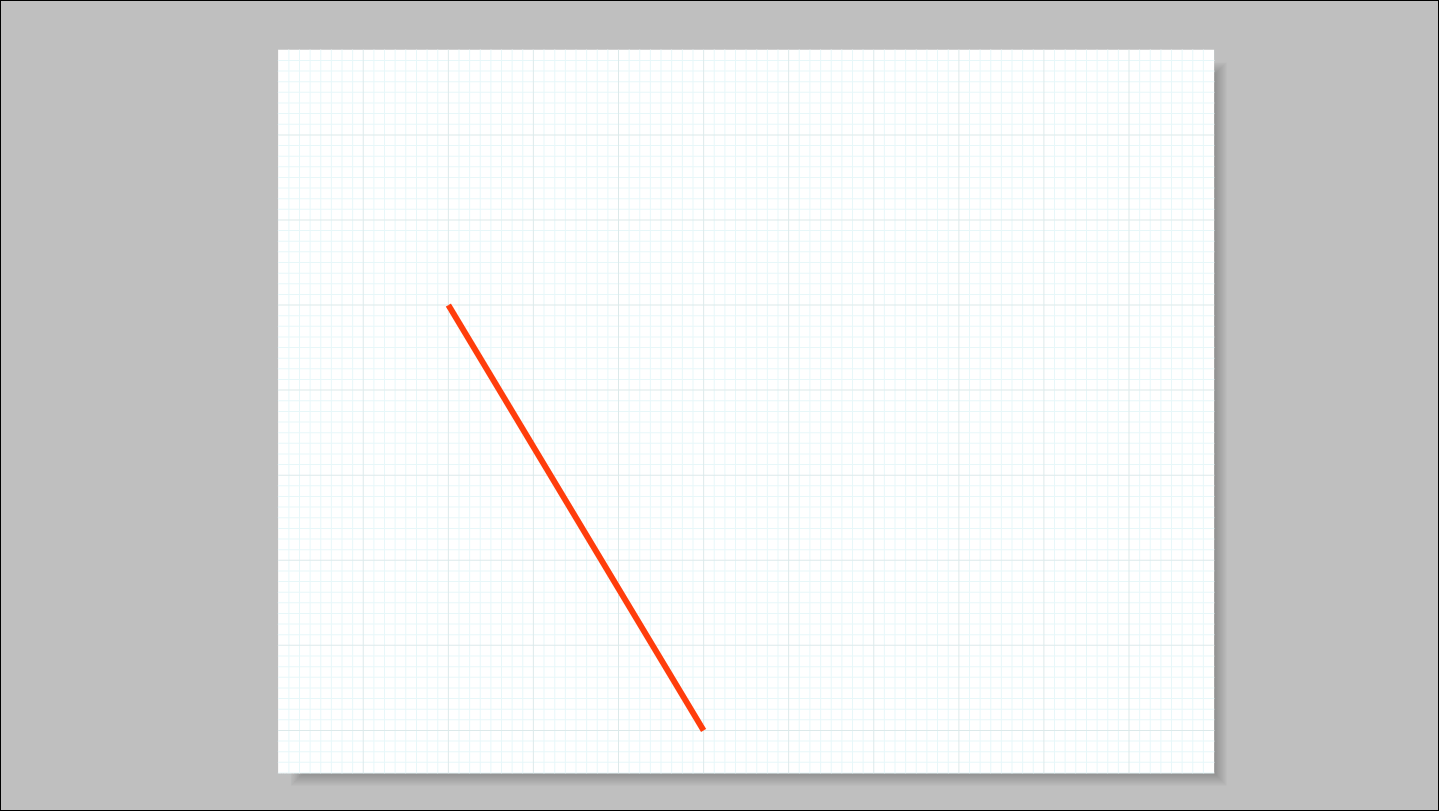
- Click in the drawing area or type an absolute coordinate value to set the starting point. Absolute coordinates are measured from the upper-left corner of the drawing area. To set the starting point shown in the following figure, type [2“,3”] and press Enter (Microsoft Windows) or Return (Mac OS X).
- Set the second coordinate, or end point, using one of three coordinate types: absolute, relative or polar. The following figure uses the absolute coordinates [5“,8”] for the end point.
- After typing the end point coordinates, press Enter or Return to draw the line at those coordinates.
Coordinate Type | How It Works | Example |
|---|---|---|
Absolute | Values are measured from the upper-left corner of the drawing area. The first value is the X, or red, axis. The second value is the Y, or green, axis. |
|
Relative | Values are measured from the line's starting point. |
|
Polar | The first value is an angle measured anticlockwise from the positive X axis. The second value is the distance from the line's starting point, measured in default units. |
|
Draw freehand lines
Use the Freehand tool ( ) to draw irregular lines or shapes. For arcs or smoother curves, see Creating Arcs or Bending Lines and Shapes with Paths and Points.
To select the Freehand tool, click the down arrow next to the Line tool on the default toolbar or choose Tools > Lines > Freehand from the menu bar.
Follow these steps to draw with the Freehand tool:
- Select the Freehand tool.
- Click and drag to draw a curved line or irregular shape. Move the mouse slowly to help keep the line smooth.
- Release the mouse button to stop drawing. If you finish at the starting point, you create a closed shape.