Use the Offset tool in LayOut to offset a line or shape.
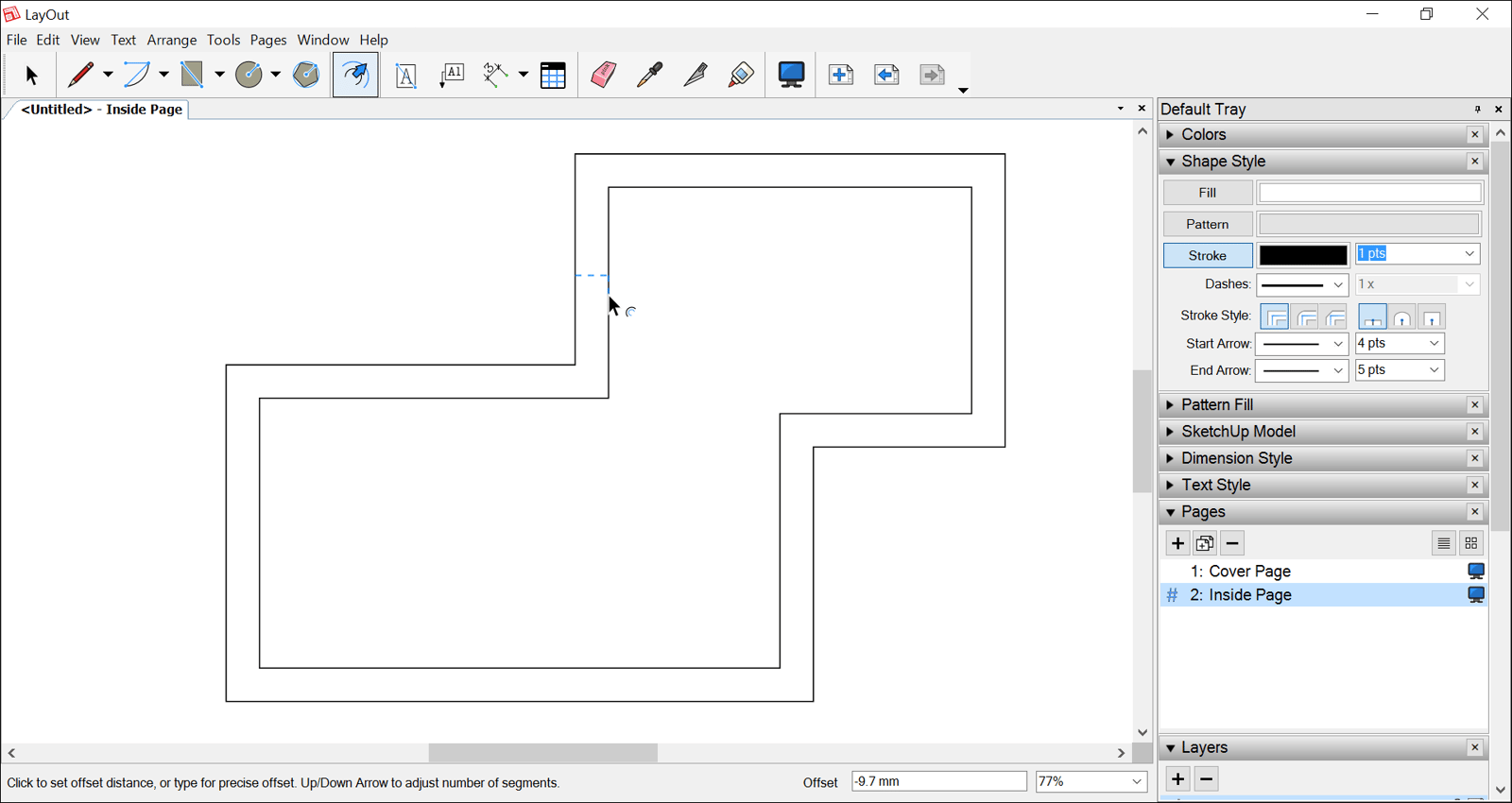
You can outline a complex shape or offset a footer in a foundation plan. The Offset tool creates the shape in two clicks.
To create an offset:
- Select the Offset tool (
 ) on the toolbar or from the Tools menu.
- Click the entity you want to offset. A preview appears, as shown in the following figure.
- Click where you want to place the offset line or shape.
Use these tips to adjust your offset:
- To set a precise offset, type a measurement, such as 0.5", immediately before or after you complete Step 3. You don't need to click inside the Measurements box before typing. If you don't specify a unit of measurement, LayOut uses your template's default unit.
- In the Measurements box, a negative number places the offset inside a shape or in the opposite direction of the mouse. A positive number places the offset outside a shape or in the direction of the mouse.
- You can't offset an entity inside a group.
- To offset both sides of a selected open path at once, hold down the Alt key (Microsoft Windows) or the Command key (Mac OS X).
- To change the offset's line width or style, select the offset and choose the options you want in the Shape Style panel.
- When you offset a Bezier curve (which isn't a true Bezier), you can change the number of segments in the curve. After Step 2, press the up arrow or down arrow key.
- Type a number followed by the letter X to create multiple offsets at once. For example, typing 2x creates two instances of the same offset.